
Content
Content Overview
Content is the core element of the Joomla component and represents the primary data managed and displayed by the extension. Depending on how the component is configured, content items can function as directory entries, business listings, car directories, service providers, news-style entries, or any other structured content type required by the site.
Each content item acts as a flexible container that combines core information, custom fields, media, and optional location data into a single, manageable entity.
Role of Content in the Component
The component is built around the idea that all meaningful output—whether shown as a directory, catalog, or listing view—is driven by content items. Categories define structure, but content provides the actual value presented to site visitors.
This approach allows administrators to use the same system to power a wide variety of use cases without changing the underlying architecture. By adjusting categories, custom fields, and presentation layouts, the component can adapt to multiple scenarios such as:
-
Business or service directories
-
Car or product listings
-
Local guides or location-based directories
-
Structured news or informational content
Content List Screen
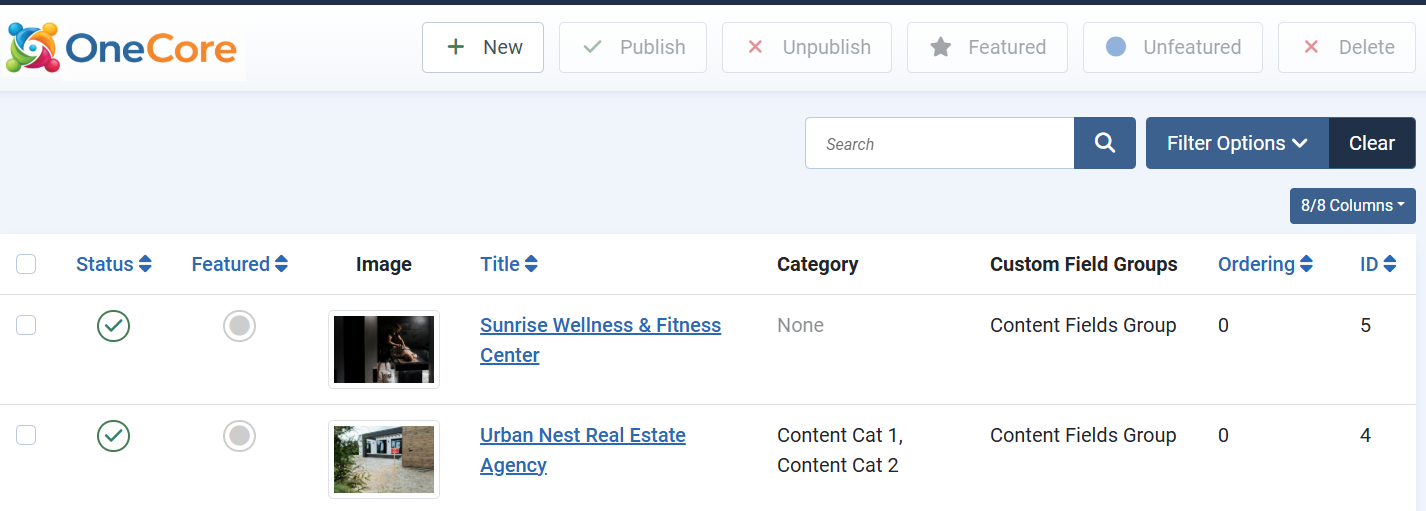
The Content List screen provides an overview of all content items created within the component. It is designed for efficient management and bulk operations.
From this view, administrators can quickly assess publication status, featured state, category assignments, and ordering. Visual elements such as thumbnail images help identify content at a glance, which is especially useful for media-rich directories.
The list screen serves as the operational hub for managing large volumes of content and maintaining consistency across the site.
Edit, Delete, Unpublish
To delete, publish, or unpublish a listing, select the checkbox next to the desired listing and use the action buttons at the top of the screen (Publish, Unpublish, Delete, etc.).
Tip: When deleting a listing, it is moved to the Trash rather than being permanently removed. To delete a listing permanently, first move it to the Trash, then change the filter to Trashed and remove it from there.
Content Creation and Editing
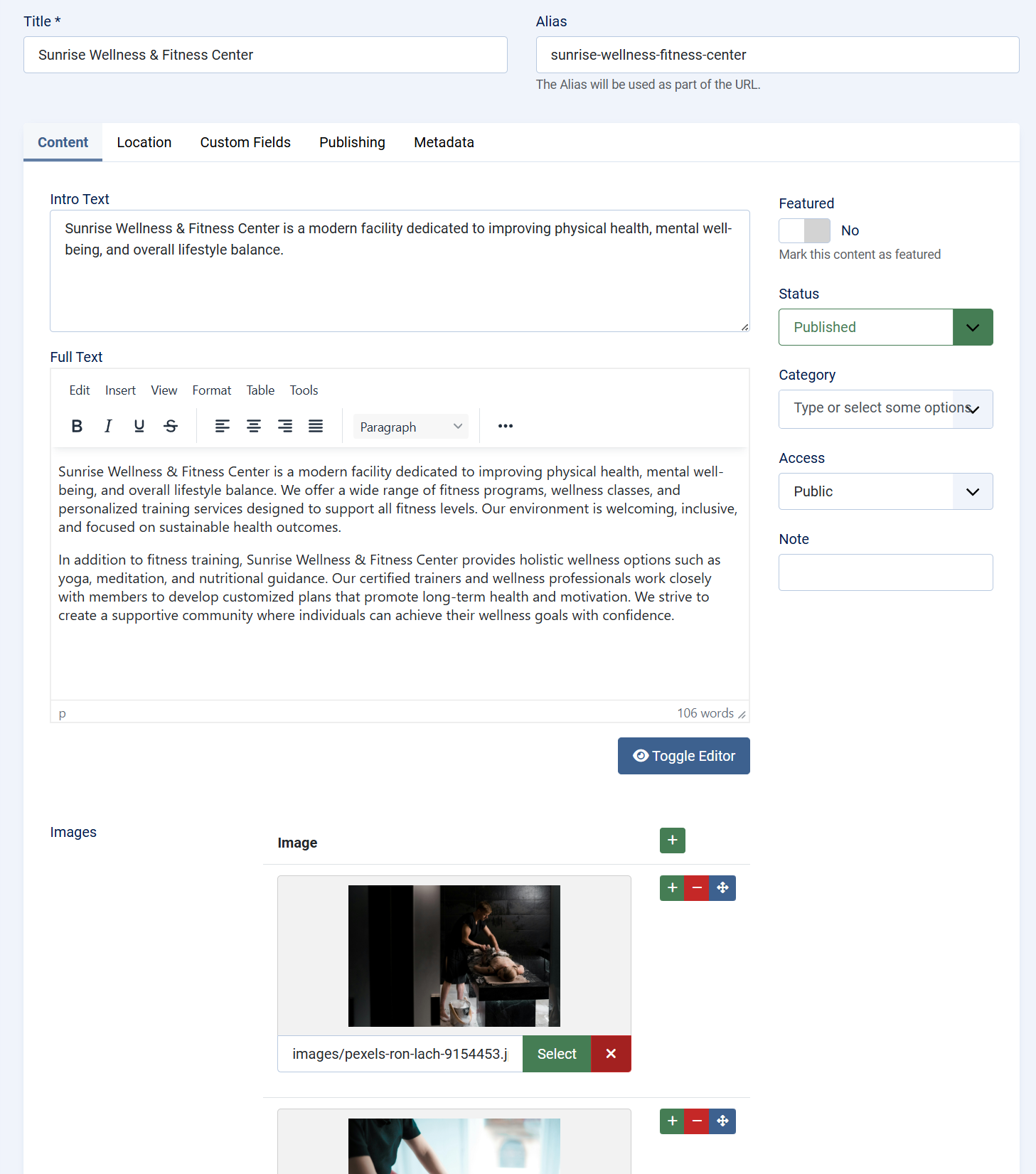
When creating or editing a content item, administrators define both the core identity of the entry and its extended data. This typically includes:
-
A title and descriptive content
-
Assignment to one or more categories
-
Publication and access control settings
The editing interface follows Joomla conventions, ensuring a familiar workflow while allowing the component to extend functionality beyond standard articles.
Custom Fields Integration
Custom fields are a key part of the component’s flexibility. They allow content items to be enriched with structured, domain-specific data such as:
-
Contact details
-
Specifications and attributes
-
Pricing or availability information
-
Custom metadata relevant to the directory type
Fields are grouped logically and can be reused across content items, ensuring consistency and making it possible to build complex directory-style layouts without custom development.
TIP: For a custom field to be available in the content editing interface, it must be assigned to a custom field group that is linked to the content entity.
Media Support
Content items support media integration to enhance visual presentation. Images are commonly used to represent listings, products, or locations and are displayed both in list views and detailed views.
This media support is essential for directory-style use cases, where visual identification significantly improves user engagement and usability.
Location and Map Integration
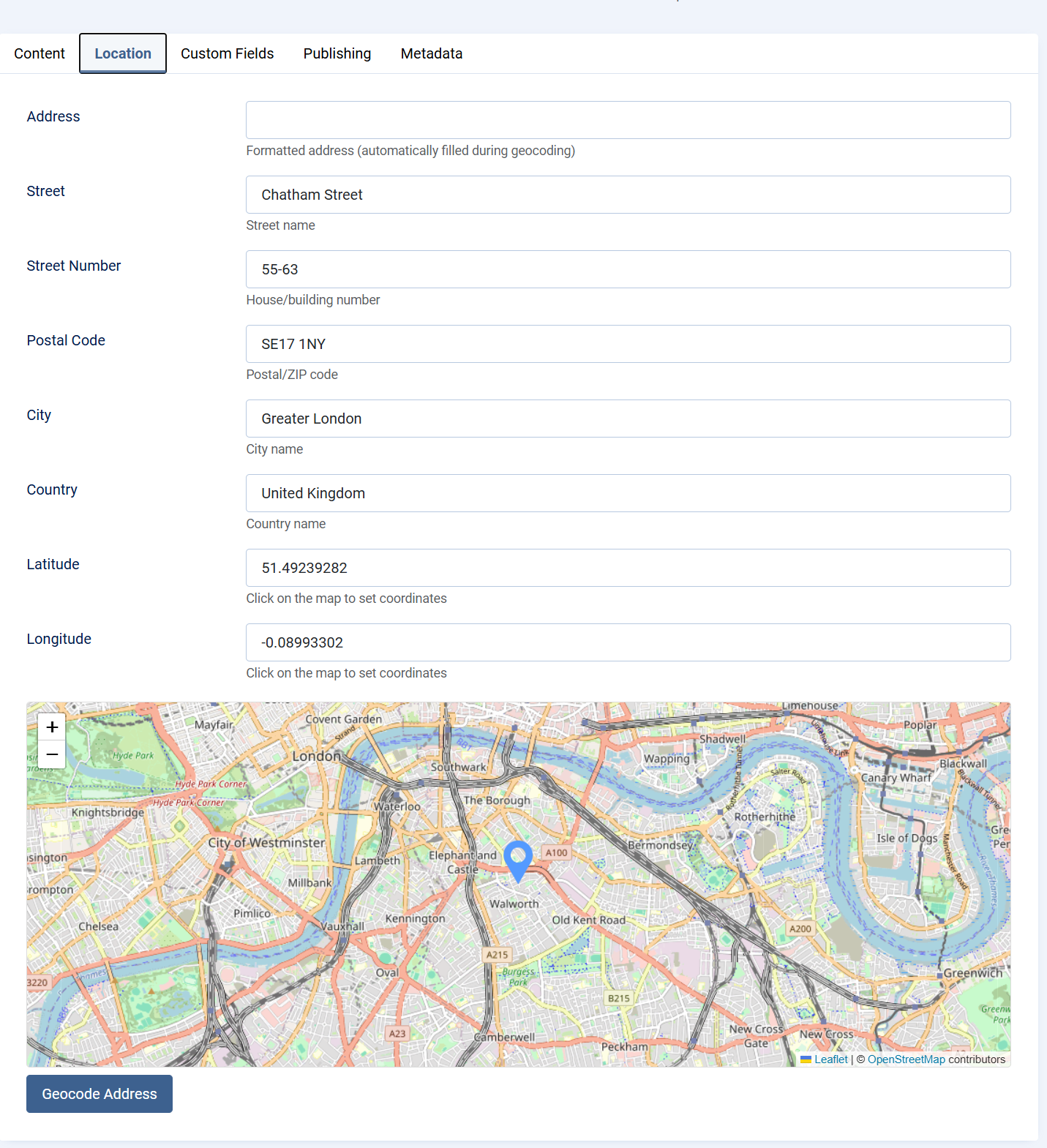
For location-based content, the component supports associating content items with geographic data. This enables:
-
Displaying items on maps
-
Filtering or searching by location
-
Building local or regional directories
Location data transforms standard content into interactive, map-driven experiences, making the component suitable for local business directories, service locators, and similar applications.
Location Setup
The Location tab allows you to define an exact geographic position for an item using either the map or an address lookup. Both methods automatically populate all location fields.
Method 1: Set Location Using the Map (Marker)
Scroll to the map at the bottom of the Location tab.
Click on the map or drag the marker to the desired position.
When the marker is placed, the system automatically fills in:
Address (formatted)
Street
Street Number
Postal Code
City
Country
Latitude
Longitude
This method is ideal when you want to visually select or fine-tune the exact location.
Method 2: Set Location Using Address Geocoding
Enter the full address in the Address field (street, city, country).
Click the Geocode Address button.
The system will automatically:
Locate the address on the map
Move the marker to the correct position
Populate all location fields with accurate values
This method is recommended when you have a complete address and want coordinates generated automatically.
Notes
You can switch between both methods at any time. Updating the marker or re-geocoding will refresh all location data. Latitude and Longitude can also be adjusted manually if needed. The formatted Address field is generated automatically during geocoding.
This ensures consistent and accurate location data for maps, search, and filtering.
Summary
Content is the foundation of the component and the primary driver of its functionality. By combining categories, custom fields, media, and optional location data, the component enables the creation of highly flexible and reusable content structures. This design allows a single extension to support a wide range of directory, listing, and informational use cases while remaining consistent with Joomla best practices.