Please note that in Comdev Downloads, you need to upload files individually and then create a package with the included files under Download Lists.
Once you are happy with all the settings and options, you can hit the **Publish** button on the right side. # How to Add Your First Download List / Package ### Prerequisites In the previous section, we discussed how to create your first files and publish them. Once that's done, you can create your first download list and publish it on your WordPress website. #### Steps to create your download list First, log into your WordPress admin area. In the Dashboard, locate and click on the Comdev Downloads section. Then, click the **Download Lists** menu item than **Add New** button to start creating your new download list. [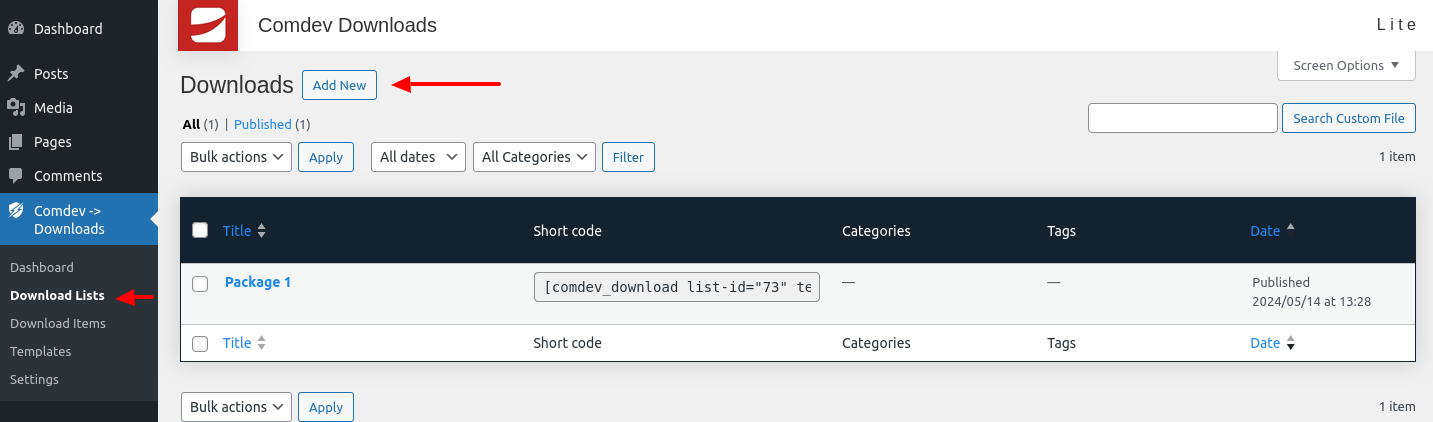](https://wiki.comdev.eu/uploads/images/gallery/2024-05/3b7obraz.png) Creating a download list is quite similar to posting posts and pages. Start by giving your download a name and adding any necessary content. [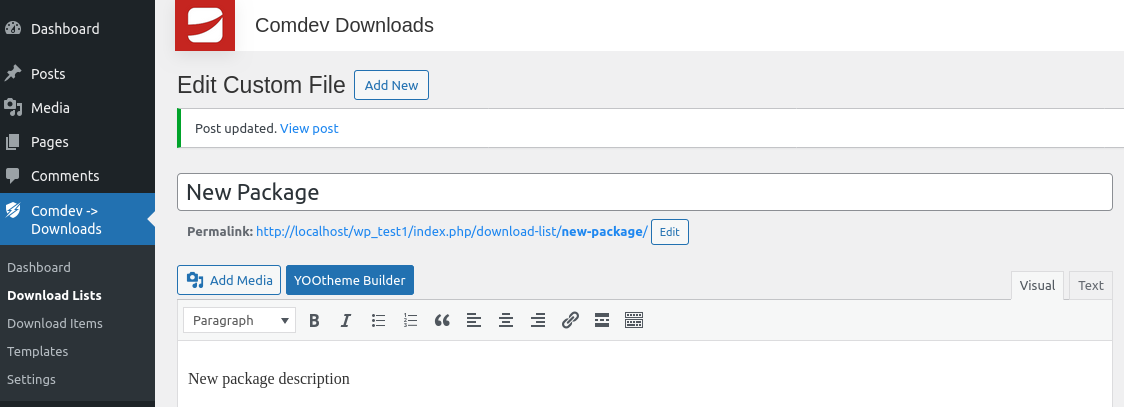](https://wiki.comdev.eu/uploads/images/gallery/2024-05/fEFobraz.png) In the **Download List Settings** section, you can attach files created in the Download Items menu to create a File Package. This package can then be published to your blog post or WordPress page using a shortcode generated after the list is published. The files in the package will be displayed using the selected template. You can preview available templates in the Templates menu on the left sidebar. [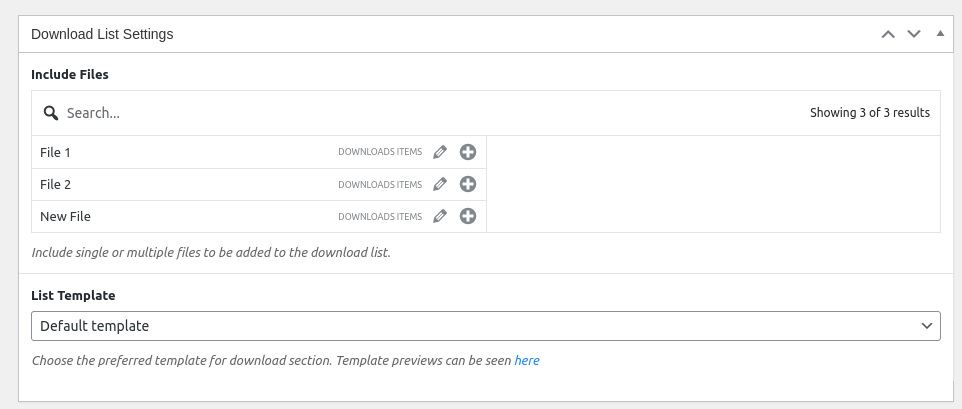](https://wiki.comdev.eu/uploads/images/gallery/2024-05/ObWobraz.png) Finally, when you publish the list, a shortcode will be generated based on all the options for this package. The Publish button is located at the top right side of the page.The download list must be published, and the files added to the package for the shortcode to appear.
[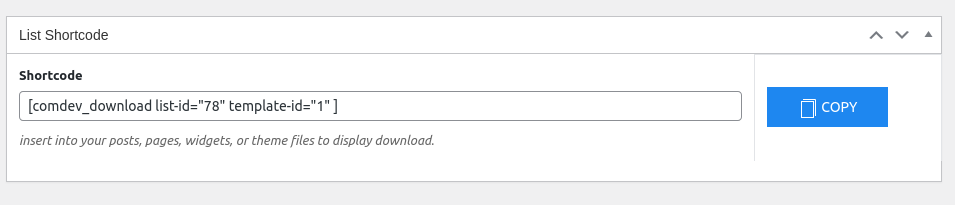](https://wiki.comdev.eu/uploads/images/gallery/2024-05/k67obraz.png) ##### And that's how you create your first downloadable content on your WordPress website! # How to display your first Download List Displaying your downloads is easier than you might imagine. Simply navigate to the right side and click on the "Download Lists" menu link. Each download list has assigned its own unique shortcode, which can then be used to publish downloads on your website. [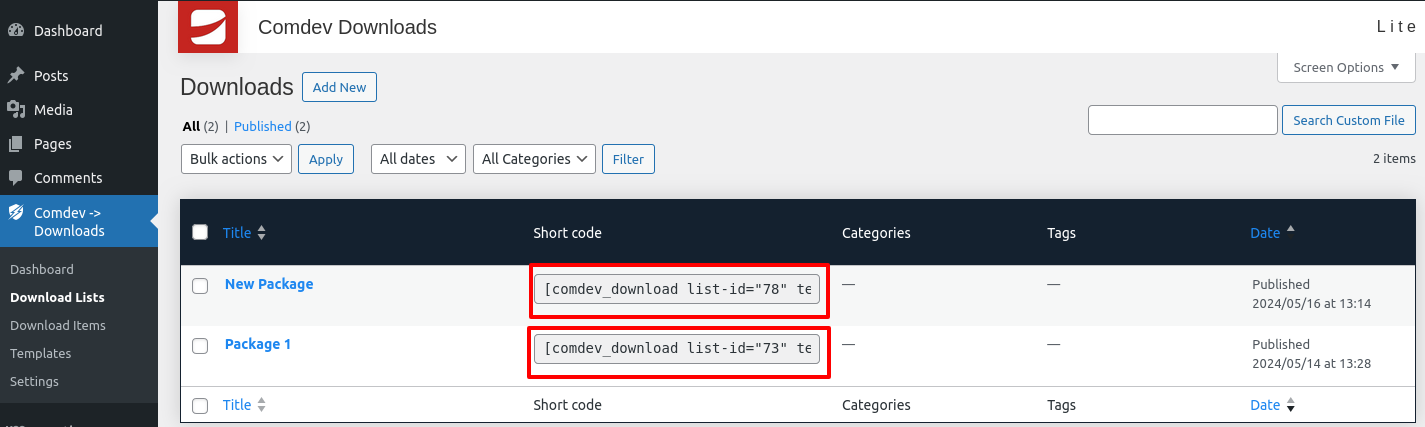](https://wiki.comdev.eu/uploads/images/gallery/2024-05/Zccobraz.png) ### Placing shortcode under Worpdress Page/Post Grab the generated shortcode by simply copy it. Locate the shortcode block or directly insert the code into the desired post or page to display the link. [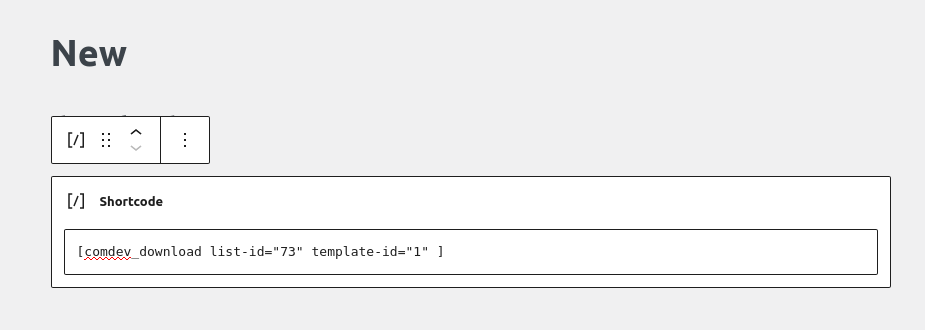](https://wiki.comdev.eu/uploads/images/gallery/2024-05/ZGVobraz.png) #### That's all set! You're now able to offer downloadable content to your website users.