# Configuration Steps

## Overview

These configuration steps needs to be done in order for the component to work correctly.

More about menu links can be [found here.](https://wiki.comdev.eu/display/JO/Menu+Items)

### Create Menu links

Items menu link needs to be created.

<div bis_skin_checked="1" class="table-wrap" id="bkmrk-">  
</div><div bis_skin_checked="1" class="wiki-content" id="bkmrk-items-link-link-whic"><div bis_skin_checked="1" class="table-wrap"><table class="confluenceTable tablesorter tablesorter-default stickyTableHeaders" role="grid" style="padding: 0px;"><tbody aria-live="polite" aria-relevant="all"><tr role="row"><td class="confluenceTd">**Items Link**</td><td class="confluenceTd">Link which do not points to any

category or address

</td><td class="confluenceTd">Latest Link which displays latest added listings

<span class="confluence-embedded-file-wrapper confluence-embedded-manual-size">![](https://wiki.comdev.eu/download/attachments/8585300/jomoff_adminguide_65.jpg)</span>

</td><td class="confluenceTd" colspan="1">- Listing details may not be accessible
- This link is being used to display search results, so if the alias is latest than site url for the search results will be [http://domain.com/latest](http://domain.com/latest)

</td></tr><tr role="row"><td class="confluenceTd">**Items Link - Category**</td><td class="confluenceTd">Links for each of the category.

Separate menu can be created with all the <span style="color: rgb(0,0,0);">categories created.</span>

</td><td class="confluenceTd">Menu with all categories

<span class="confluence-embedded-file-wrapper confluence-embedded-manual-size">![](https://wiki.comdev.eu/download/attachments/8585300/jomoff_adminguide_66.jpg)</span>

<span class="confluence-embedded-file-wrapper confluence-embedded-manual-size">![](https://wiki.comdev.eu/download/attachments/8585300/jomoff_adminguide_67.jpg?version=4&modificationDateamp;api=v2)</span>

</td><td class="confluenceTd" colspan="1">- Listing details may not be accessible
- Individual menu settings can't be applied

</td></tr></tbody></table>

</div></div>### Joomla / Groups

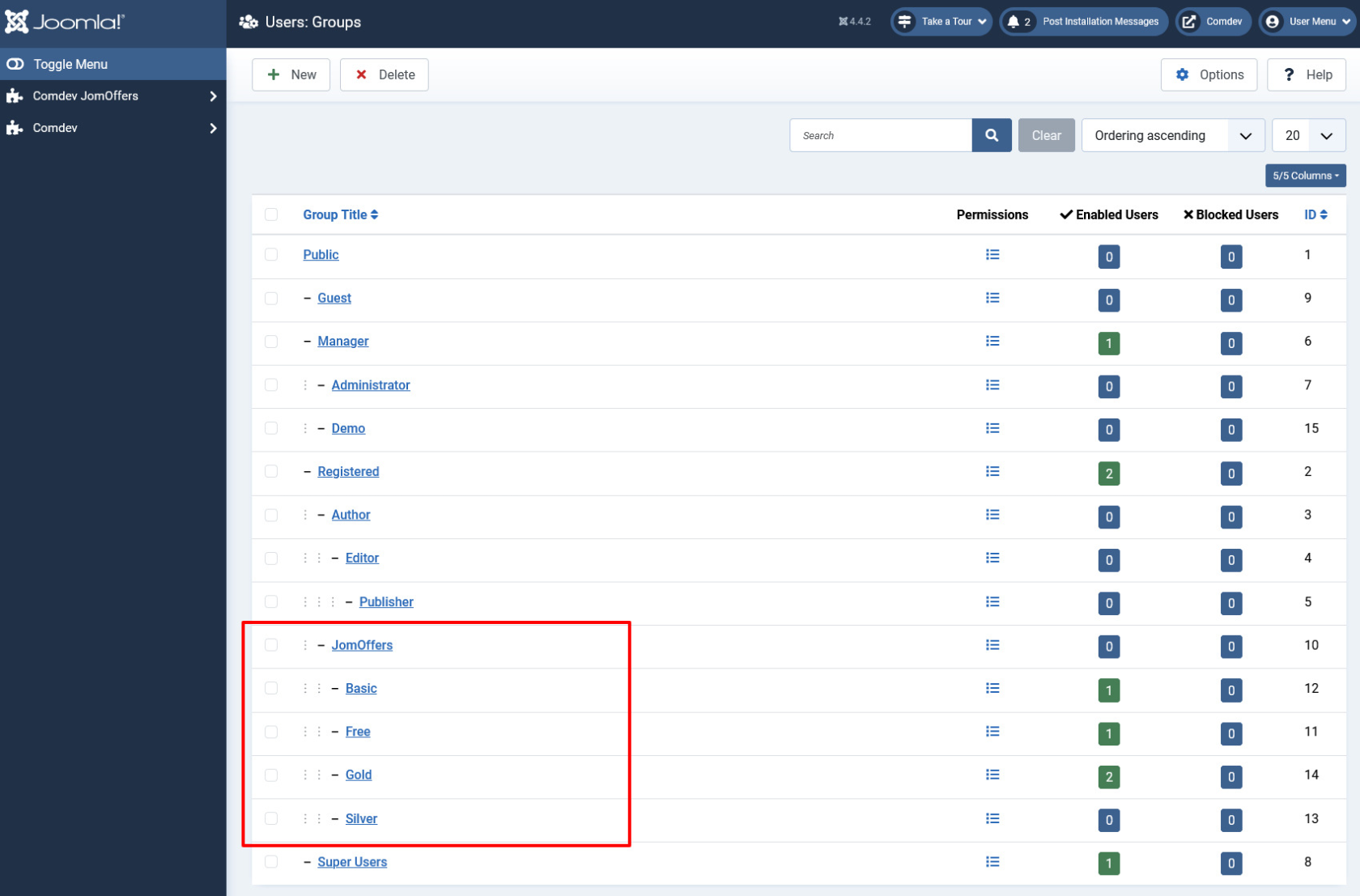
Membership Plans are based on the Joomla Groups therefore before creating any of the Membership plans - corresponding Joomla groups needs to be created. The main group for the component needs to be called JomOffers. Each of the plans needs to be placed under that JomOffers parent group e.g.

**JomOffers**

<div bis_skin_checked="1" class="wiki-content" id="bkmrk-free-basic-silver-go">- Free
- Basic
- Silver
- Gold

</div>[![obraz.png](https://wiki.comdev.eu/uploads/images/gallery/2024-03/scaled-1680-/1SQobraz.png)](https://wiki.comdev.eu/uploads/images/gallery/2024-03/1SQobraz.png)

**Screen 1: Joomla Membership**

### Permissions

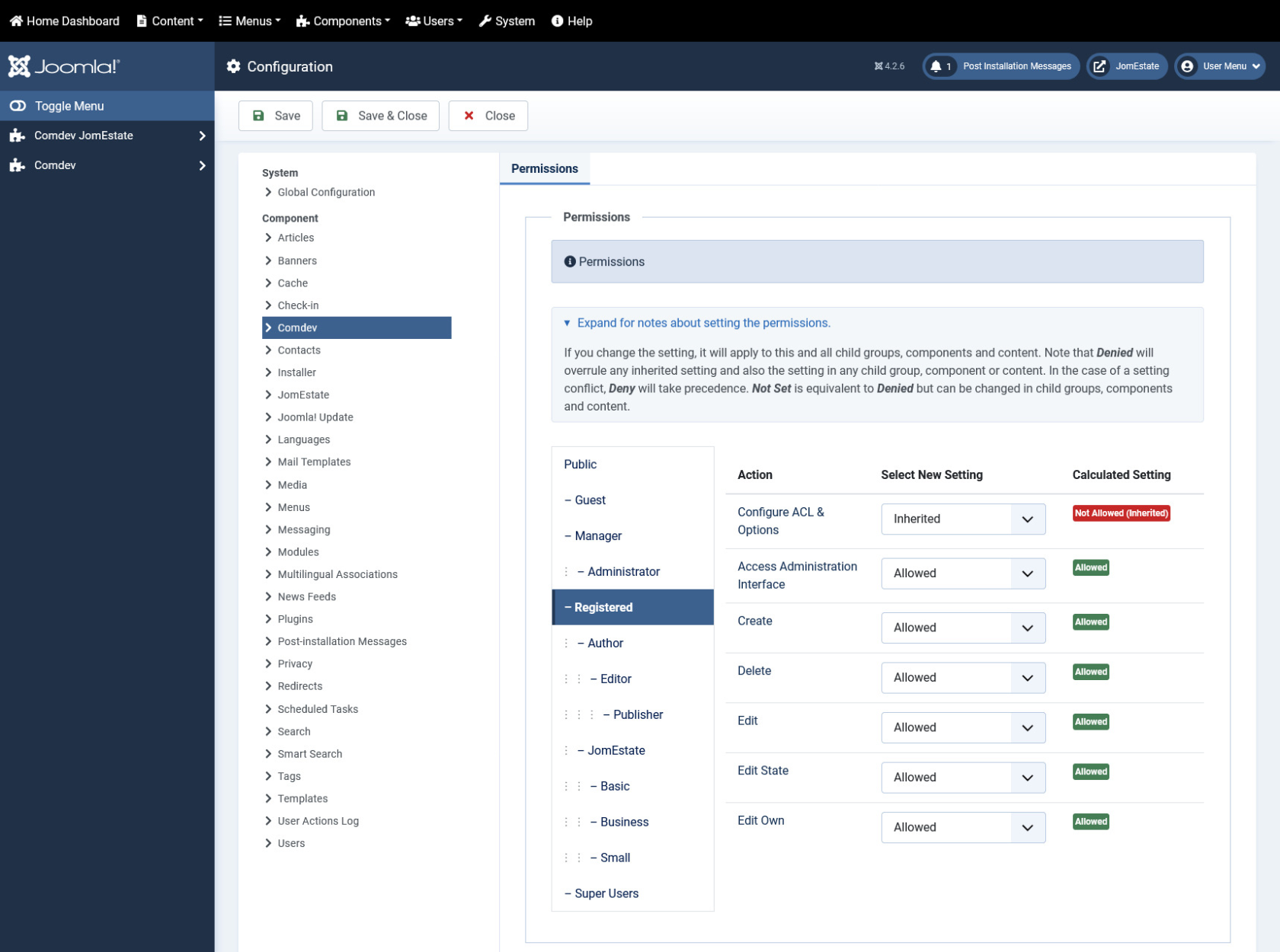
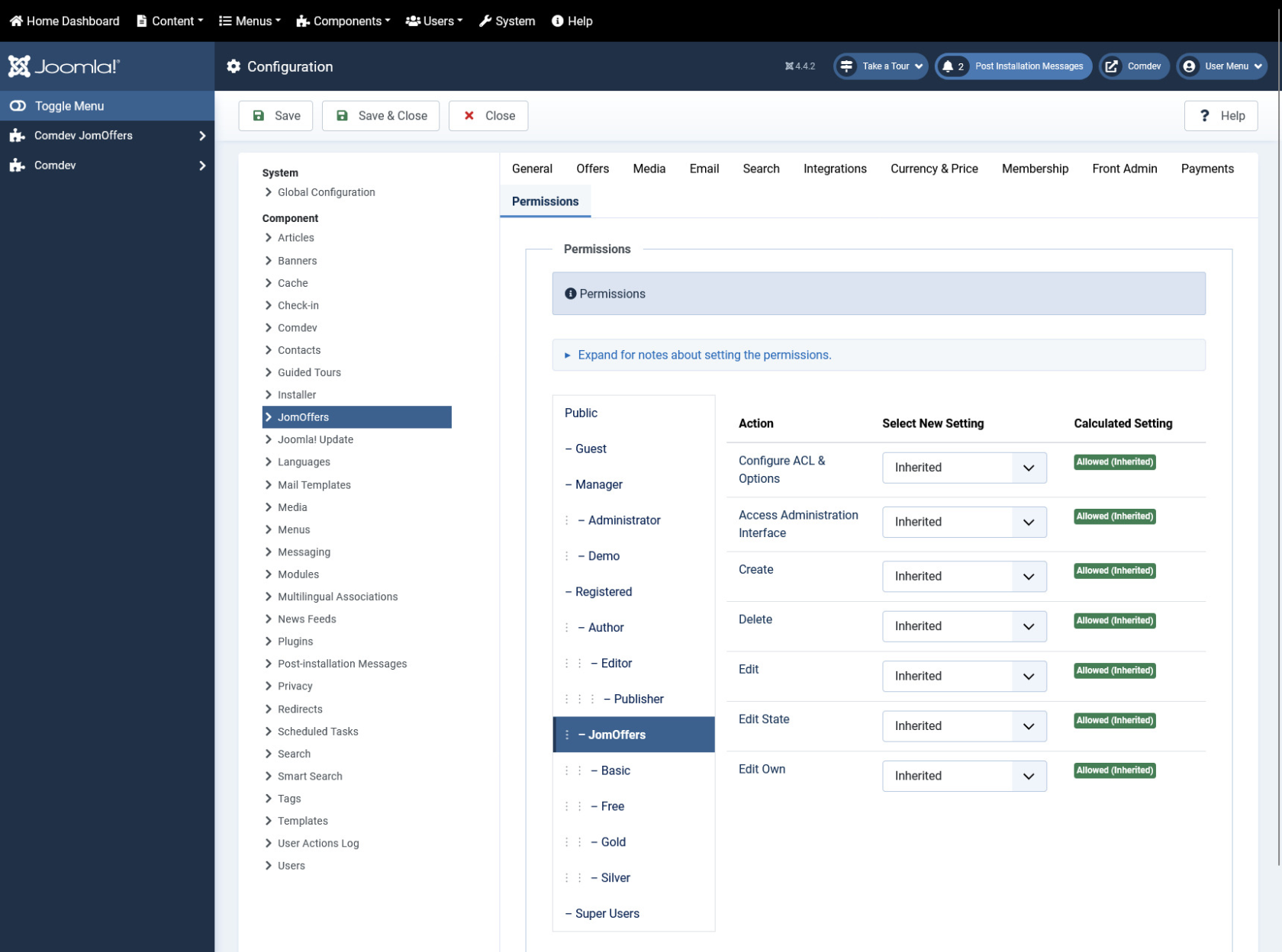
It is important to set the right permissions for the components: Comdev and Directory, in order for the users to access the Front Admin. Otherwise Users won't be able to access the Front Admin (Permissions Denied) or get 500 Error when trying to upload the images.

Example below shows access for the Registered Group. Same settings should be applied for each group that should have access to the Front Admin.

#### Setting permissions for the Comdev Extension

[![C7hobraz.png](https://wiki.comdev.eu/uploads/images/gallery/2024-03/scaled-1680-/c7hobraz.png)](https://wiki.comdev.eu/uploads/images/gallery/2024-03/c7hobraz.png)
<span class="confluence-embedded-file-wrapper confluence-embedded-manual-size">  
</span>

**Screen 2: Comdev Permissions**

#### Setting permissions for the Directory Extension

[![obraz.png](https://wiki.comdev.eu/uploads/images/gallery/2024-03/scaled-1680-/CXaobraz.png)](https://wiki.comdev.eu/uploads/images/gallery/2024-03/CXaobraz.png)
<span class="confluence-embedded-file-wrapper confluence-embedded-manual-size">  
</span>

**Screen 3: JomOffers Permissions**

<div bis_skin_checked="1" class="wiki-content" id="bkmrk--6"></div><div bis_skin_checked="1" id="bkmrk--7"></div>