# JOMOFFERS
# Quick Start - JomOffers
##### Overview
This guide will help you get started with using the JomOffers extension quickly. It highlights preliminary steps that are a must for JomOffers configurations. After you are done with them, you can go ahead and create the listings on your site.
##### Creating Administration Menu Links
This step is not needed if new installation being made.
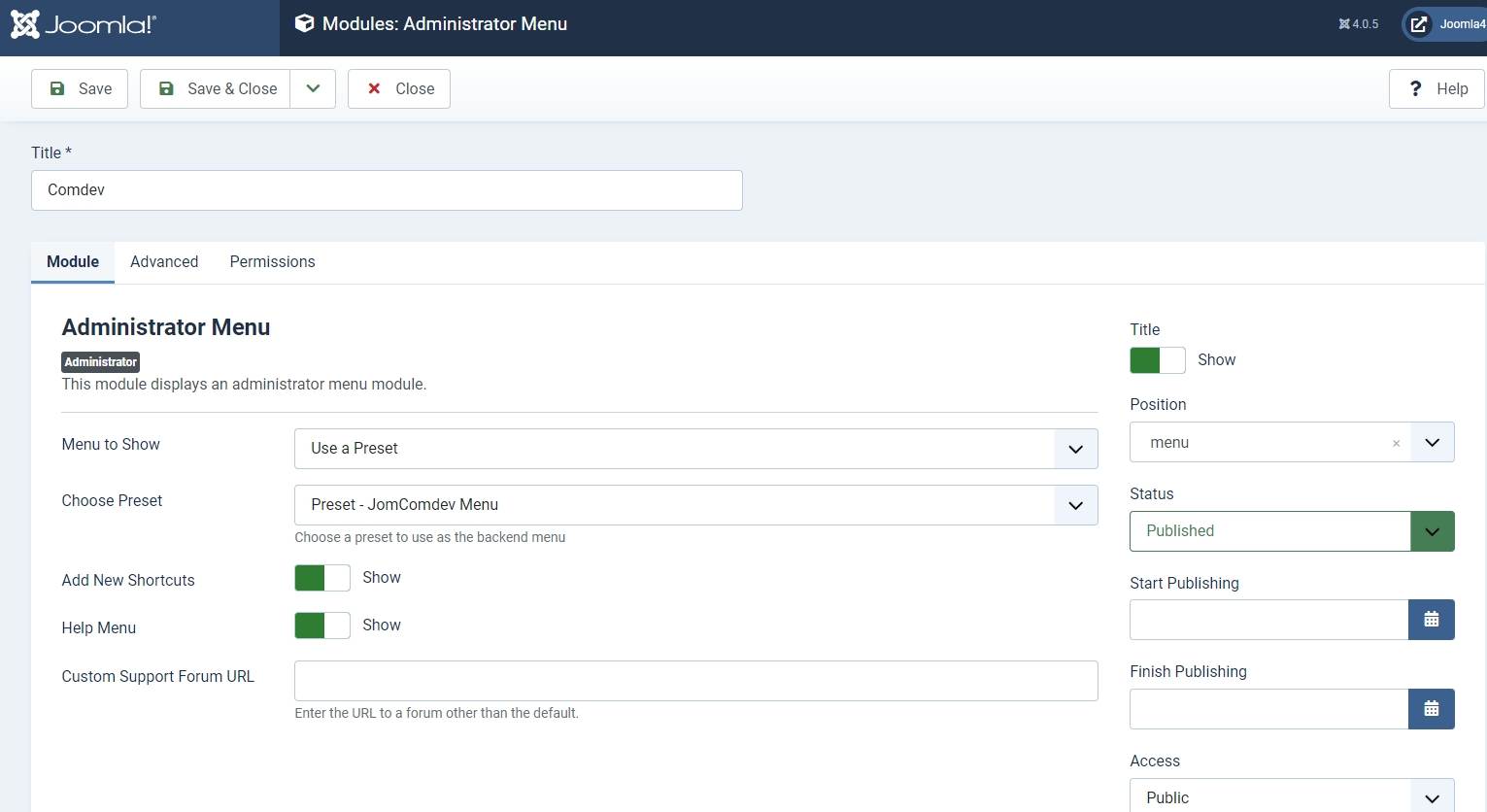
Go to the System -> Administrator modules and insert new. Than choose Administrator Menu. From the presets, select Comdev and place it under menu position. Do the same for the JomOffers:
##### Creating Menu Links
Menus are used to control website navigation. A menu contains one or more menu items which provides your users with a navigational experience.
The menu items in our case must point to the JomOffers. It is mandatory that you create menu links such that Items menu and the Front Admin access is created.
Get started with creating menu links using the information given in the [Menu Items](https://wiki.comdev.eu/books/JomOffers/page/menu-items "Menu Items") documentation in the Administrative Guide.
#### Creating Groups
In order to add users to groups for membership plans, you must create a super group named JomOffers, then create groups for each of your membership plans underneath your super group. These groups are used to provide Group ID when creating a membership plan. Users created using User Manager can be linked to each of these membership plan groups.
To begin creating groups for membership plans, follow the [Creating a Group](https://wiki.comdev.eu/books/JomOffers/page/membership "Membership") documentation in the Administrative Guide.
#### Creating Membership Plans and Memberships
Memberships in JomOffers are required to set user group level based on the monthly/Yearly pay plan the user selects. Using membership plans, you can decide how much to charge a user and how many listings a user can make a particular membership plan.
Before you can create a membership plan, you must create Joomla groups using the above section information. Read more about creating membership plans for your site using the [Memberships](https://wiki.comdev.eu/books/JomOffers/page/membership "Membership") section in the Administrative Guide.
#### Adding a New Address
The Address feature lets you provide the country, region and city for the associated product listing. The advantage with the Address field in JomOffers is that after you configure a particular address, it is shared across various components in the Comdev extension.
Get started with creating addresses that will be used in your listings by referring to the [Address](https://wiki.comdev.eu/display/JD2/Address) documentation in the Administrative Guide.
#### Adding a New Category
Categories allow the site owner to categorise listings into appropriate sections. JomOffers categories are independent of the Joomla category system. Nested categories (sub-categories) are supported in JomOffers. The component comes with a default category named "UNCATEGORIZED", which holds listing items that are not attached to any category (same function as the default Joomla system).
To start creating categories, follow the [Categories](https://wiki.comdev.eu/books/JomOffers/page/categories "Categories") documentation in the Administrative Guide.
#### Adding Custom Fields
Custom fields are a powerful tool to build content. We provide a variety of field types with the ability to outline into groups. Each field can be assigned to a single category or all categories. Custom fields in JomOffers provide multiple options such as dropdowns, text area, radio buttons, and so on. Based on your requirement create a custom field and make it searchable for better user experience.
Read more about how to create custom fields in the [Custom Fields](https://wiki.comdev.eu/books/JomOffers/page/custom-fields "Custom Fields") section from the Administrative Guide.
#### Creating a New Listing
Listings are nothing but the product listings that you want to create in the directory. Each listing is attached to a category. They are created in the same manner as Joomla articles but are not related to Joomla articles in the definition.
Get started with creating listings for each category by referring to the [Listings](https://wiki.comdev.eu/books/JomOffers/page/listings "Listings") section in the Administrative Guide.
# Configuration Steps
## Overview
These configuration steps needs to be done in order for the component to work correctly.
More about menu links can be [found here.](https://wiki.comdev.eu/display/JO/Menu+Items)
### Create Menu links
Items menu link needs to be created.
### Joomla / Groups
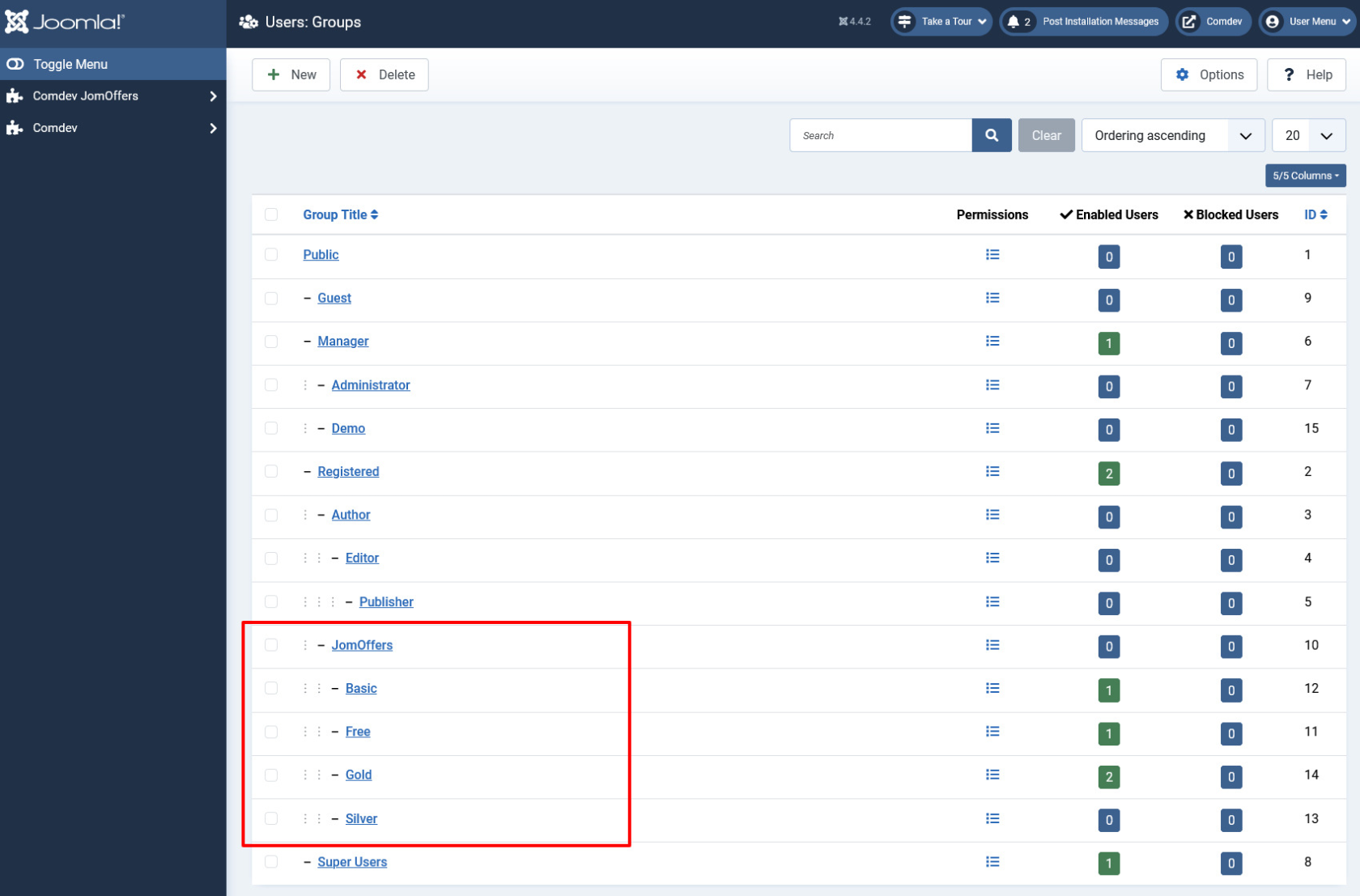
Membership Plans are based on the Joomla Groups therefore before creating any of the Membership plans - corresponding Joomla groups needs to be created. The main group for the component needs to be called JomOffers. Each of the plans needs to be placed under that JomOffers parent group e.g.
**JomOffers**
- Free
- Basic
- Silver
- Gold
[](https://wiki.comdev.eu/uploads/images/gallery/2024-03/1SQobraz.png)
**Screen 1: Joomla Membership**
### Permissions
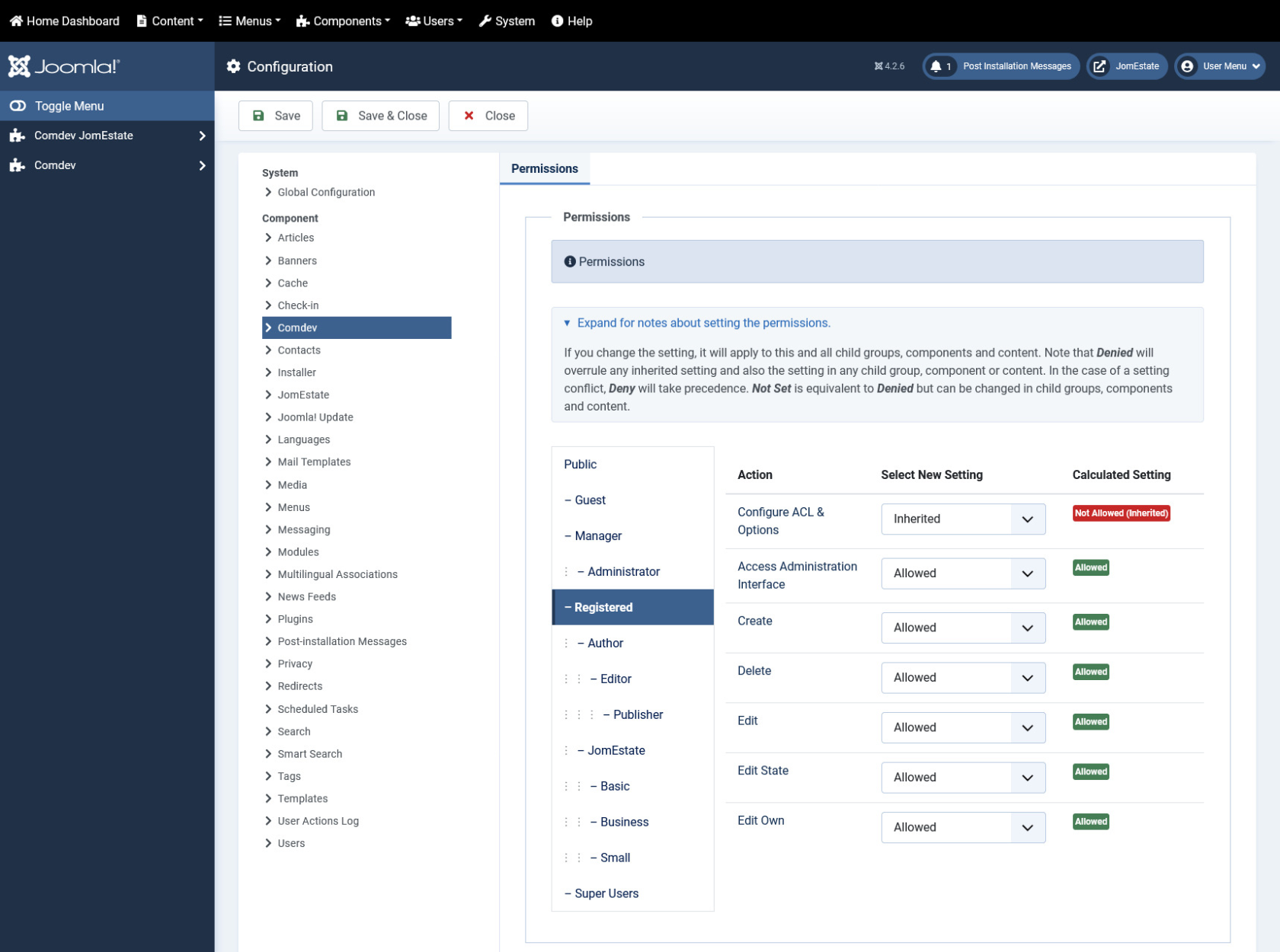
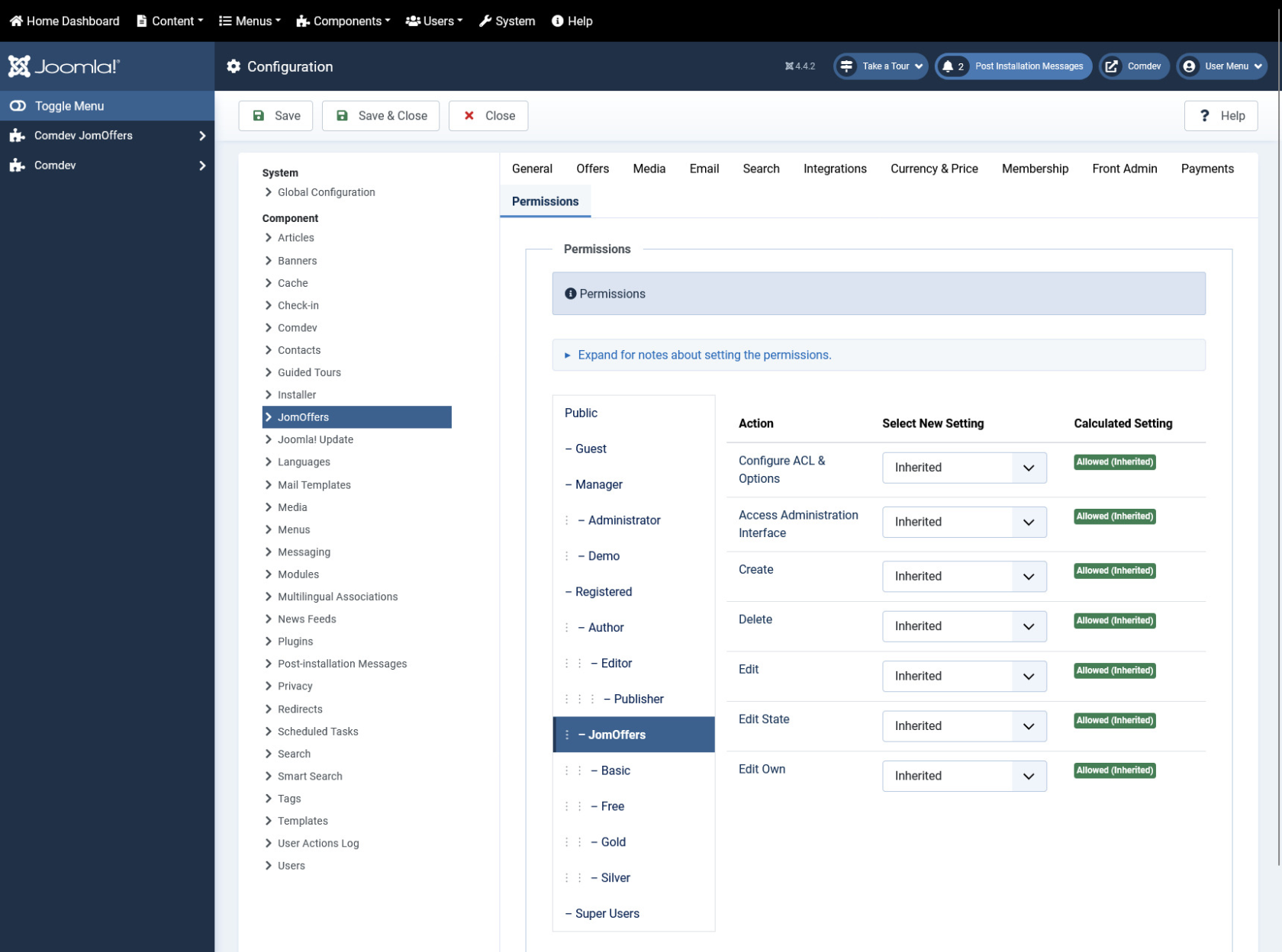
It is important to set the right permissions for the components: Comdev and Directory, in order for the users to access the Front Admin. Otherwise Users won't be able to access the Front Admin (Permissions Denied) or get 500 Error when trying to upload the images.
Example below shows access for the Registered Group. Same settings should be applied for each group that should have access to the Front Admin.
#### Setting permissions for the Comdev Extension
[](https://wiki.comdev.eu/uploads/images/gallery/2024-03/c7hobraz.png)
**Screen 2: Comdev Permissions**
#### Setting permissions for the Directory Extension
[](https://wiki.comdev.eu/uploads/images/gallery/2024-03/CXaobraz.png)
**Screen 3: JomOffers Permissions**
# Menu Items
### Overview
In this section, we will learn how to create menu items to access JomOffers.
Menus are used to control website navigation and are a set of menu items. Menu items provide the navigational experience to your users. The menu items in our case must point to the JomOffers.
### Creating Administration Menu Links
This step is not needed if new installation being made.
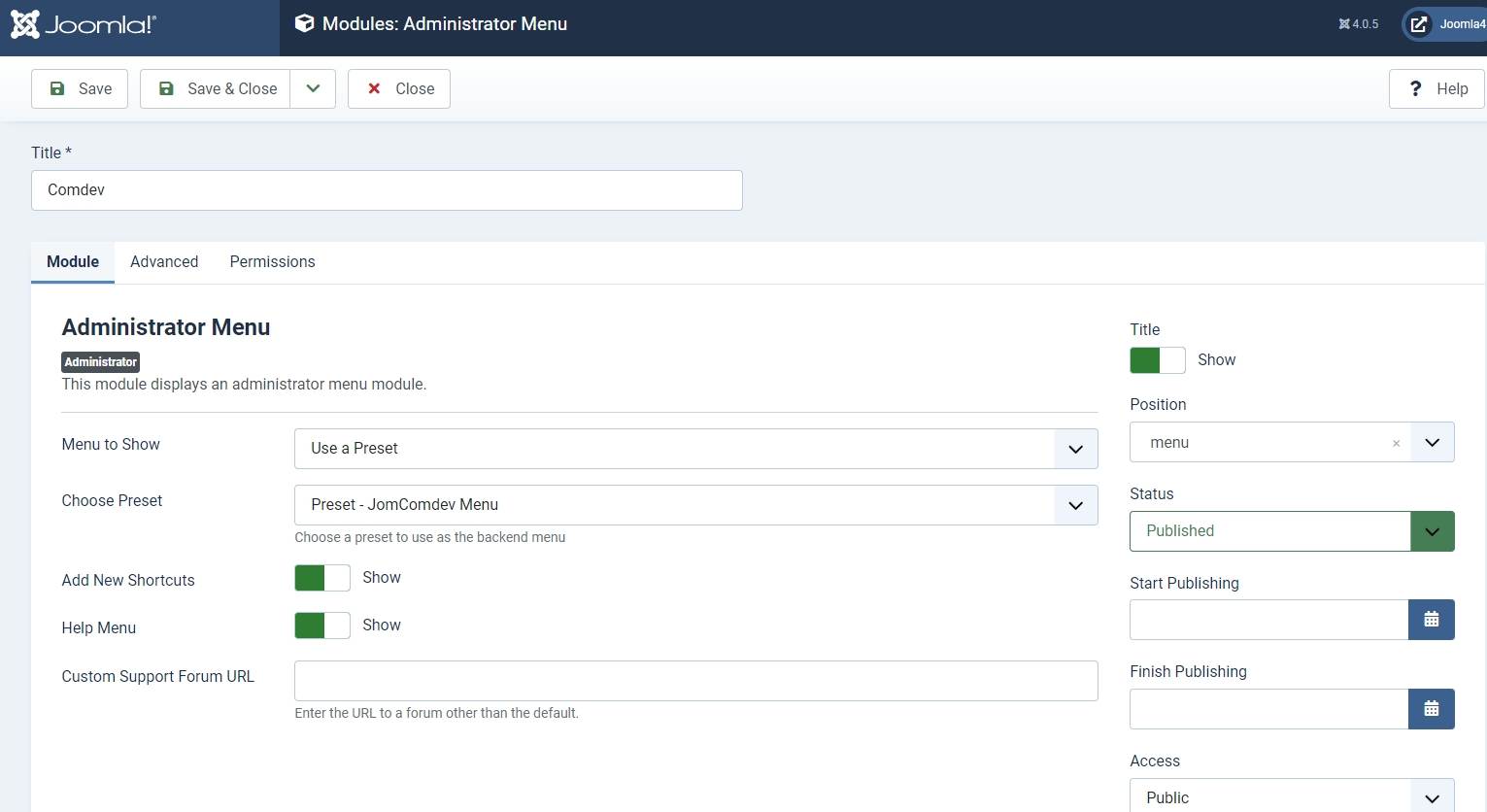
Go to the System -> Administrator modules and insert new. Than choose Administrator Menu. From the presets, select Comdev and place it under menu position. Do the same for the JomOffers:
### Creating Menu Items to access JomOffers
Creating an Items menu link is mandatory. If you have a multilingual site, ensure that you create an Items menu link for each language. You can hide this menu link, but it needs to be created nonetheless. Though you are creating an Items link that does not point to any category or address, you can create other links with Items menu type that can point to an address or a category once main Items link has been created.
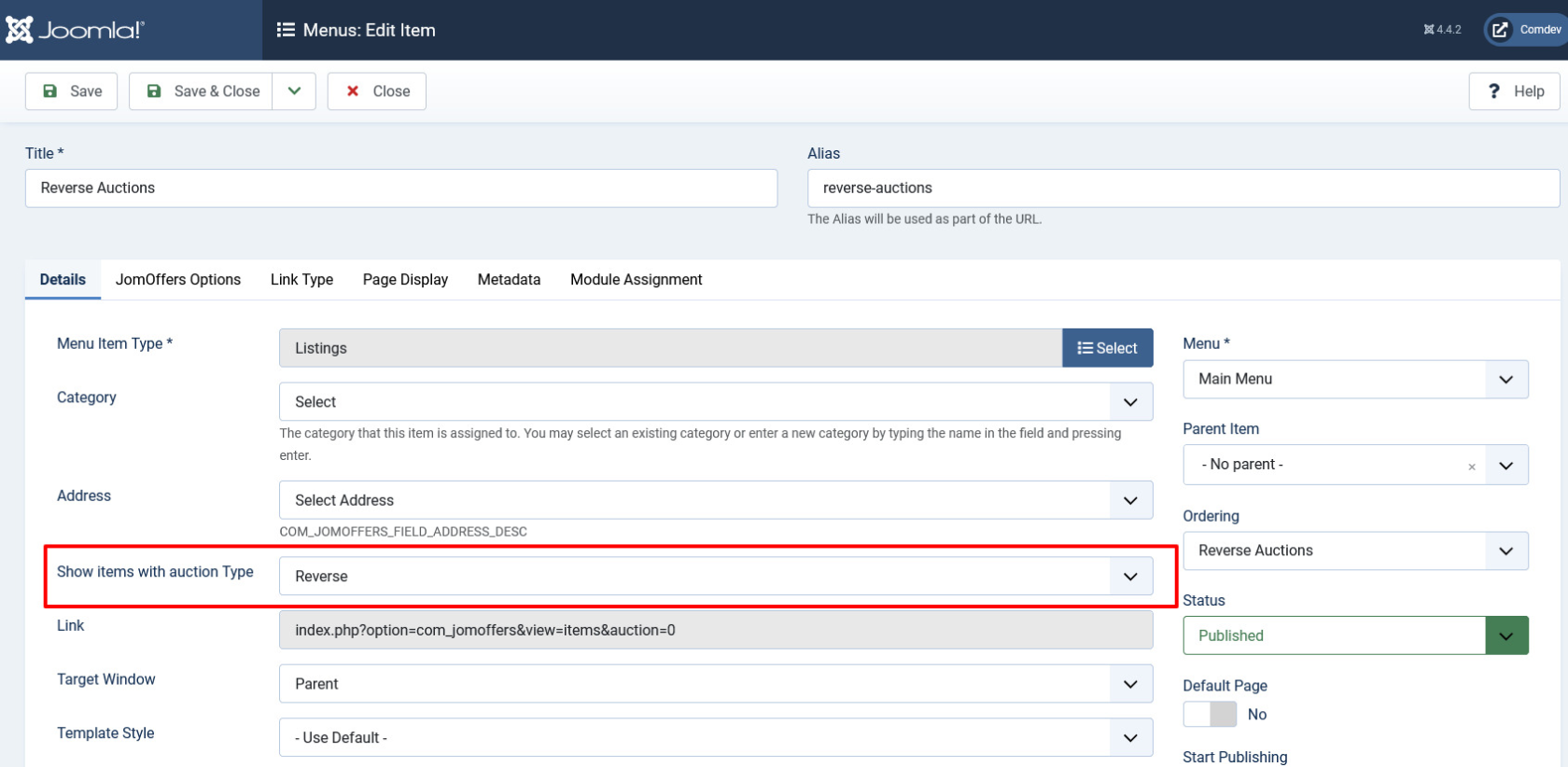
#### Reverse Auctions:
To create menu items with Items menu item type, do the following:
1. Click **Menus** > **<your\_menu>(Main Menu)** > **Add New Menu Items**.
2. Provide a title in our case is **Latest Listings** in the **Menu Title** field. Now, since the Latest Listings menu item provides a list of all the latest postings on the site, we have selected the menu type as Items. The Alias field will build URL for the site. When search is done this will be the landing page for the search results as well.
3. Provide the options as seen in the following image:
[](https://wiki.comdev.eu/uploads/images/gallery/2024-03/3HZobraz.png)
**Screen 1:** Items menu item screen
Provide the values based on the following table.
4.
Click **Save**.
#### Bids
1. Click **Menus** > **<your\_menu>(Main Menu)** > **Add New Menu Items**.
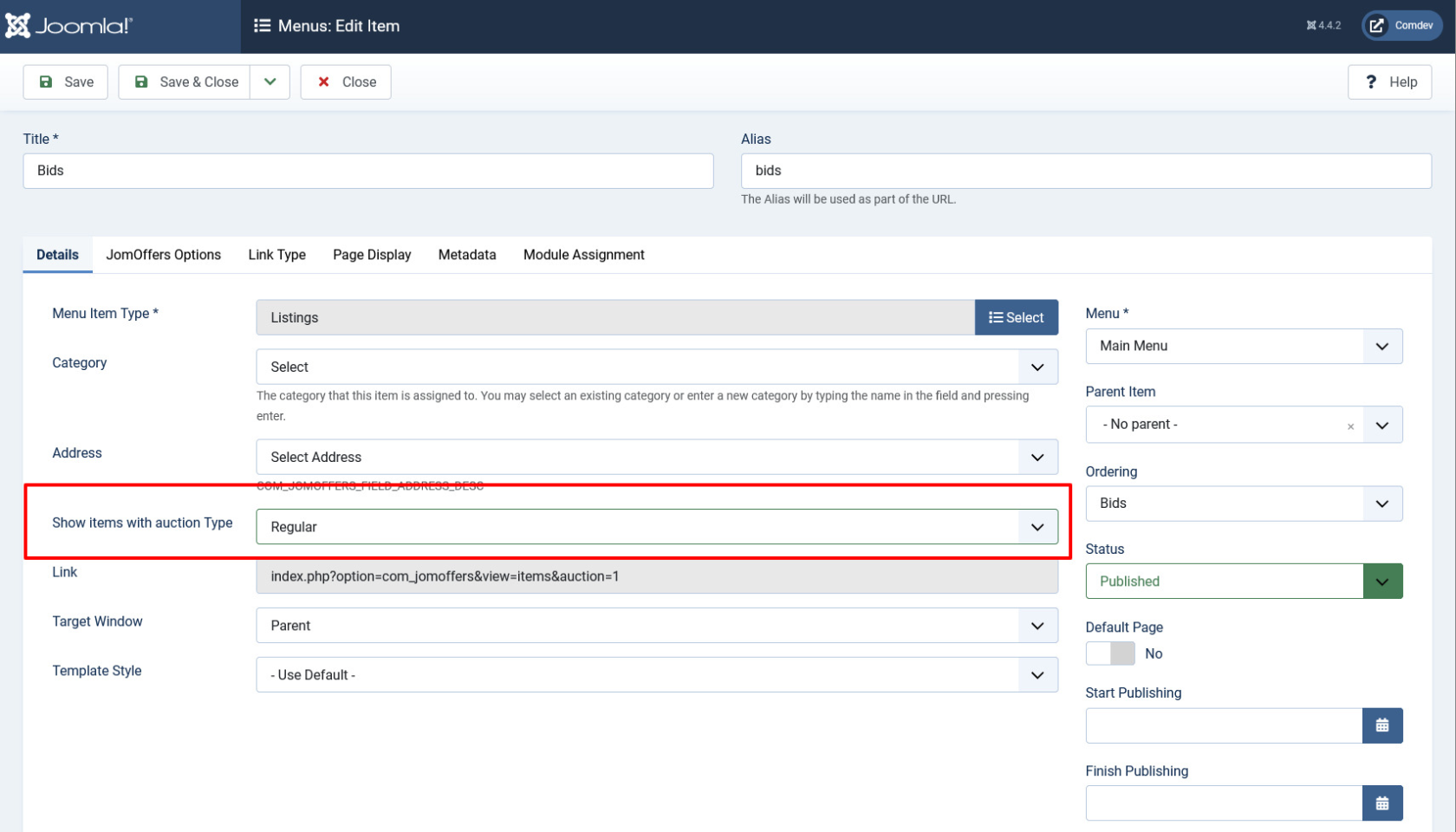
2. Provide a title in our case is **Latest Listings** in the **Menu Title** field. Now, since the Latest Listings menu item provides a list of all the latest postings on the site, we have selected the menu type as Items. The Alias field will build URL for the site. When search is done this will be the landing page for the search results as well.
3. Provide the options as seen in the following image:
[](https://wiki.comdev.eu/uploads/images/gallery/2024-03/AX7obraz.png)
Ensure that you see a green tick next to this menu item. The green tick indicates that the item is published. To publish an item, select the check box next to the item and click **Publish**.
To view the created menu item, go the front end of your site. The new menu item is displayed.
### Creating Menu to access JomOffers Front Admin
To create menu items with Front Admin menu item type, do the following:
1. Click **Menus** > **<your\_menu>(Main Menu)** > **Add New Menu Items**.
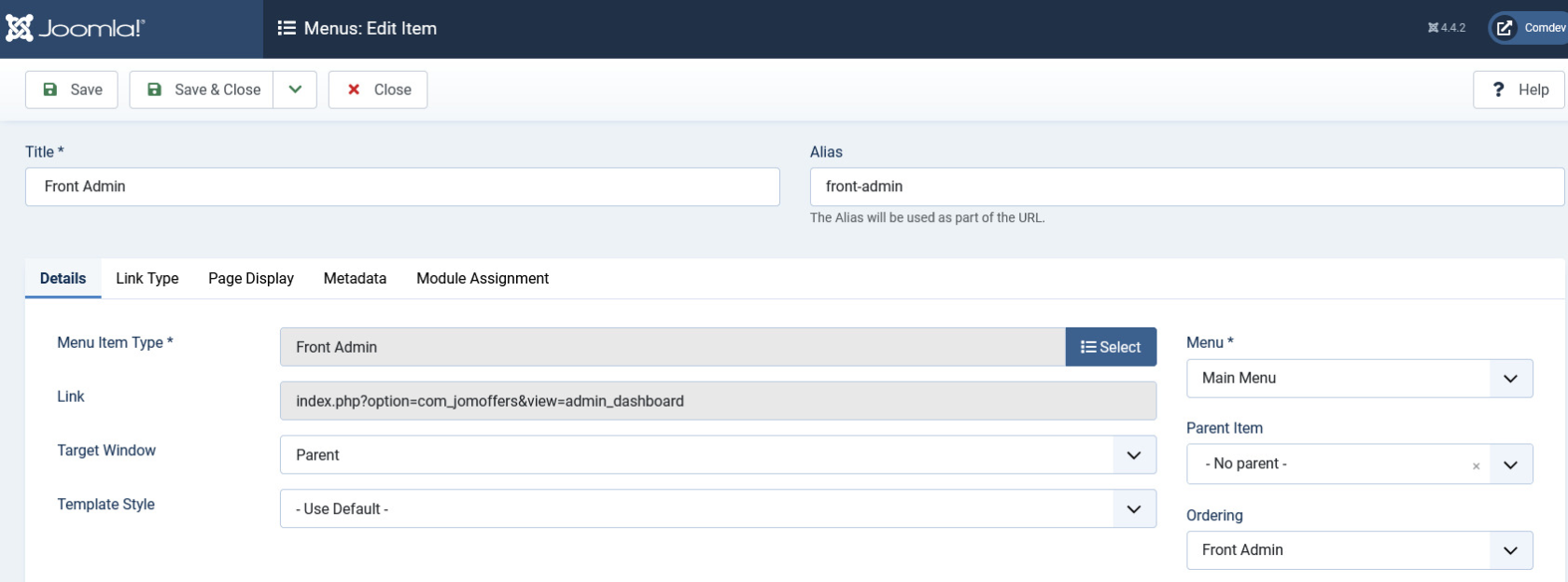
2. Provide a title as **Front Admin** and the alias as **front-admin** in the Menu Title field.
3. Provide the options as seen in the following image:
[](https://wiki.comdev.eu/uploads/images/gallery/2024-03/YWjobraz.png)
**Screen 2:** JomOffers Front Admin menu item screen
4. Click **Save**.
### Front Admin Options
For the Menu to be able to access the JomOffers Front Admin, certain settings need to be made. The following table shows the three menu links that need to be made and linked with JomOffers Options. You can create these 3 menu items anywhere on the site e.g. link them under User Menu.
**Now link menus with JomOffers Options**:
Make the following settings for the Front Admin are made in the JomOffers options for the user to be redirected correctly to the Front Admin, when he is not logged in.
1. Click **System** > **Control Panel**.
2. Under **Extensions**, click **JomOffers**.
3. Click **Options** in the top right-hand corner of the screen.
4. Click the **Front Admin** tab.
5. Change the **Profile Menu Link**, **Login Menu Link**, and **View Profile Menu Link** field as per the following image.

**Screen 3:** JomOffers Front Admin options
6. Click **Save**.
The Front Admin lets users add listings in the front of the site. For more information about how to add listings, see [Front Admin](https://wiki.comdev.eu/display/JO/Front+Admin).
# Administrator's Guide
# Auction Types Overview
In the context of auctions, the main difference between a reverse auction and a regular (or forward) auction lies in the roles of buyers and sellers, and the direction in which the price moves:
### Regular (Forward) Auction:
1. **Role of Participants**: Sellers offer goods or services, and buyers place bids to purchase them.
2. **Price Movement**: The price typically starts low and increases as buyers compete by placing higher bids. The item is sold to the highest bidder.
3. **Objective**: Buyers aim to outbid each other to win the item or service being auctioned.
1. **Role of Participants**: Buyers post their requirements for goods or services, and sellers place bids to offer the goods or services.
2. **Price Movement**: Sellers decreases price compete by offering lower bids. The buyer selects the lowest bid or the best offer.
3. **Objective**: Sellers aim to underbid each other to win the contract or sale.
| **Dashboard**
| Home or dashboard for the JomHoliday extension
|
| **Listings**
| Shows the Listings administration screen
|
| **Categories**
| Shows the Categories administration screen
|
| **Custom Fields**
| Shows the Custom Fields administration screen
|
| **Resource Custom Fields** | Shows the Resource Custom Fields administration screen |
| **Addresses**
| Shows the Address administration screen
|
| **Business Types** | Shows the Business Types administration screen |
| **Bookings** | Shows the Bookings administration screen |
| **Booking Addons** | Shows the Booking addons administration screen |
| **Membership Plans**
| Shows the Membership Plans administration screen
|
| **Messages**
| Shows the messages received
|
| **Reviews: Categories**
| Shows the Reviews administration screen to add review parameters for each category. For example, Quality, Customer Service, and so on.
|
| **Reviews: Recommended**
| Shows screen to add recommended audience for the listing or category. For example, For young people, Gizmodo, and so on.
|
| **Documentation**
| Access the JomHoliday documentation.
|
| **New**
| Creates a new Address entry. You must create separate entries for each level of depth that you need.
|
| **Edit**
| Provides the edit mode to make changes to the existing level or titles created.
|
| **Publish**
| Publishes the created address entry.
|
| **Unpublish**
| Removes the entry from the list of published address entries
|
| **Archive**
| Archives address entries that are not used anymore.
|
| **Trash**
| Deletes the address entry that is not required anymore.
|
| **Options** | Displays the configuration screen for the JomOffers extension. |
| ##### Edit Listing area
| **Title**
| Title for the Listing.
|
| | **Alias**
| URL alias for “SEF/SEO” URL.
|
| | **Category**
| Category where the listing will be published.
|
| | **Work Type** | Work location where the listing needs services for. |
| | **Regular Auction** | **If set to Yes than Bids auction type is created otherwise Reverse Auction** |
| | **Price/Budget** | **Budget for the services required or Bid product price** |
| | **Select Company** | Select the company that you need specific offers from. |
| | **Ref Number - REF** | Reference number for a specific listing. |
| | **Days Published** | Number of days for which the listing remains active. |
| | **Text Area**
| Provide a description for the listing.
You can create a short description as well a long description.
[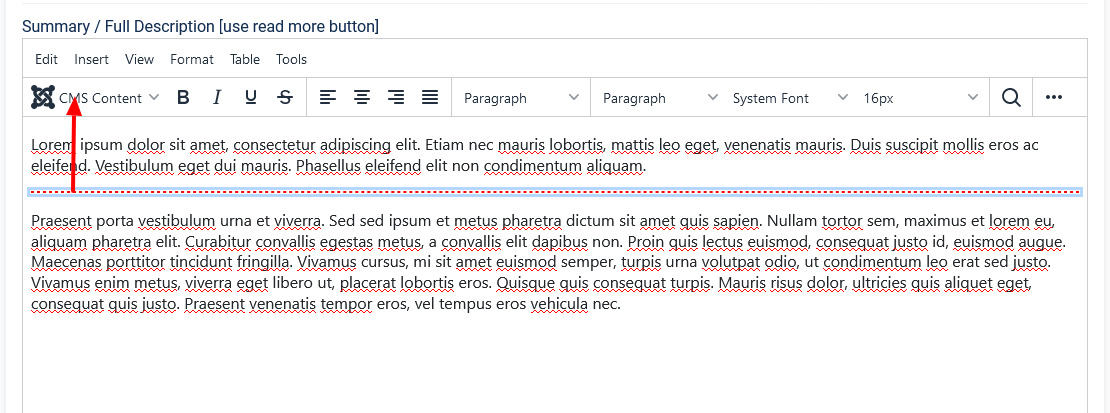](https://wiki.comdev.eu/uploads/images/gallery/2024-03/3nOobraz.png)
In the above image, the highlighted tag appears when you click **Read More**. Any content above the tag is the **short description**, while the entire content is the **long description**. Also, note that if there is no content after the **Read More** tag, the event description will be blank when users view the listing. Ensure that you have content after the **Read More** tag. |
| | **Article *Button***
| Click to select a relevant article. If an article is provided, it can be seen under the Details tab in the listing.
|
| | **Page Break *Button***
| Insert a page break in the displayed text.
|
| ##### Address area
| **Address**
| Address of the listing
|
| | **Street, House No.**
| Street and house number of the listing - If both Address and Full Address specified, map location will position automatically.
|
| ##### Location area
| **Maps latitude**
| It utilizes the GEO-location based on Google Maps.
Provide the latitude information for the location mapping.
|
| | **Maps longitude**
| The information provided in this field is used to map the exact location. It utilizes the GEO-location based on Google Maps.
Provide the longitude information for the location mapping.
|
| | **Maps Search**
| Search for a specific location. Type in the location and press Enter to go to the exact location.
|
| ##### Sidebar
| **Featured**
| Enable to make the listing appear as featured listing.
|
| | **Approved**
| Enable to approve the listing. Listing will not be published.
|
| | **Language**
| Select the language for which the listing needs to appear for. [For multiple languages, you must create separate entries for each language](https://wiki.comdev.eu/display/JO/Multilingual+Site).
|
| | **Status**
| Select the required status.
- Published
- Unpublished
- Trashed
- Archived
|
| | **Created by**
| Select the user who created the listing.
|
| | **Access**
| Provide the access level for the listing.
- Guest
- Public
- Super Users
- Registered
- Special
|
| | **Date created**
| Select the date when the listing was created. You can select a future date for publishing the listing as well.
|
| | **Publish Up**
| Select a date when you want to publish the listing. Here too, you can schedule to post the listing at a future date.
|
| | **Publish down**
| Select a date when the listing should stop being published.
|
| | **Modified Date**
| Select a date when the listing was modified.
|
| | **Tags**
| Provide the tags for the listing. Tags are integrated and maintained with Joomla Tags Component.
|
| | **ID**
| This is an auto-generated field.
|
To set the the Order of the images (which one displayed first) drag and drop images to switch positions.
The first image in the gallery is used as the image thumbnail for the listing.
| ##### Images
| **Add file area**
| Add Files
| Click to select the image that needs to be uploaded.
|
| | Drag & Drop Files Here
| Drag a bunch of images to this area to upload multiple images.
|
| | Upload Into
| Select which category the image falls under:
- Slideshow - detailed view main gallery
- Gallery - in gallery tab
- Logo - displayed in sidebar under custom fields and over the image with transparency in listings page.
|
| | Add available images & attachments
| Click to add already uploaded images and attachments to this listing.
|
| **Images area**
| Editing an Image

| Click the  Edit icon to edit the image details. The options are as seen in the following image:

Click the  Delete icon to delete the image.
|
| **Attachments area**
| | Click the  Edit icon to edit an attachment that is linked to the listing. The screen is as shown here:

Click the  Delete icon to delete the attachment.
Attachments are detected automatically based on file extension that’s are allowed in Configuration .
|
| ##### Video
| YouTube Video | Provide the YouTube video URL in this field as shown in the following image.

|
---
# Work Type
## Overview
Work Type for **Reverse Actions** defines the location where you want to avail the services required in the listing. For example, for a service such as gardening, the Work Type would be On Place or Remote. But, in case of accountant services, the Work Type would be In House.
### Creating a Work Type
Creating a custom field involves setting certain options. To create a custom field, click New as shown in the following image.
[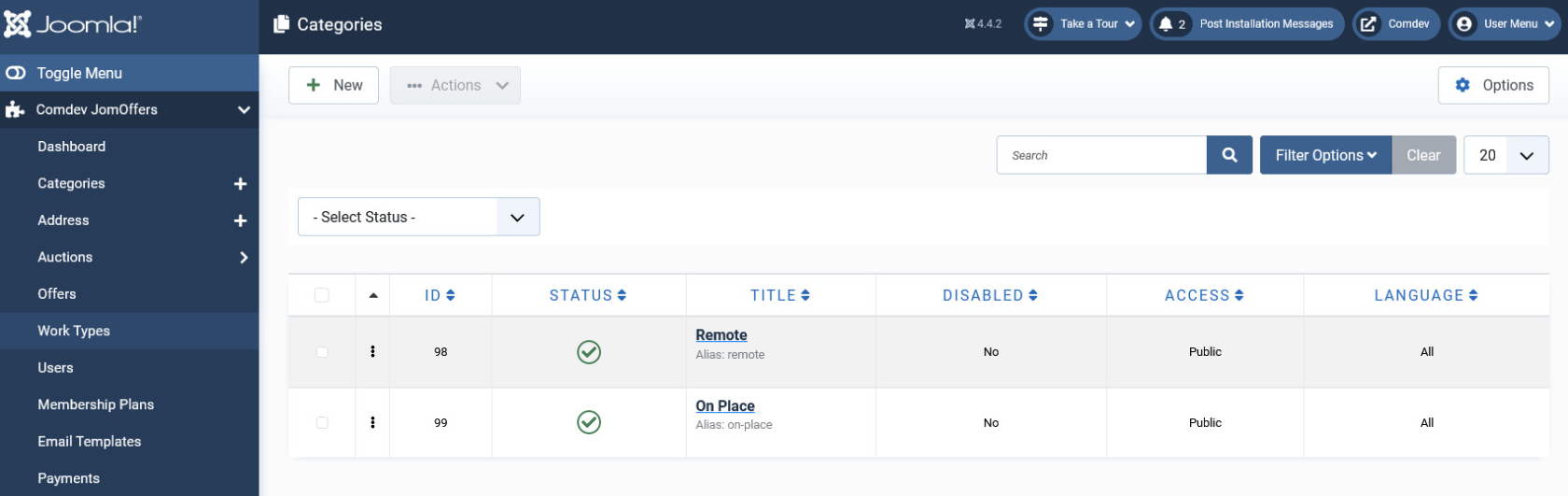](https://wiki.comdev.eu/uploads/images/gallery/2024-03/UHIobraz.png)
**Screen 1: Work Type screen**
The following table explains the different options available on the screen.
| **New**
| Creates a new Custom Field.
|
| **Edit**
| Provides the edit mode to make changes to the existing level or titles created.
|
| **Publish**
| Publishes the created custom field.
|
| **Unpublish**
| Removes the entry from the list of published custom fields.
|
| **Archive**
| Archives custom fields that are not used anymore.
|
| **Trash**
| Deletes the custom fields that are not required anymore.
|
| **Rebuild**
| Refreshes to incorporate the changes made to the entries in the Custom Field feature.
|
| **Options** | Displays the configuration screen for the JomOffers extension. |
| **Title**
| Custom Address Field
|
| **Alias**
| URL alias for “SEF/SEO” URL
|
| **Parent**
| Select the parent address entry
|
| **Text box**
| Provide a description about the entry. You can format the text using the formatting options in the text box. You can also insert images or links to URLs for more information.
|
| **Category Image**
| Upload an address image
|
| **Status**
| Based on the status seen here, the visibility changes as follows:
- Published - Entries are visible on the front-end.
- Unpublished – Entries are invisible in the front-end, but can be published later.
- Archived – Older entries that are not ready for deletion yet.
- Trashed – Older entries that should be removed.
|
| **Access**
| Access level for site users is as follows:
- Public access grant access to everybody.
- Superusers access grants access to only users
- Registered access grants access only to registered and logged in users.
- Special access only grants access to users specified as “Special”.
|
| **Language**
| Select the language for the address entry.
|
| **ID**
| Address ID, which can be used in modules, plugins and menus.
|
| **Created by**
| User name who created the entry.
|
| **Created Date**
| Date when the entry was created.
|
# Offers
## Overview
For every listing made, contractors or companies can provide an offer. This offer includes information such as pricing, time taken to complete the task and description about the services provided.
### Making an Offer
The following image shows the offer screen.

**Screen 1: Making an offer**
Let us understand each of the buttons seen on the screen using the following table.
### Editing the Offers
The following screen shows the offers made for all the listings available.
[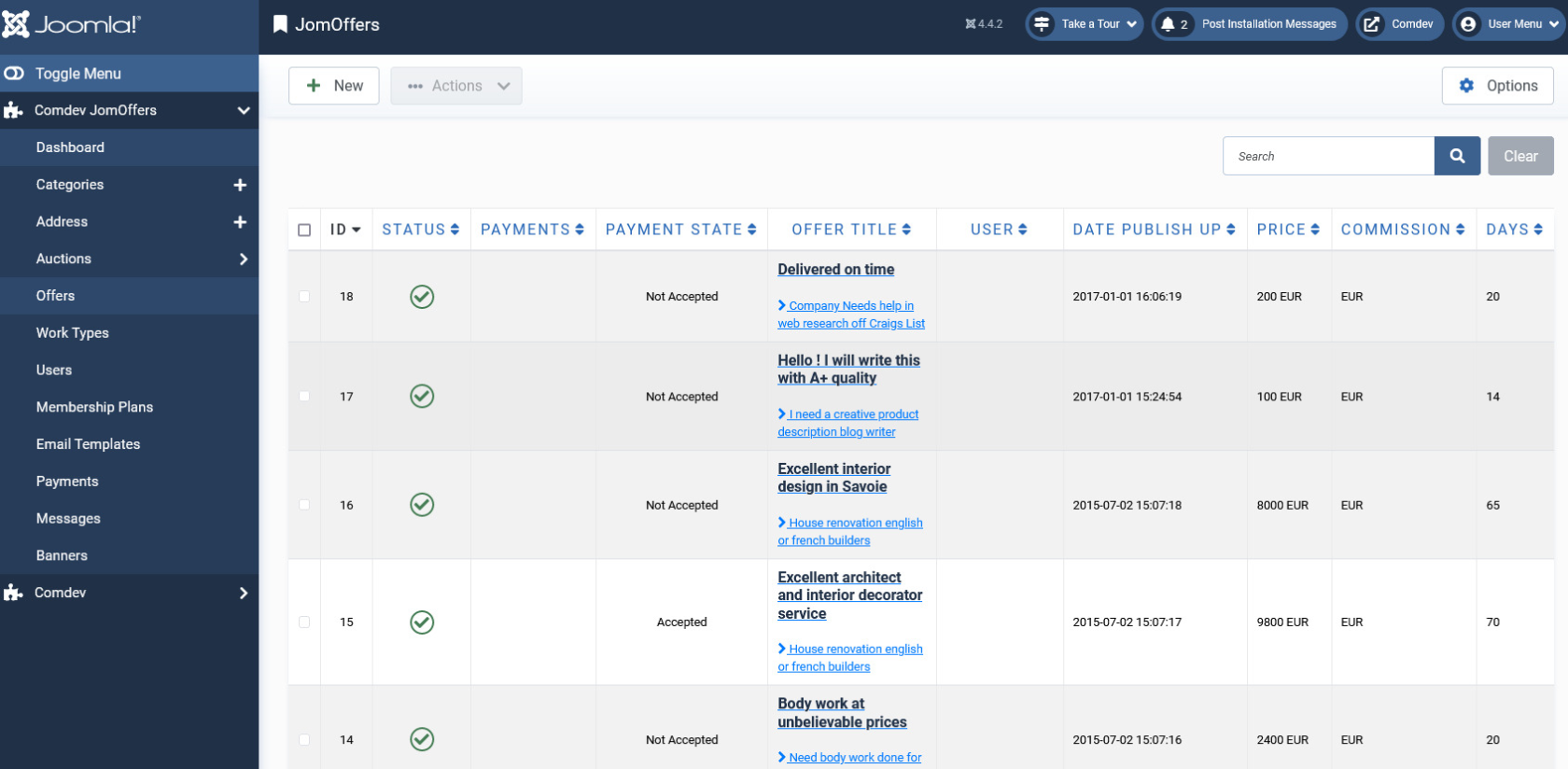](https://wiki.comdev.eu/uploads/images/gallery/2024-03/7OVobraz.png)
**Screen 2: Offers for all listings**
If you want to edit existing entries, you can either click the entry from the Offers screen or select the check box next to the entry, and then click **Edit**.
[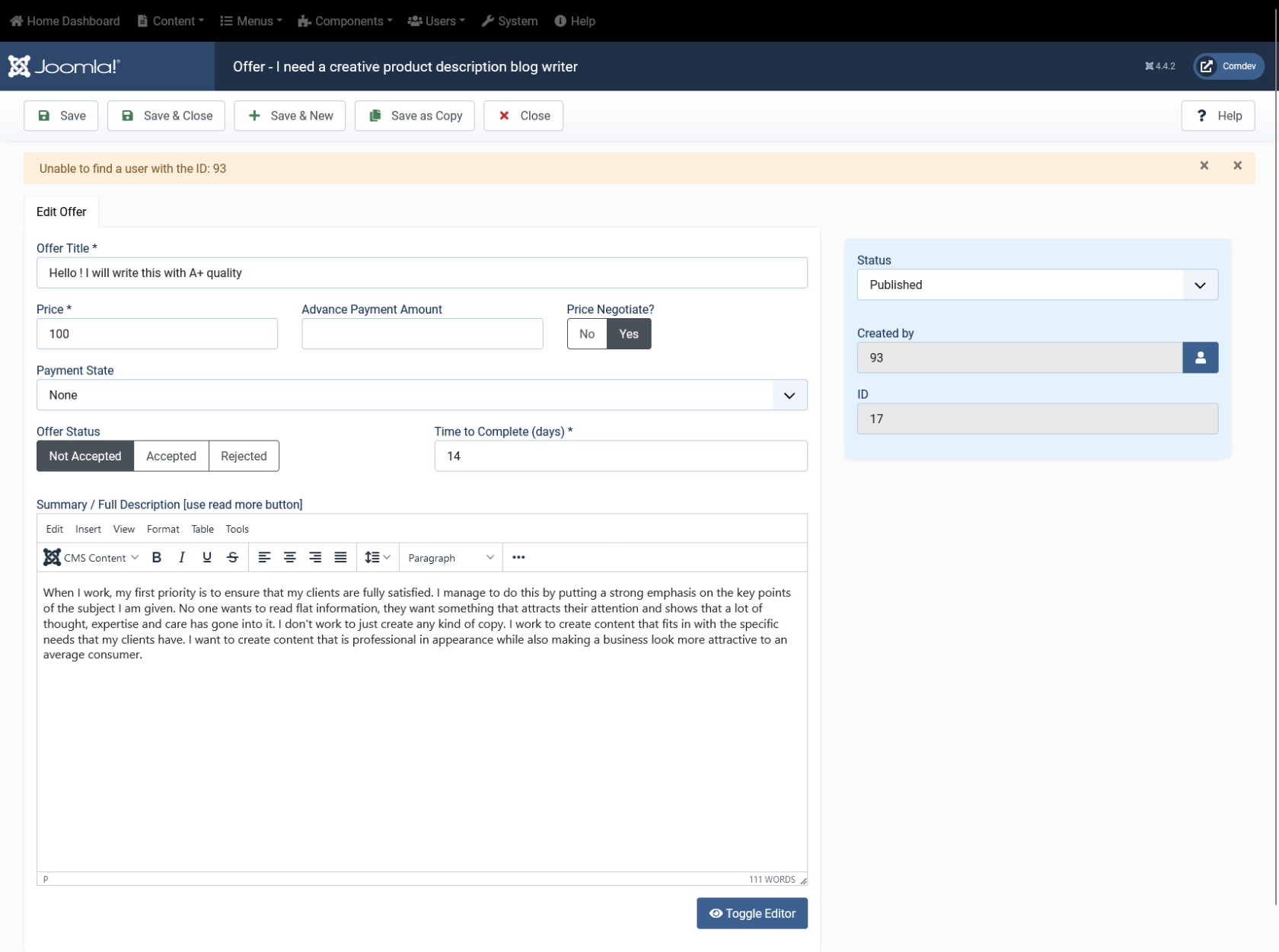](https://wiki.comdev.eu/uploads/images/gallery/2024-03/totobraz.png)
**Screen 3: Editing an offer**
After you click the required entry that you need to edit, you can change the configurations based on the options as seen in the following table.
# Membership
{{@109}}
### Creating a new Group for Membership Plans
In order to add users to groups for membership plans, you must create a super group named JomOffers. Then, under it you must create groups for each of your membership plan. These groups are used to provide Group ID when creating a membership plan. Users created using User Manager can be linked to each of these membership plan groups.
To create the JomOffers group and other groups, do the following:
1. Click **Users** > **Groups** > **Add New Group**.
2. Provide a name for the group. We need to create JomOffers group before creating other groups. So, provide the name as **JomOffers**
[](https://wiki.comdev.eu/uploads/images/gallery/2024-03/xi5obraz.png)
1. Repeat steps 1 and 2, but select the parent as JomOffers.
[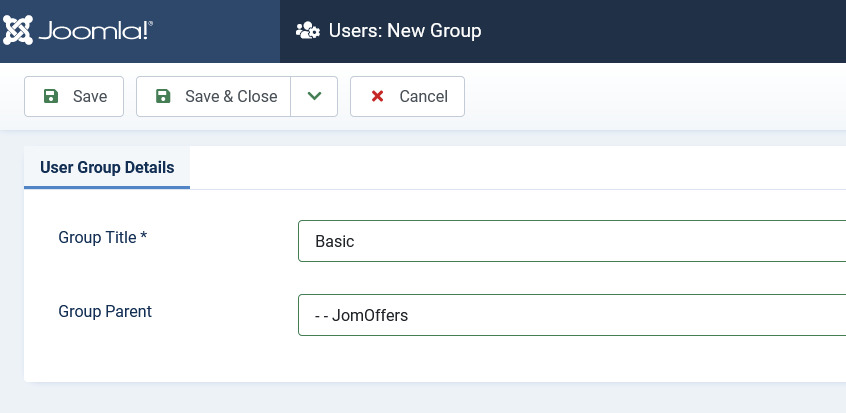](https://wiki.comdev.eu/uploads/images/gallery/2024-03/OODobraz.png)
2. Click **Save**.
### User Permissions based on groups
For the users to access Front Admin certain user permissions need to be granted. These settings need to be done in the JomOffers and Comdev Options.
To provide user permissions for JomOffers, do the following:
1. Click **Components** > **JomOffers**
2. Click **Options** from the right-hand side of the screen.
3. Click **Permissions**.
4. Provide the permissions as shown in the following image.
[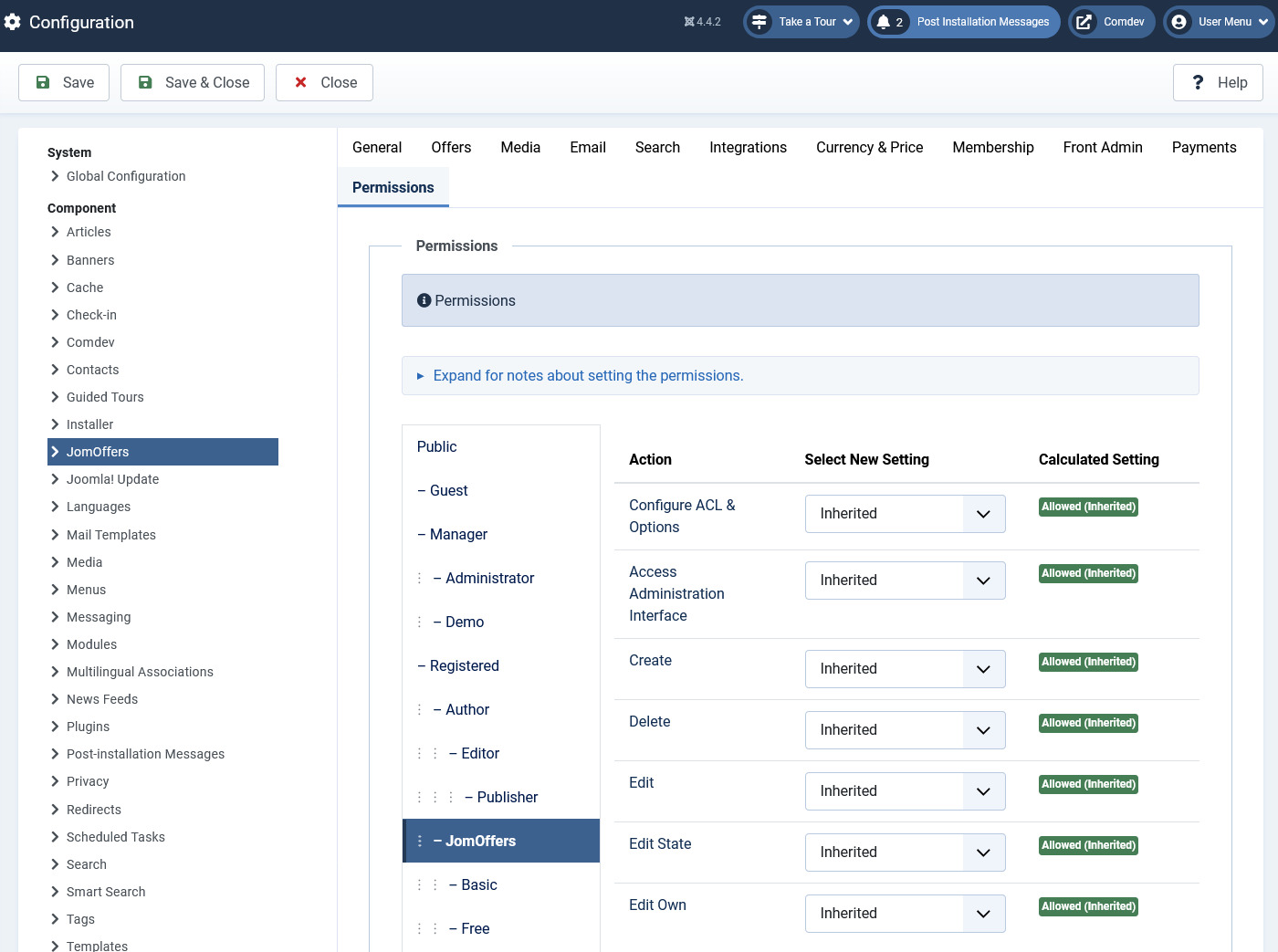](https://wiki.comdev.eu/uploads/images/gallery/2024-03/Xtfobraz.png)
5. Click **Save**.
User permissions also need to be set for Comdev extension as explained here.
1. Click **Components** > **Comdev**.
2. Click **Options** from the right-hand side of the screen.
3. Click **Comdev**.
4. Provide the permissions as shown in the following image.
[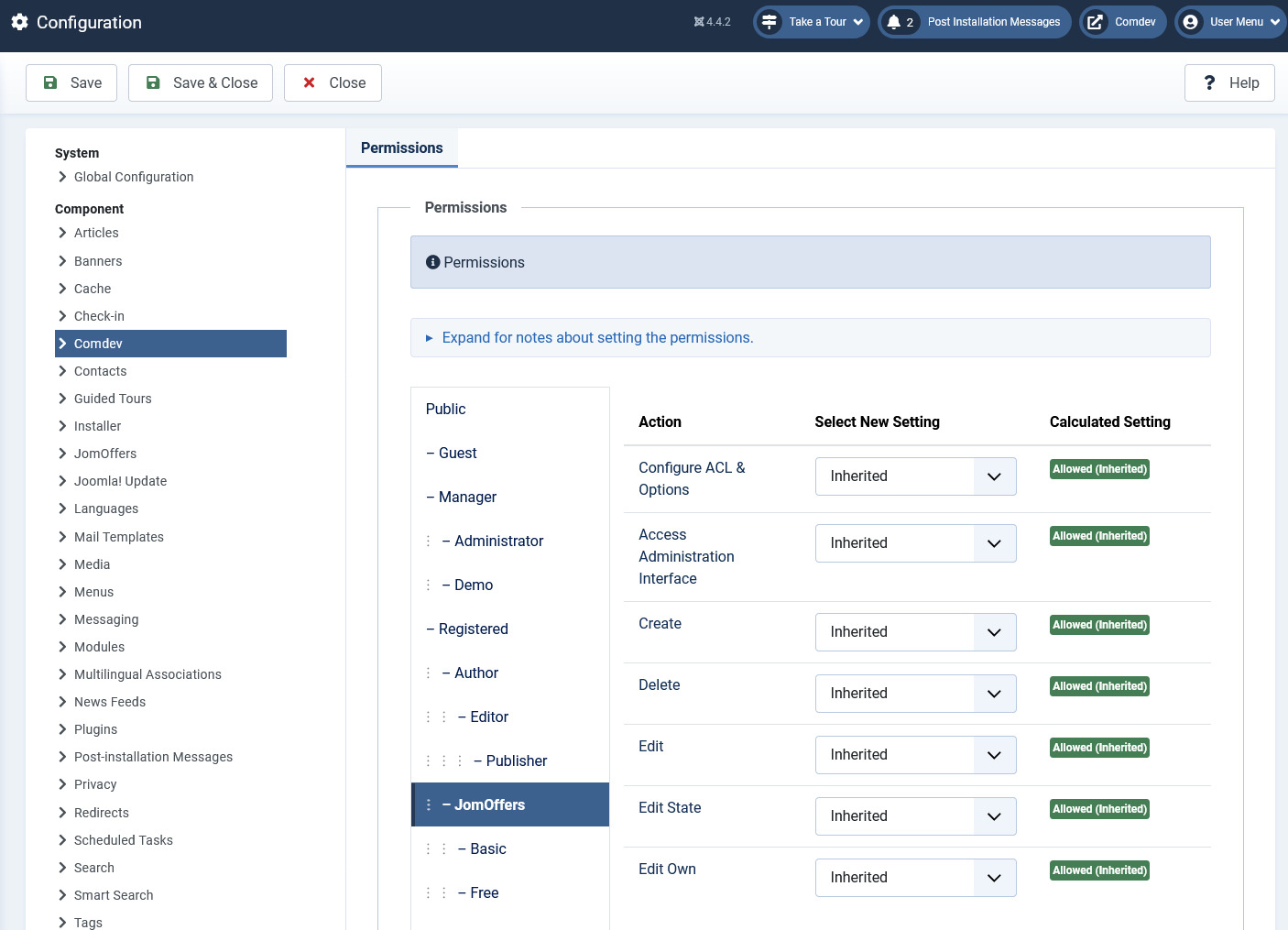](https://wiki.comdev.eu/uploads/images/gallery/2024-03/oJrobraz.png)
5. Click **Save**.
Users, which belongs to Joomla group JomOffers, will now have access to Front Admin.
If Permissions for the Comdev component are not set, users would not be able to upload images. A 500 error would show that permissions are denied.
# User Guide
# Front Admin Overview
## Overview
The dashboard gives a quick snapshot of all the tasks that you can perform using the Front Admin. It also provides multiple menu items that you can use to create listings, view listings, viewing offers, and so on. The other options that you can control are viewing statistics, viewing messages, and so on.
For the Menu to be able to access the JomOffers Front Admin, certain settings need to be made. You must create the Profile Edit Menu link, Admin Menu link, and Profile View Menu link in the JomOffers Front Admin configurations to be able to access Front Admin. For more information, see the Front Admin Options section in the [Menu Items](http://confluence.comdev.eu/display/JD2/Menu+Items#MenuItems-FrontAdminOptions) documentation.
## Accessing the dashboard
When you access the home URL for JomOffers extension, do the following:
1. Click **Front Admin**.
2. Provide the login details for the required user and click **Submit**.
The dashboard with various options can be seen as shown in the following image.
[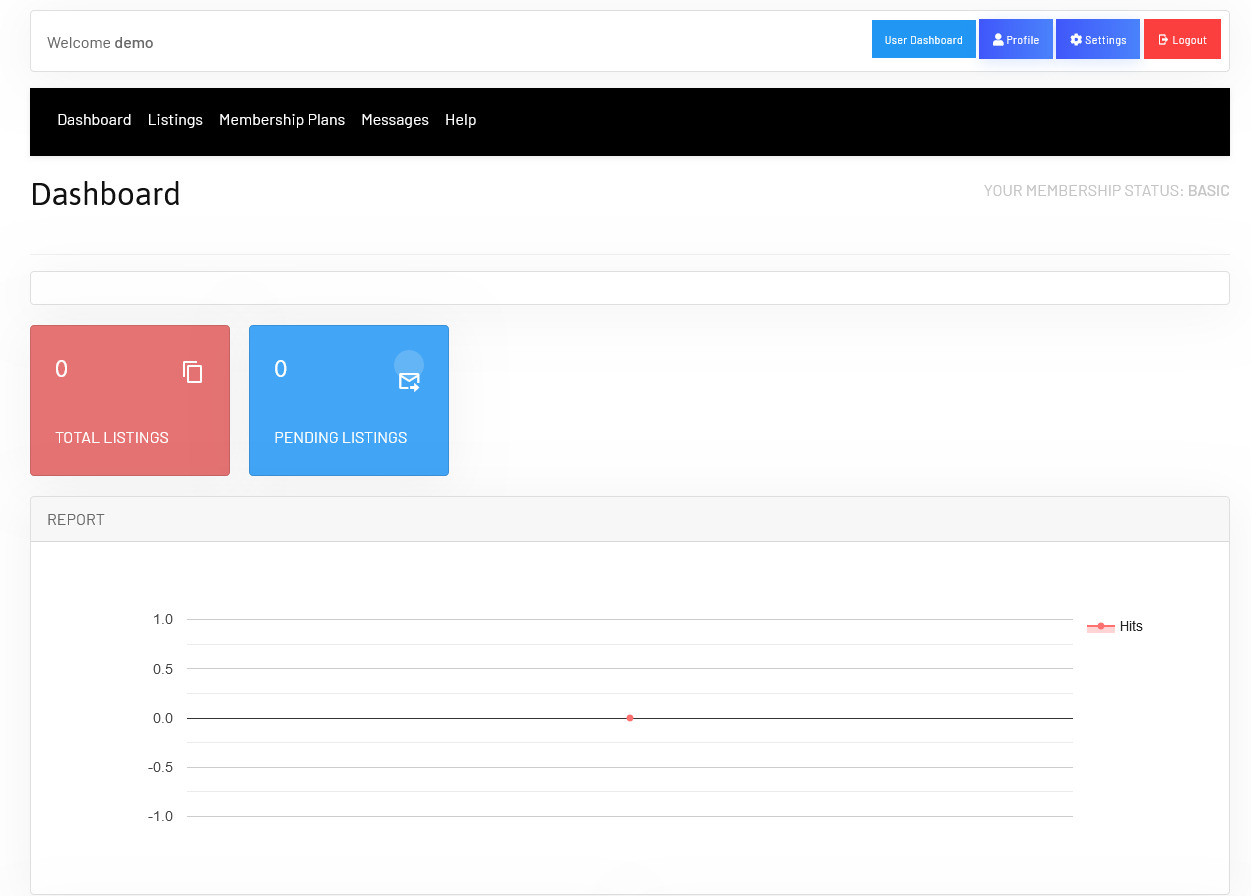](https://wiki.comdev.eu/uploads/images/gallery/2024-03/T98obraz.png)

**Screen 1: Dashboard screen**
You can click the options as seen in the following table.
# Manage Listings
### Overview
You can view all the listings created for your site or create a new listing. The created listings let you add descriptions, images, provide ratings, and much more.
### Creating a New Listing
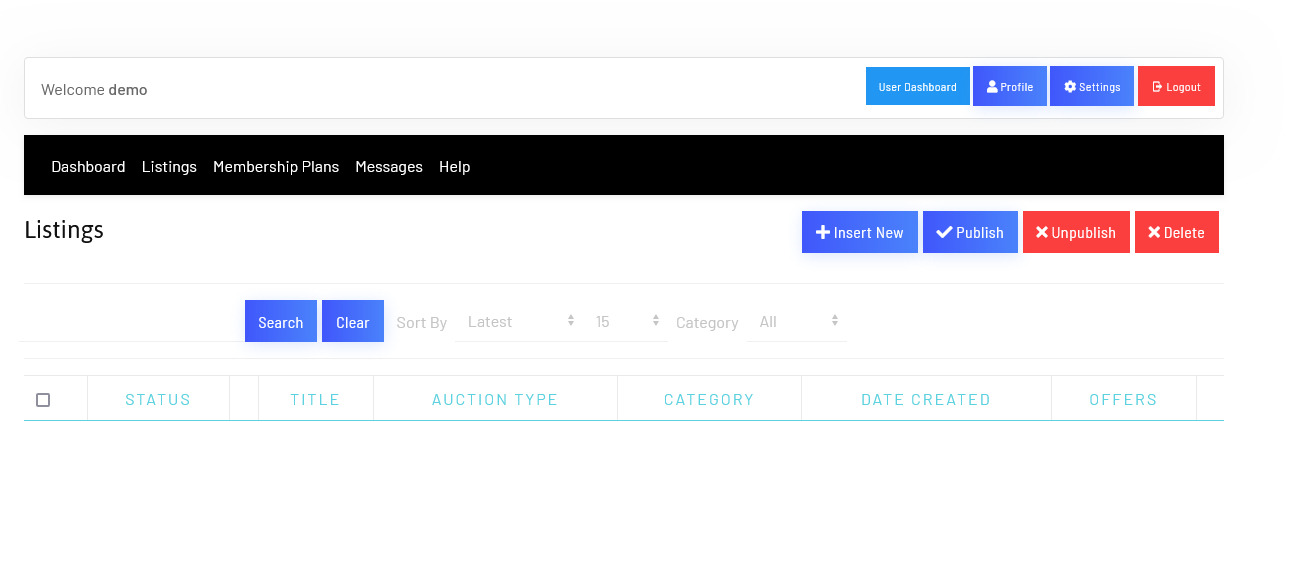
The following image shows the Listings screen.
[](https://wiki.comdev.eu/uploads/images/gallery/2024-03/wQ5obraz.png)****
**Screen 1: Listing screen**
The following table explains the different options seen on the screen.
# User Membership
# Listing Messages
{{@111}}
# Making an Offer / Bid
## Overview
For every listing made, contractors or companies can provide an offer. This offer includes information such as pricing, time taken to complete the task and description about the services provided.
### Making an Offer
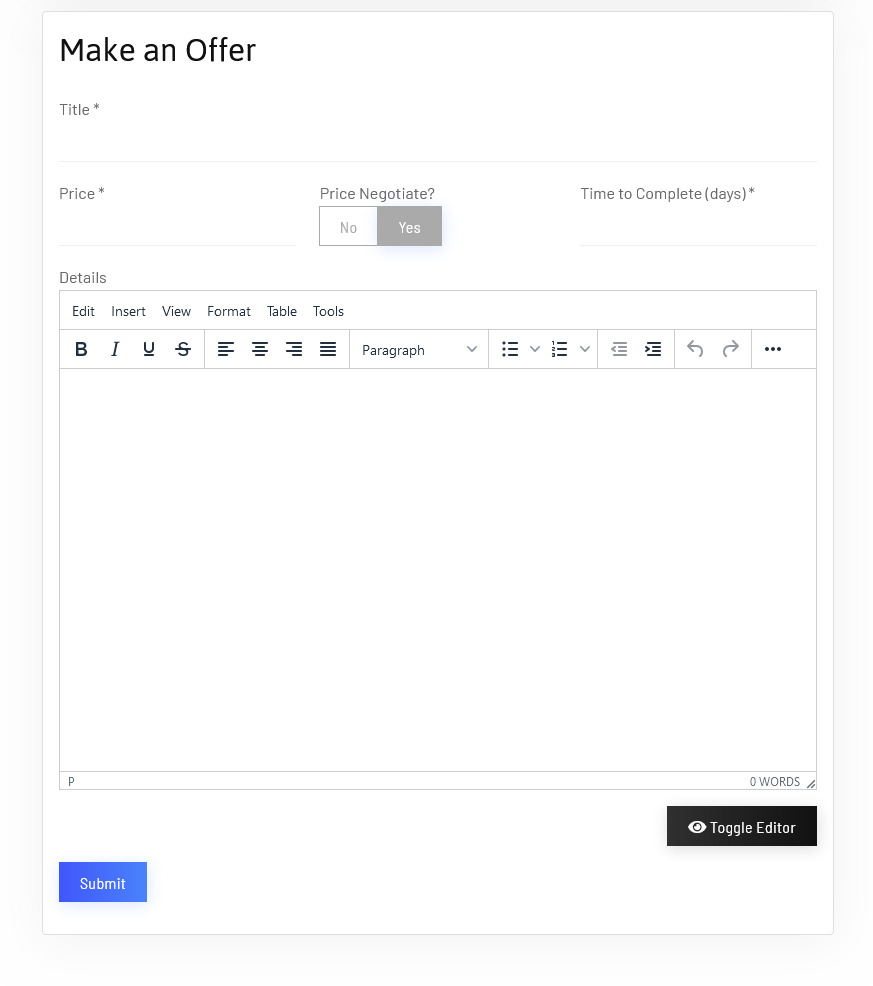
To make an offer, navigate to the listing that you want to make an offer to. The following image shows the offer screen.
[](https://wiki.comdev.eu/uploads/images/gallery/2024-03/dzbobraz.png)
**Screen 1: Making an offer**
Let us understand each of the buttons seen on the screen using the following table.
### Make a Bid
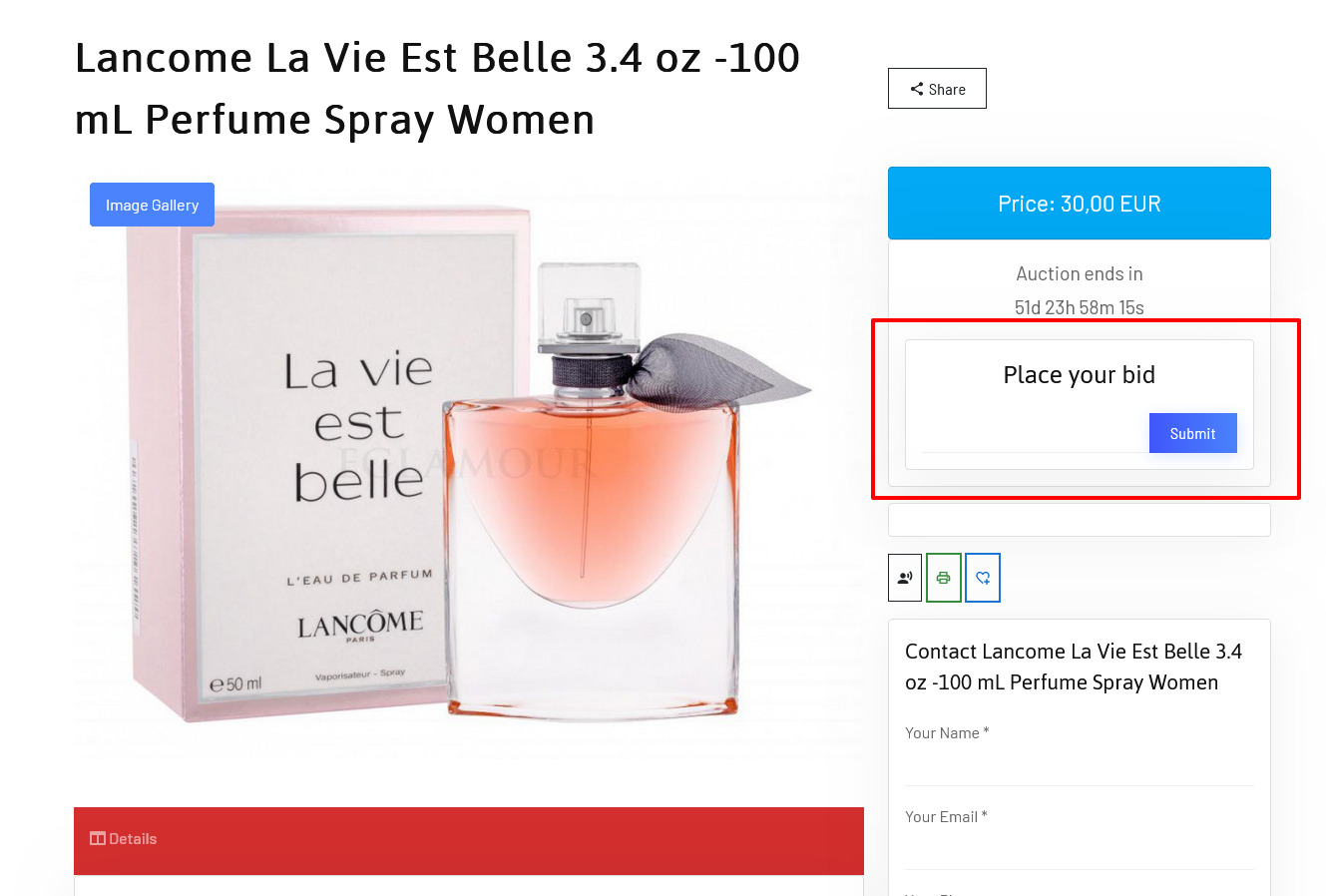
To make a bid navigate to the listing that you want to make an offer to. The following image shows the offer screen.
[](https://wiki.comdev.eu/uploads/images/gallery/2024-03/m3Wobraz.png)
Please notice that in order to place an offer user would need to be logged in.
# Modules
# Latest Items Module
### Overview
Modules are extensions that assist in creating blocks of information on your site. They aggregate information from components and can be placed in predefined positions on the page based on your Joomla template.
### JomOffers Latest module
This module helps you create the panel where latest listings are displayed. You can decide where to position the latest panel on the page and also control on which pages the panel should appear. To view all the available modules, click **Extension** > **Module Manager**. The modules available are listed as seen in the following image.
### Editing the JomOffers Latest module
To edit the module, click on the module link or select the checkbox next to the module name, and then click **Edit**.
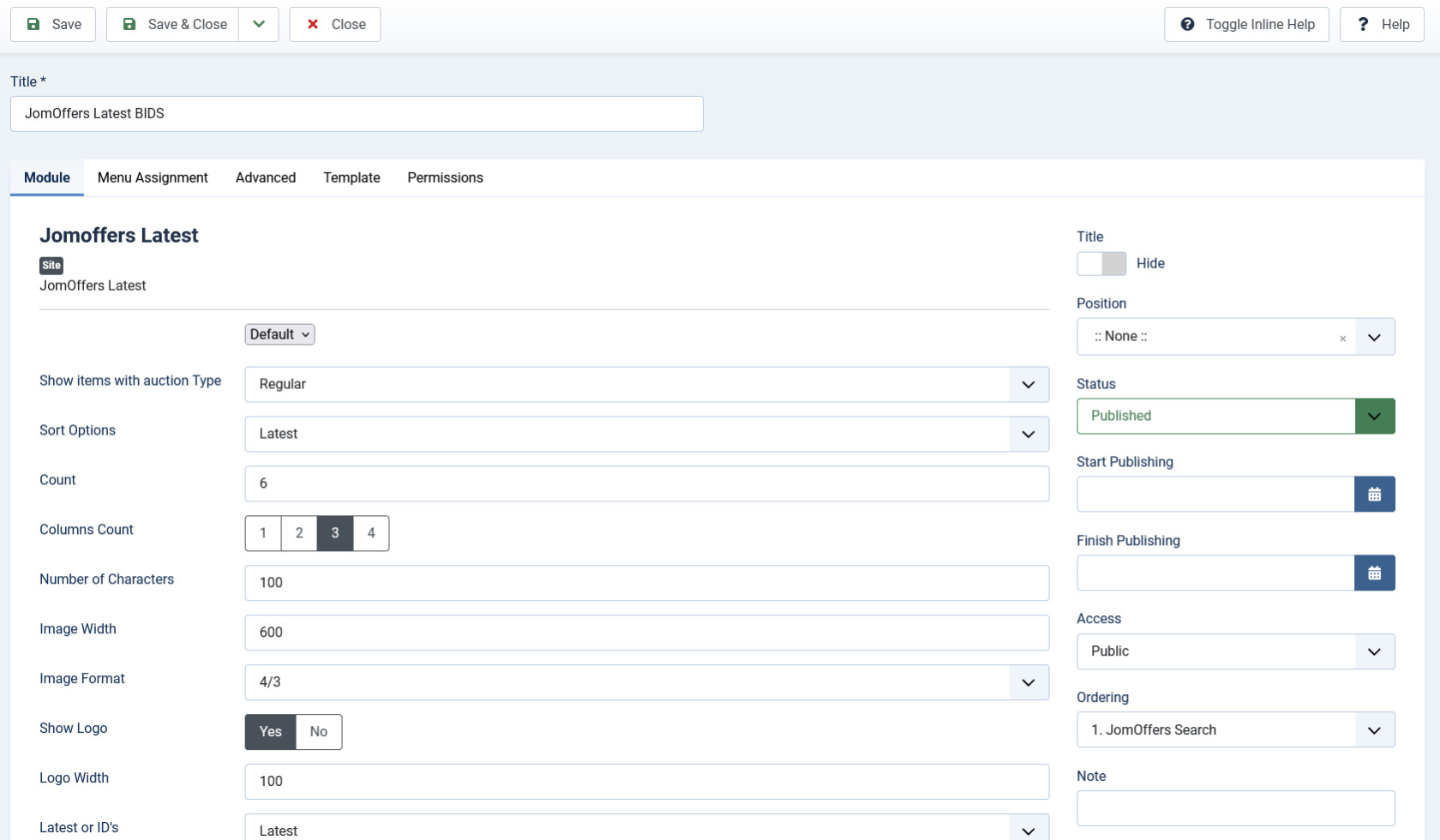
The following image shows the module edit screen.
#### Module tab
This tab controls the layout where the latest listings panel is to be displayed on the screen.
[](https://wiki.comdev.eu/uploads/images/gallery/2024-03/cR9obraz.png)
**Screen 8: Module tab**
Provide the options as per the following table.
| **Layout**
| Select the required layout in the Layout field. The available options are:
- Slider – Displays the latest listings in the form of a slideshow.
- Default –Displays the latest listings in the default format.
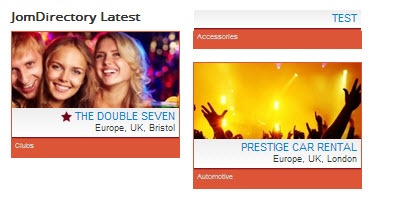
- Grid – Displays the latest listings in a grid format.
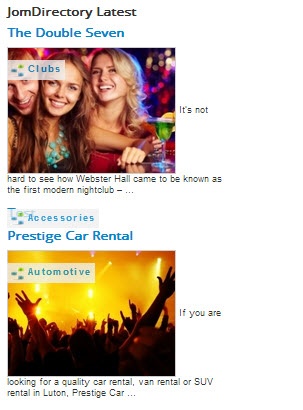
- Clean - Displays the latest listings in a clean format
|
| **Columns count** | Number of columns of listing that should be listed in the panel |
| **Count**
| Number of listings that should be listed in the panel.
|
| **A number of Characters**
| Number of characters that will be displayed in the short description for listing thumbnail.
|
| **Image Width**
| Provide the image width for the thumbnail image.
If Slider Layout set, image width must be the same size than Slider Width or larger. |
| **Image Format**
| The format for the thumbnail listing image.
1:1 = Image will be unchanged.
4:3 = image will be resized to 4:3 format.
10:9 = Image will be resized to 10:9 format.
|
| **Latest or IDs**
| Select how you want the listings to be displayed as:
- Latest
- IDs
|
| **Enter IDs**
| If ID is selected in the column above, mention the starting ID of the listing.
|
| **Featured**
| Enable to show only featured listings.
|
| **Show Address**
| Enable to show the address of the listing.
|
| **Show Description**
| Enable to show the description up to the character limit set.
|
| **Category**
| Enable either of the following options.
- Current Browse (auto) – Automatically displayed based on the category.
- Selected Below – Listings belonging to only these categories are shown.
|
| **Choose Category**
| If Selected Below is selected for the above field, select the required category.
|
| **Sort Options**
| Select how the displayed listings should be sorted by.
- Latest
- Most Viewed
- Alphabetically
- Updated
- Most Rated DESC
- Most Rated ASC
|
| **Slider Settings**
| Heading
|
| **Slider Width**
| Slider width in pixels
|
| **Slider Height**
| Slider height in pixels
|
| **Slide Delay (seconds)**
| Slideshow delay in seconds
|
| **Slider Shadow**
| Enable to provide the shadow effect.
|
| **Slider Thumbs**
| Enable to show image thumbnails
|
| **Slider Caption**
| Enable to show the image caption.
|
| **Show Title**
| Show or hide the title for the search panel.
|
| **Position**
| Select the position based on your Joomla Template.
|
| **Status**
| Select from the given options.
- Published
- Unpublished
- Trashed
|
| **Start Publishing**
| Provide a date when the latest listings panel should be published.
|
| **Finish Publishing**
| Provide a date when the latest listings panel should be unpublished.
|
| **Access**
| Provide access level for the panel.
- Guest
- Public
- Registered
- Special
|
| **Ordering**
| Provide the order in which the side panel should appear. If more than one module is positioned at the same location, you can set the order of appearance in this field.
|
| **Language**
| Select the language for which you want to display this panel. For each language, you must create a new JomOffers Latest module.
|
| **Note**
| Provide additional information.
|
| **Layout**
| Select the required layout in the Layout field. The available options are:
- Horizontal – Horizontal Keyword field, category and address search field as seen in the following image:

- Side Search – Vertical Side panel to filter search results as seen in the following image:
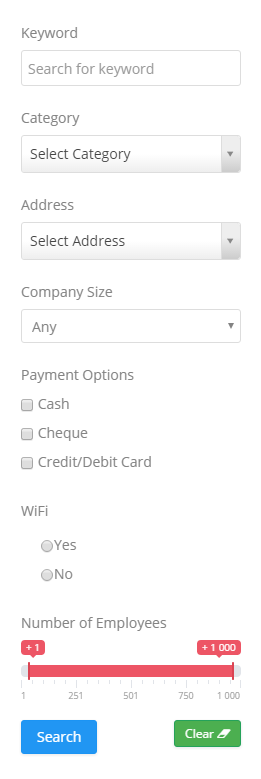
Custom fields that have the Field can be Searched field enabled are seen in this panel. For more information, see [Custom Fields](https://wiki.comdev.eu/books/JomOffers/page/custom-fields "Custom Fields") in the Administrative Guide. |
| **Show Address** | Hide or Show the address field in the frontend |
| **Show category** | Hide or Show category selection in the frontend |
| **Custom Fields** | Select if search should process custom fields |
| **Default category** | Select a default category that will be preselected in the frontend |
| **Show Title**
| Show or hide the title for the search panel.
|
| **Position**
| Select the position based on your Joomla Template.
|
| **Start Publishing**
| Provide a date when the search panel should be published.
|
| **Finish Publishing**
| Provide a date when the search panel should be unpublished.
|
| **Access**
| Provide access level for the panel.
- Guest
- Public
- Registered
- Special
|
| **Ordering**
| Provide the order in which the side panel should appear. If more than one module is positioned at the same location, you can set the order of appearance in this field.
|
| **Language**
| Select the language for which you want to display this panel. For each language, you must create a new JomOffers Search module.
|
| **Note**
| Provide additional information.
|