# JOMDIRECTORY
# Quick Start - JomDirectory
### Overview
This guide will help you get started with using the JomDIrectory extension quickly. It highlights preliminary steps that are a must for JomDirectory configurations. After you are done with them, you can go ahead and create the listings on your site.
### Creating Administration Menu Links
This step is not needed if new installation being made.
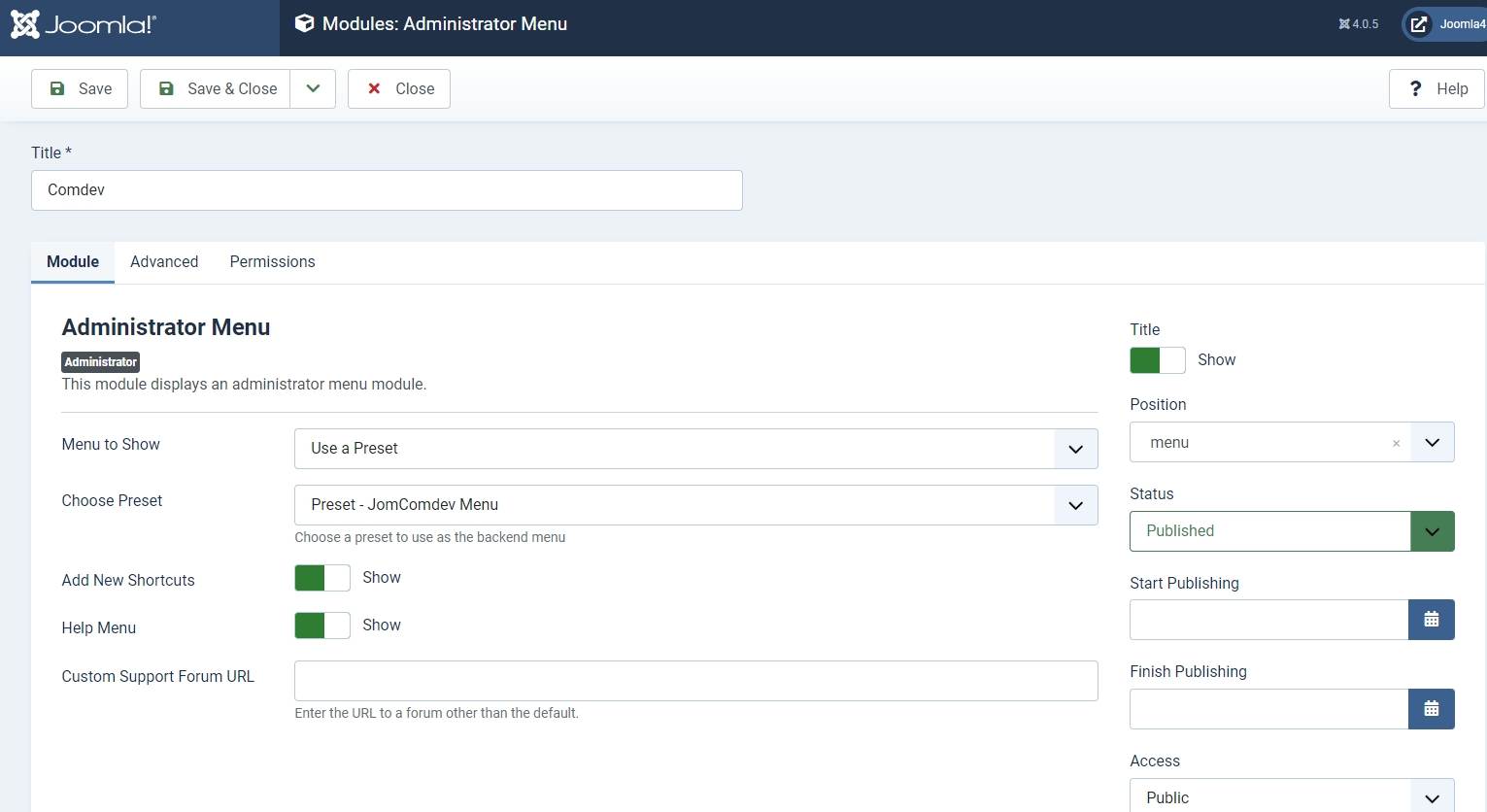
Go to the System -> Administrator modules and insert new. Than choose Administrator Menu. From the presets, select Comdev and place it under menu position. Do the same for the JomDirectory:
### Creating Menu Links
Menus are essential for controlling website navigation, offering users a streamlined way to explore the site through various menu items.
For our purposes, the menu items must link to JomDirectory. It is crucial to create menu links that include the Items menu and provide Front Admin access.
To begin, refer to the Menu Items documentation in the Administrative Guide for detailed instructions on creating these menu links.
### Creating Groups
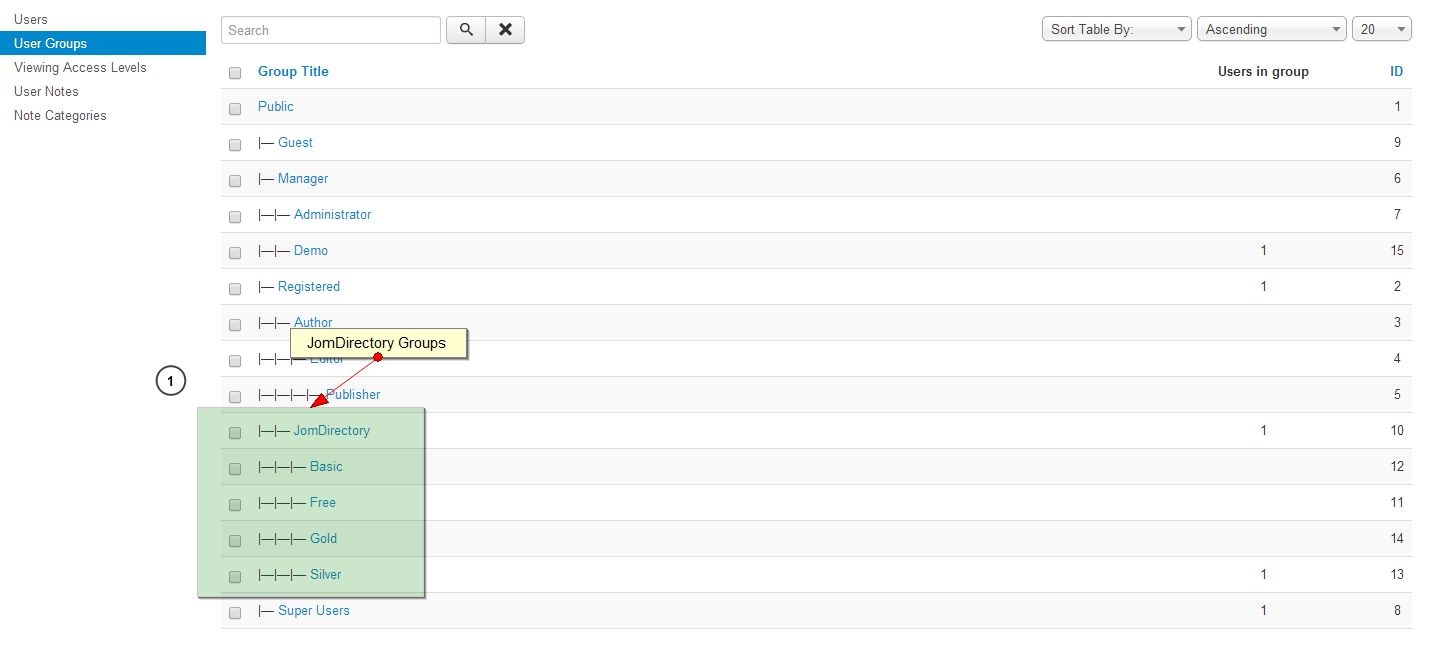
In order to add users to groups for membership plans, you must create a super group named JomDirectory, then create groups for each of your membership plans underneath your super group. These groups are used to provide **Group ID** when creating a membership plan. Users created using User Manager can be linked to each of these membership plan groups.
To begin creating groups for membership plans, follow the [Creating a Group](https://wiki.comdev.eu/books/jomdirectory/page/membership "Membership") documentation in the Administrative Guide.
### Creating Membership Plans and Memberships
Memberships in JomDirectory are required to set user group level based on the monthly/Yearly pay plan the user selects. Using membership plans, you can decide how much to charge a user and how many listings a user can make a particular membership plan.
Before you can create a membership plan, you must create Joomla groups using the above section information. Read more about creating membership plans for your site using the [Memberships](https://wiki.comdev.eu/books/jomdirectory/page/membership "Membership") section in the Administrative Guide.
### Adding a New Address
The Address feature lets you provide the country, region and city for the associated product listing. The advantage with the Address field in JomDirectory is that after you configure a particular address, it is shared across various components in the Comdev extension.
Get started with creating addresses that will be used in your listings by referring to the [Address](https://wiki.comdev.eu/books/jomdirectory/page/address "Address") documentation in the Administrative Guide.
### Adding a New Category
Categories allow the site owner to categorise listings into appropriate sections. JomDirectory categories are independent of the Joomla category system. Nested categories (sub-categories) are supported in JomDirectory. The component comes with a default category named "UNCATEGORIZED", which holds listing items that are not attached to any category (same function as the default Joomla system).
To start creating categories, follow the [Categories](https://wiki.comdev.eu/books/jomdirectory/page/categories "Categories") documentation in the Administrative Guide.
### Adding Custom Fields
Custom fields are a powerful tool to build content. We provide a variety of field types with the ability to outline into groups. Each field can be assigned to a single category or all categories. Custom fields in JomDirectory provide multiple options such as dropdowns, text area, radio buttons, and so on. Based on your requirement create a custom field and make it searchable for better user experience.
Read more about how to create custom fields in the [Custom Fields](https://wiki.comdev.eu/books/jomdirectory/page/custom-fields "Custom Fields") section from the Administrative Guide.
### Creating a New Listing
Listings are nothing but the product listings that you want to create in the directory. Each listing is attached to a category. They are created in the same manner as Joomla articles but are not related to Joomla articles in the definition.
Get started with creating listings for each category by referring to the [Listings](https://wiki.comdev.eu/books/jomdirectory/page/listings "Listings") section in the Administrative Guide.
# Configuration Steps
## Overview
These configuration steps need to be done in order for the component to work correctly
### Create Menu links
More about menu links can be [found here.](https://wiki.comdev.eu/books/jomdirectory/page/menu-items "Menu Items")
Items menu link needs to be created.
**Items Link**
Link which does not point to any
category or address
Latest Link which displays latest added listings
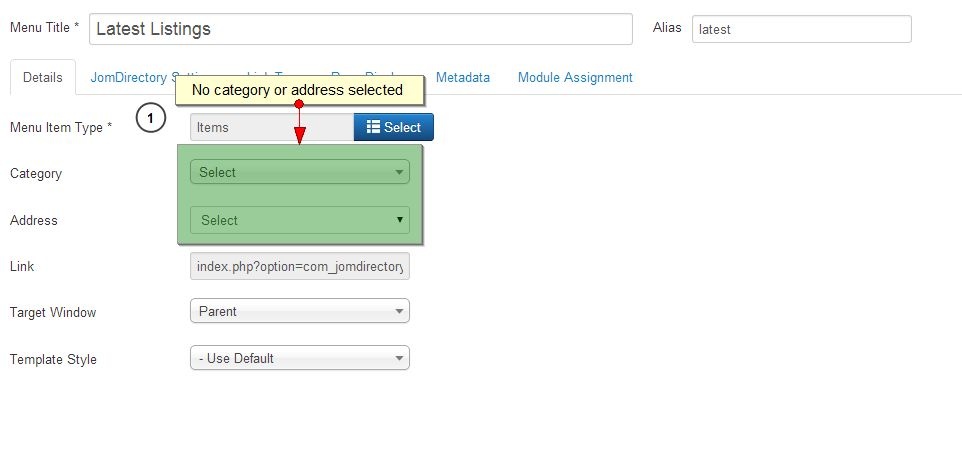
- Listing details may not be accessible
- This link is being used to display search results, so if the alias is latest than site URL for the search results will be http://domain.com/latest
**Items Link - Category**
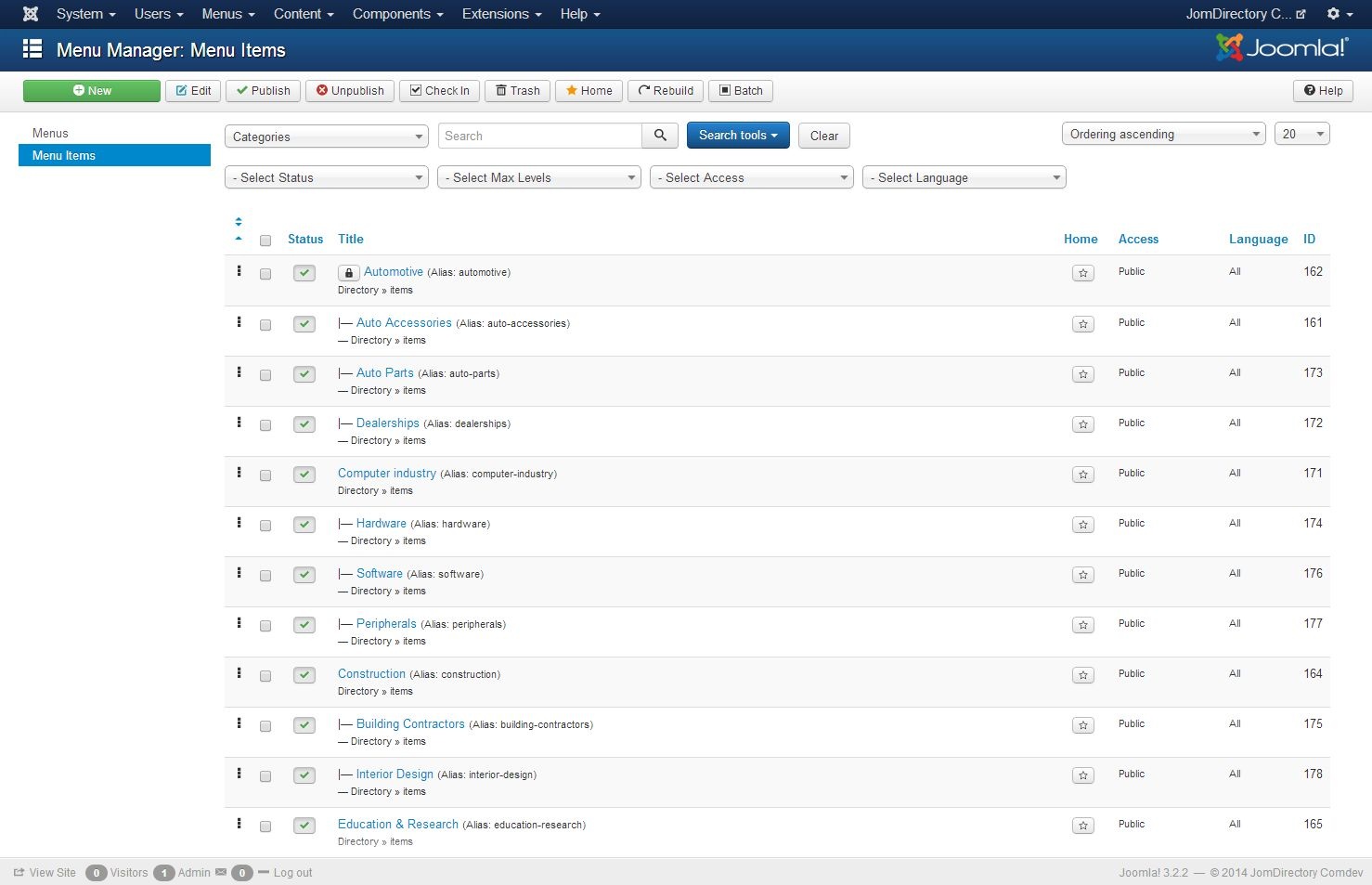
Links for each of the category.
A separate menu can be created with all the categories created.
Menu with all categories
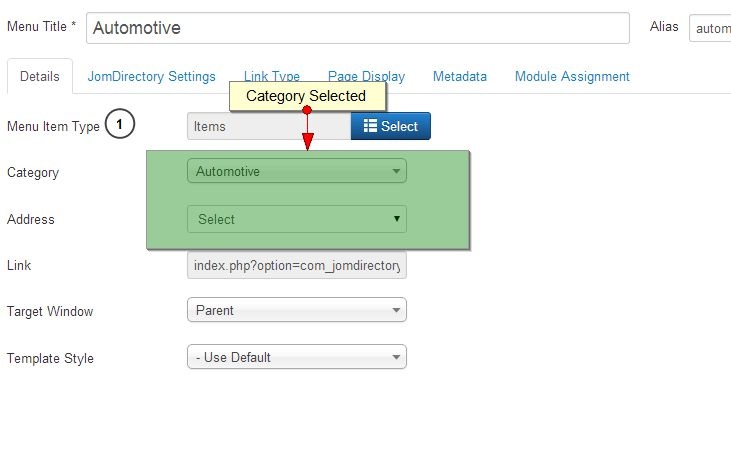
- Listing details may not be accessible
- Individual menu settings can't be applied
### Joomla / Directory Groups
Membership Plans are based on the Joomla Groups therefore before creating any of the Membership plans - corresponding Joomla groups needs to be created. The main group for the component needs to be called JomDirectory. Each of the plans needs to be placed under that JomDirectory parent group e.g.
**JomDirectory**
- Free
- Basic
- Silver
- Gold
### Permissions
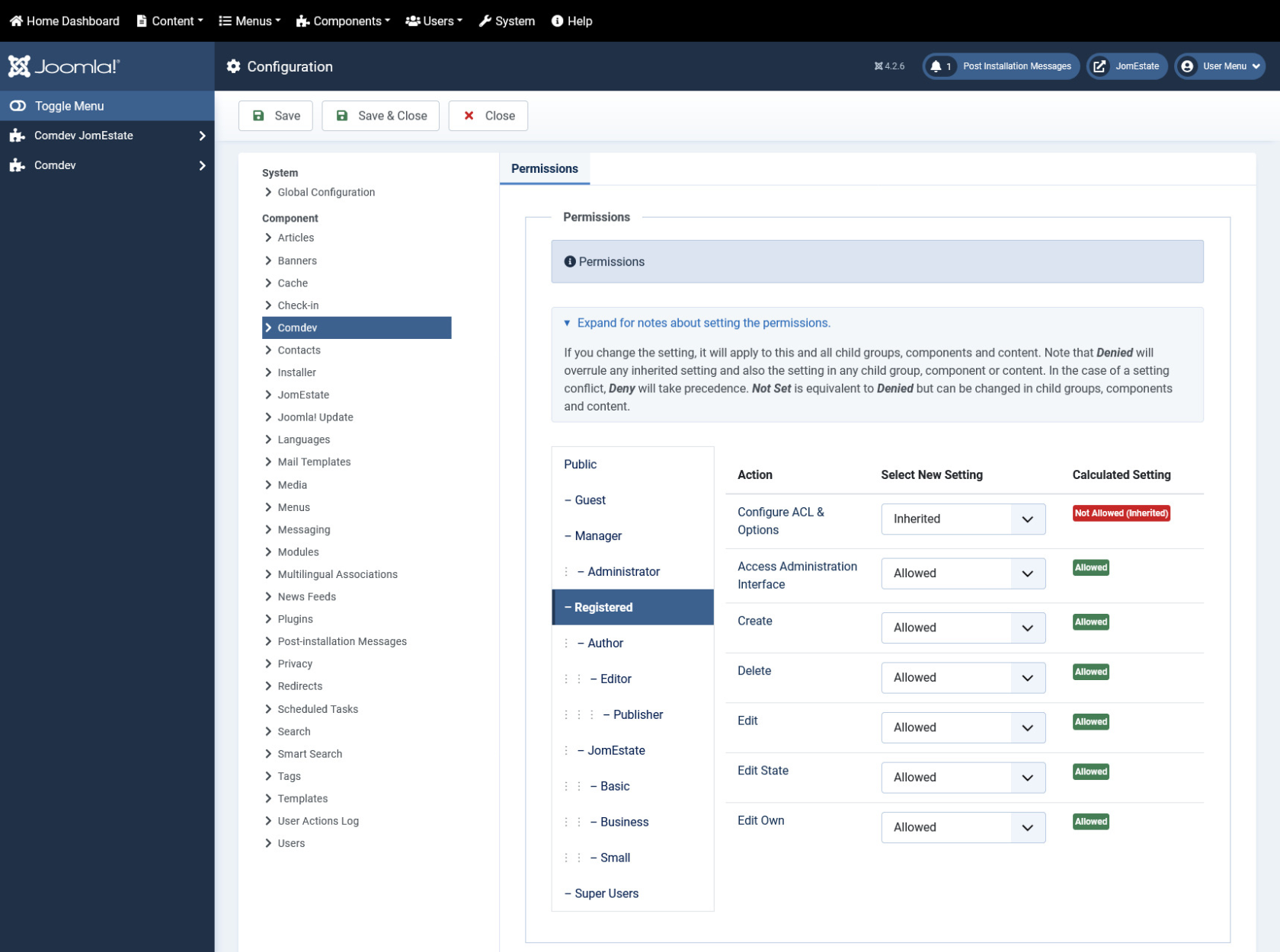
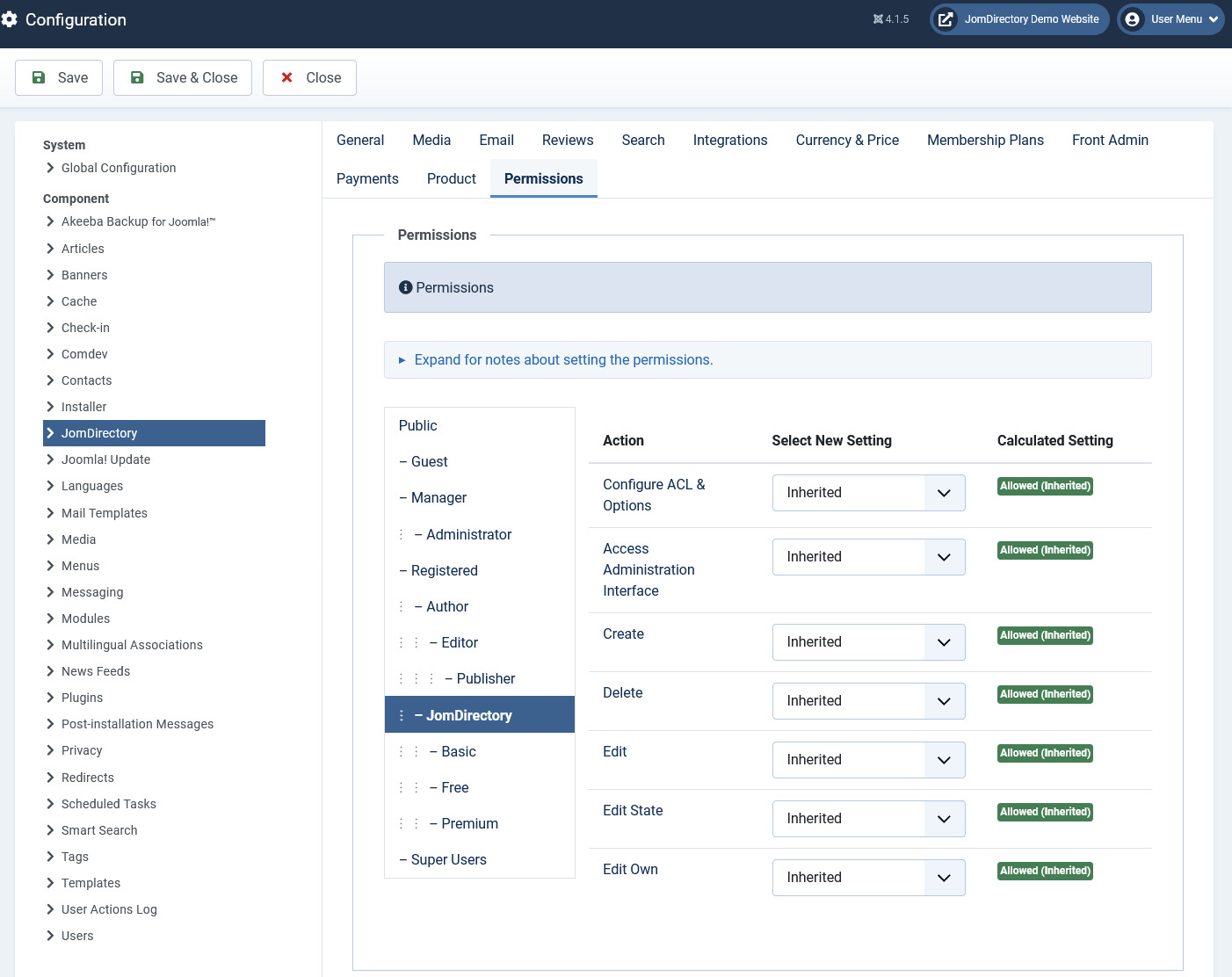
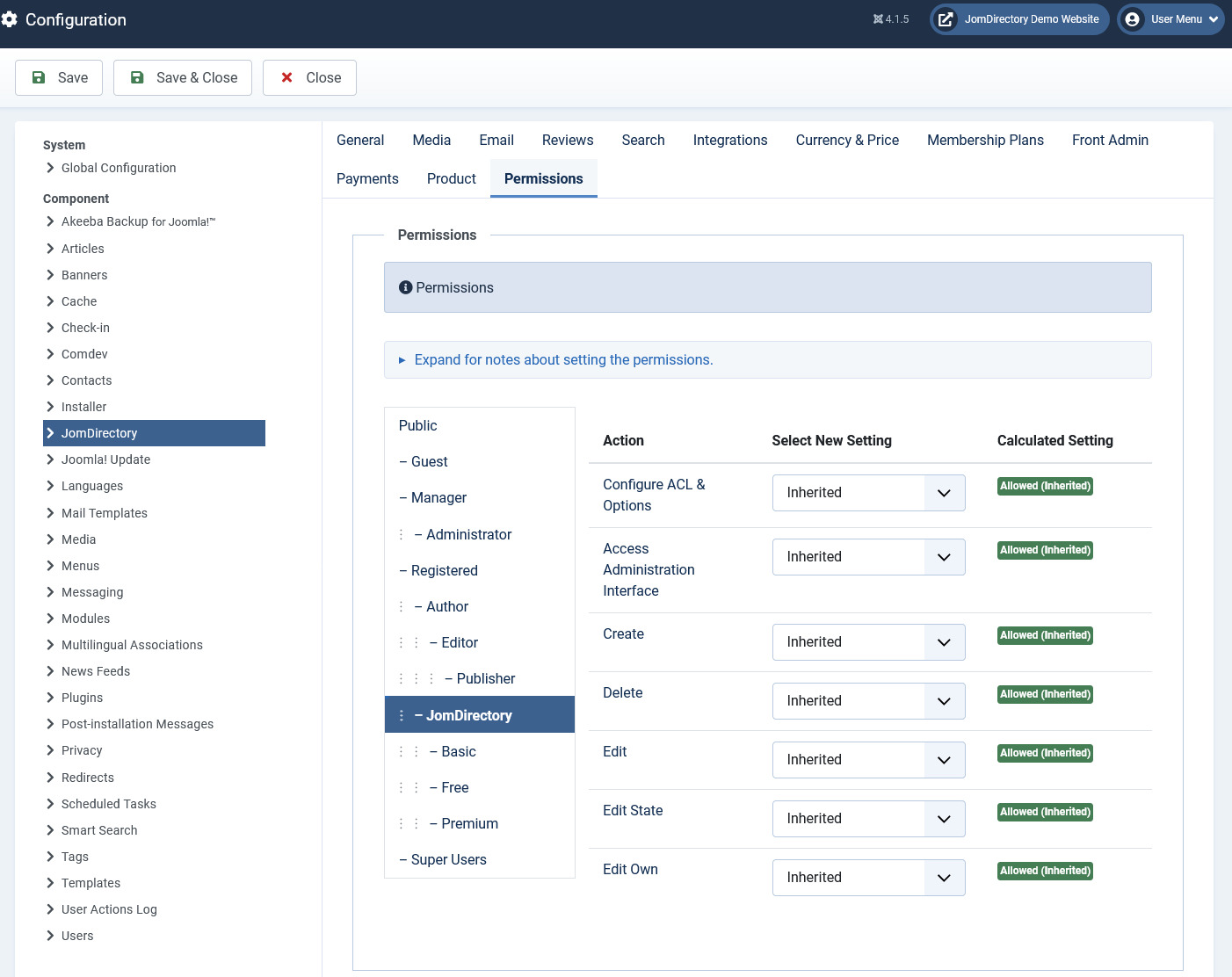
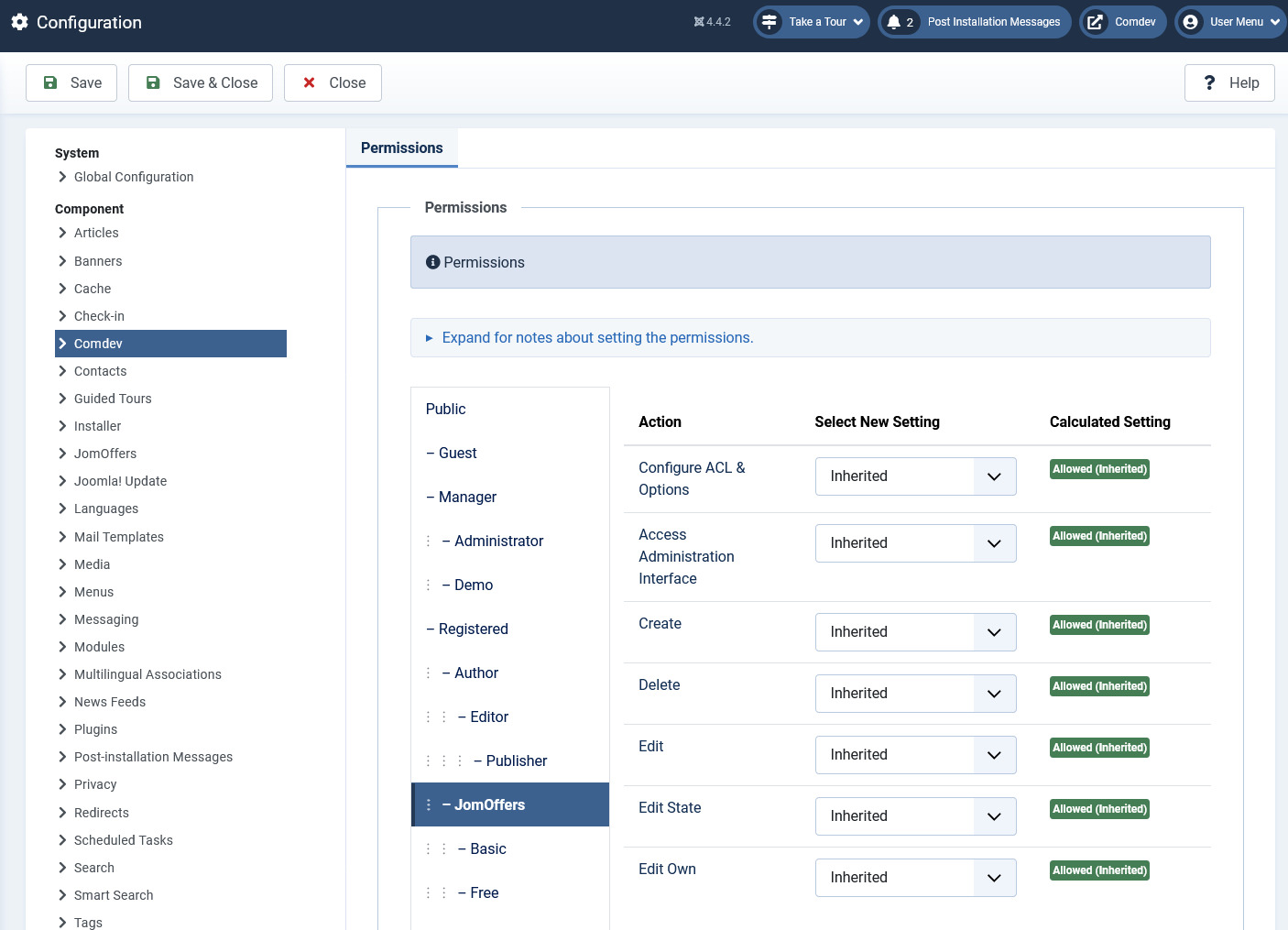
It is important to set the right permissions for the components: Comdev and Directory, in order for the users to access the Front Admin. Otherwise, Users won't be able to access the Front Admin (Permissions Denied) or get 500 Error when trying to upload the images.
An example below shows access for the Registered Group. Same settings should be applied for each group that should have access to the Front Admin.
#### Setting permissions for the Comdev Extension
[](https://wiki.comdev.eu/uploads/images/gallery/2024-02/C7hobraz.png)
#### Setting permissions for the JomDirectory Extension
[](https://wiki.comdev.eu/uploads/images/gallery/2024-03/xjiobraz.png)
# Menu Items
### Overview
In this section, we will learn how to create menu items to access JomDirectory.
Menus are used to control website navigation and are a set of menu items. Menu items provide the navigational experience to your users. The menu items in our case must point to the JomDirectory.
### Creating Administration Menu Links
This step is not needed if new installation being made.
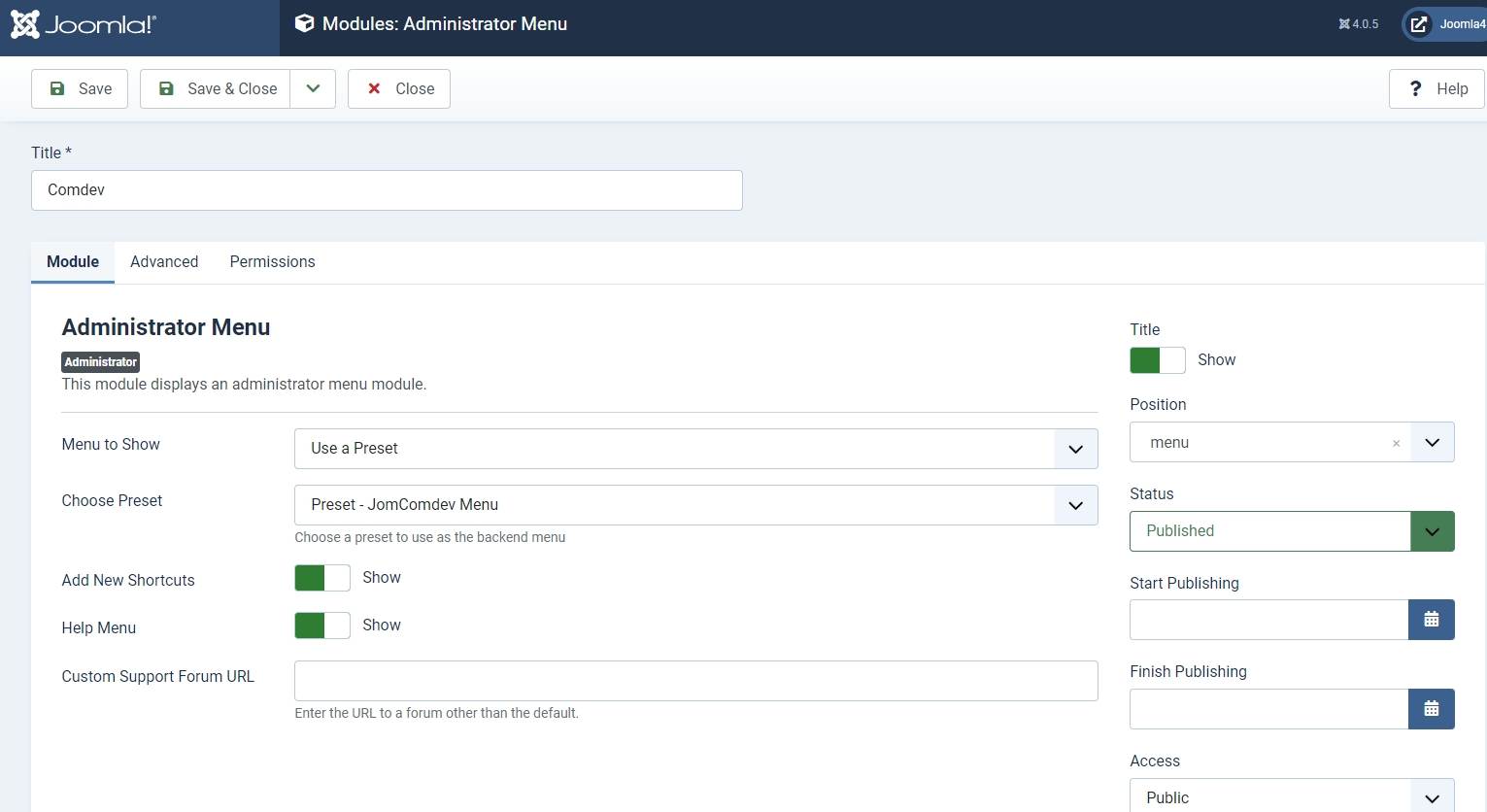
Go to the System -> Administrator modules and insert new. Than choose Administrator Menu. From the presets, select Comdev and place it under menu position. Do the same for the JomDirectory:
### Creating Menu Items to access JomDirectory
Creating an Items menu link is mandatory. If you have a multilingual site, ensure that you create an Items menu link for each language. You can hide this menu link, but it needs to be created nonetheless. Though you are creating an Items link that does not point to any category or address, you can create other links with Items menu type that can point to an address or a category once main Items link has been created.
To create menu items with Items menu item type, do the following:
1. Click **Menus** > **<your\_menu>** > **Add New Menu Item**.
2. Provide a title in our case is **Latest Listings** in the **Menu Title** field. Now, since the Latest Listings menu item provides a list of all the latest postings on the site, we have selected the menu type as Items. The Alias field will build URL for the site. When a search is done this will be the landing page for the search results as well.
3. Provide the options as seen in the following image:

**Screen 3:** Items menu item screen
4. Provide the values based on the following table.
**Menu Item Type**
Click **Select**. A pop-up is displayed. In this case, since we are creating the Items menu item, click **Directory** > **Items** from the list.
**Category**
Select the appropriate category if creating direct category link.
**Address**
Select the appropriate address if, creating direct address link.
**Link**
This field is auto-populated based on the menu item type selected.
**Target Window**
Select the parent for this menu item.
**Template Style**
Select the template style you want for this menu.
5. Click **Save**.
Ensure that you see a green tick next to this menu item. The green tick indicates that the item is published. To publish an item, select the checkbox next to the item and click **Publish**.
To view the created menu item, go the front end of your site. The new menu item and it's alias is displayed and will be used for search results:
If you called it - Latest Items than search results page will be www.mydomain.com/latest-items.
If you do not create this menu search results URL will be: www.mydomain.com/components/jomdirectory
##### Create menu links for each category
It is very important to notice that listing details and proper URL's does not build if the category menu is missing (each category must have a link). You have to ensure that for each category on your site, you create a corresponding link in the Joomla menu. The best approach is to create a separate Joomla menu e.g. Categories and link each category there.
## 
### Creating Menu Items to access the Category Tree
The categories created in the component can be seen in the following format on the site depending on the layout selected.

**Screen 1:** Category page screen
Ensure that for each category on your site, you create a corresponding link in the Joomla menu. This is important for SEO and module positioning. If this linking is not created, you may not be able to access the detailed listing view.
For the Category screen to appear in your required format, you can edit the JomDirectory settings for that Menu item. The options seen for JomDirectory settings are as follows.
****
**Screen 2:** Category Tree menu item screen
The following table explains different options that you can edit.
**Columns Count**
Choose number of columns to be displayed
****
Choose to show Products or Listings
**Start level**
Choose start level category to be displayed
**Enable Image**
Enable category images that are displayed
**Enable Count**
Enable item count
**Enable Subcategories**
Enable to show subcategories
**Enable Category Index**
Enable to display category index
**Choose Layout**
Select from the following layout options:
- Use Global
- Category Tree
- Category List
- Category Float Layout
**Category Image Width**
Define the category image width in pixels
**Category Image Format**
Select from the following format options:
- 1:1
- 4:3
- 16:9
This link creates a Categories Tree page if you would like to link to a direct category, use Items Menu and select a category under Details Tab.
### Creating Menu to access JomDirectory Front Admin
To create menu items with Front Admin menu item type, do the following:
1. Click **Menus** > **<your\_menu>** > **Add New Menu Items**.
2. Provide a title as **Front Admin** and the alias as **front-admin** in the Menu Title field.
3. Provide the options as seen in the following image:

**Screen4:** JomDirectory Front Admin menu item screen
4. Click **Save**.
#### Front Admin Options
For the Menu to be able to access the JomDirectory Front Admin, certain settings need to be made. The following table shows the three menu links that need to be made and linked with JomDirectory Options. You can create these 3 menu items anywhere on the site e.g. link them under User Menu.
##### Profile Edit Menu Link
This link should point to Edit profile menu item created using Edit User Profile menu item type.
1. Click **Menu** > **<your\_menu>**>**Add New Menu Item**.
2. Provide the Title as **Edit Profile** and the menu item type as **Edit User Profile**.
3. Click **Save**.
This link should point to the login form menu item created using Login Form menu item type.
1. Click **Menu** > **<your\_menu>**>**Add New Menu Item**.
2. Provide the Title as **Login Form** and the menu item type as **Login Form**.
3. Click **Save**.
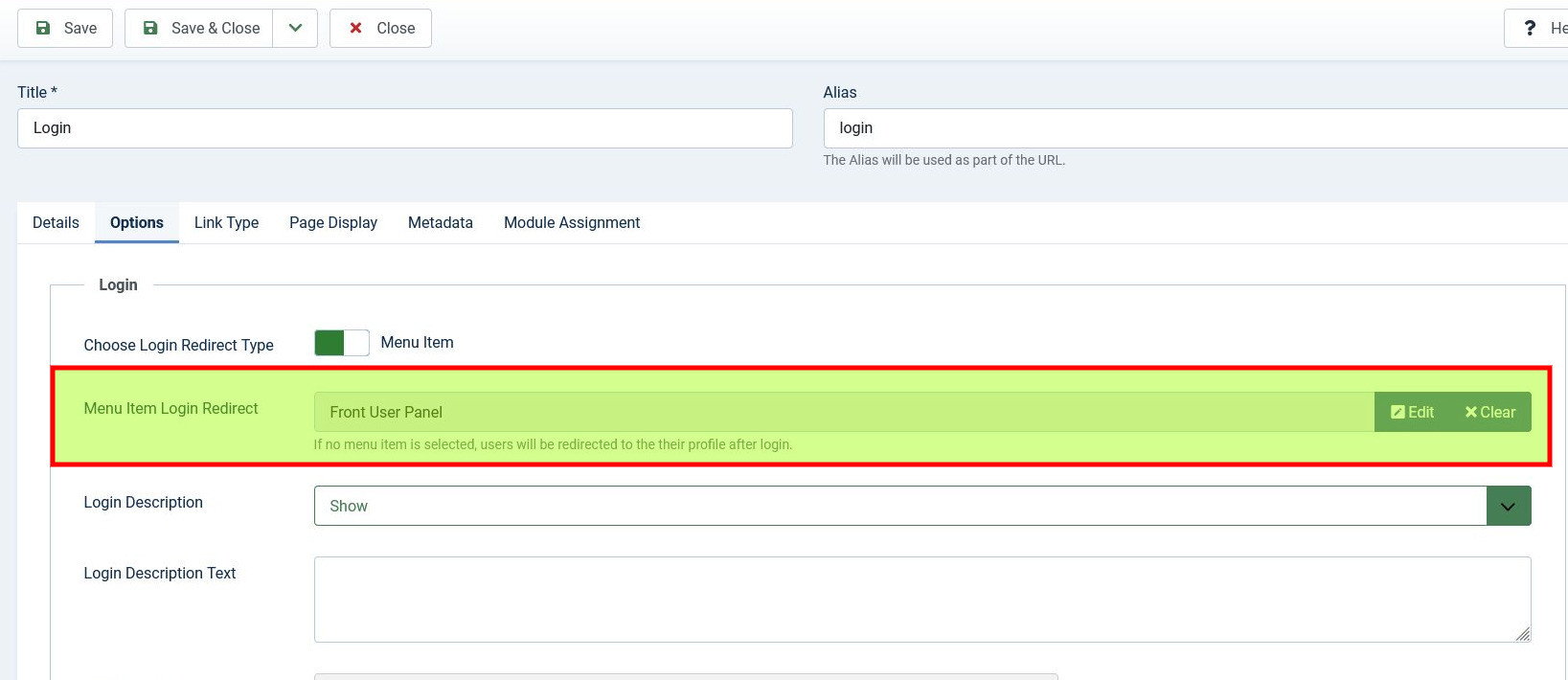
The following image shows how the Login Form menu item is used
[](https://wiki.comdev.eu/uploads/images/gallery/2024-03/U7Obez-nazwy.jpeg)
When a user is not logged into the front page, he will be redirected to the built-in Joomla login form. After successful login, he will be redirected to the JomDirectory Front Admin.
The following image shows the redirect URL that needs to be provided. The value you provide in the Login Redirect field depends on the following:
- http://domain.com/index.php/front-admin - Use if URL rewriting is not applicable.
- http://domain.com/front-admin - Use if URL rewriting is applicable.
In our example, we are using the http://domain.com/front-admin URL as shown in the following image where front-admin is the alias of the [JomDirectory Front Admin Menu Link](https://wiki.comdev.eu/display/JD2/Menu+Items#MenuItems-front-admin):
##### Profile View Menu Link
This link should point to the user profile created using User Profile menu item type.
1. Click **Menu** > **<your\_menu>**>**Add New Menu Item**.
2. Provide the Title as **User Profile** and the menu item type as **User Profile**.
3. Click **Save**.
**Now link menus with JomDirectory Options**:
Make the following settings for the Front Admin are made in the JomDirectory options for the user to be redirected correctly to the Front Admin, when he is not logged in.
1. Click **System** > **Control Panel**.
2. Under **Extensions**, click **JomDirectory**.
3. Click **Options** in the top right-hand corner of the screen.
4. Click the **Front Admin** tab.
5. Change the **Profile Menu Link**, **Login Menu Link**, and **View Profile Menu Link** field as per the following image.
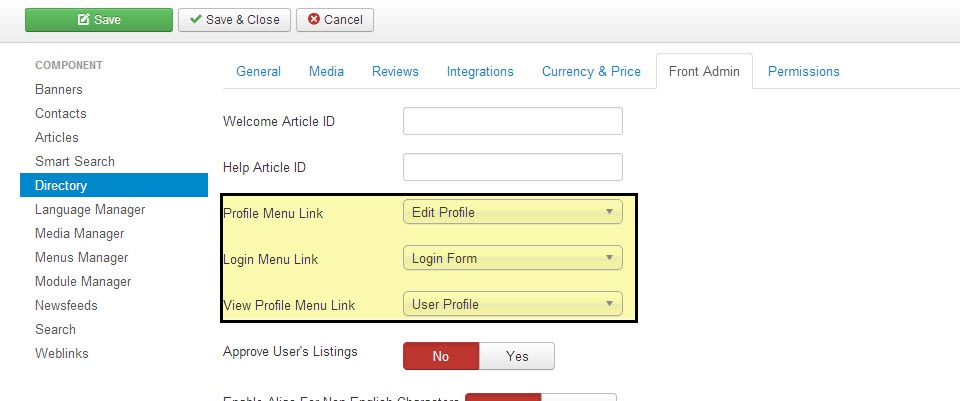
**Screen5:** JomDirectory Front Admin options
6. Click **Save**.
The Front Admin lets users add listings in the front of the site. For more information about how to add listings, see [Front Admin](https://wiki.comdev.eu/display/JD2/Front+Admin).
# Administrator's Guide
# Dashboard
### Overview
Administration dashboard gives you an overview of all the activities you can do using the JomDirectory extension. It provides you with a view of all the menu items, system configuration checks, licence information, and links to the documentation.

**Screen 1: Dashboard screen**
### Menu Items
The Dashboard area mainly comprises of Menu items, an overview of listings and the graphical statistics about the offer views and offers added. The overview of listings and users are seen at the top area of the dashboard while the reports are seen below them.
The Menu items are present in a list format on the left-hand side of the screen. The following image shows the Menu items present on the dashboard screen.

**Screen 1: Menu items area**
Dashboard
Home or dashboard for the JomDirectory extension
Directory Listings
Shows the Listings administration screen
Directory Categories
Shows the Categories administration screen
Custom Fields
Shows the Custom Fields administration screen
Address
Shows the Address administration screen
Users
Shows the users administration screen
Membership Plans
Shows the Membership Plans administration screen
Messages
Shows the messages received
Reviews: Categories
Shows the Reviews administration screen to add review parameters for each category. For example, Quality, Customer Service, and so on.
Reviews: Recommended
Shows screen to add recommended audience for the listing or category. For example, For young people, Gizmodo, and so on.
Payments
Shows the payment related information.
Import/Export
Import to or Export data from JomDirectory extension.
Add New
Create a new listing quickly.
Options
Shows the configuration management screen.
#### System Checks
Any configuration problems or current configuration status is displayed in this area as shown in the following screen:

**Screen 3: System configuration checks area**
#### Need Help area
The Need Help area includes links to documentation, knowledge base, community forum and supports tickets. You can use this information for any additional help required when using JomDirectory.
The following image shows the License area on the dashboard screen.

**Screen 4: Need Help area**
#### Information area
The Information area displays the JomDirectory version that you are using along with the build details. It also states whether you are using the latest version.

**Screen 5: Information area**
# Address
{{@105}}
# Categories
{{@106}}
# Custom Fields
{{@107}}
# Listings
### Overview
Listings are nothing but the product listings that you want to create in the directory. Each listing is attached to a category. They are created in the same manner as Joomla articles, but are not related to Joomla articles in definition.
### Creating A New Listing
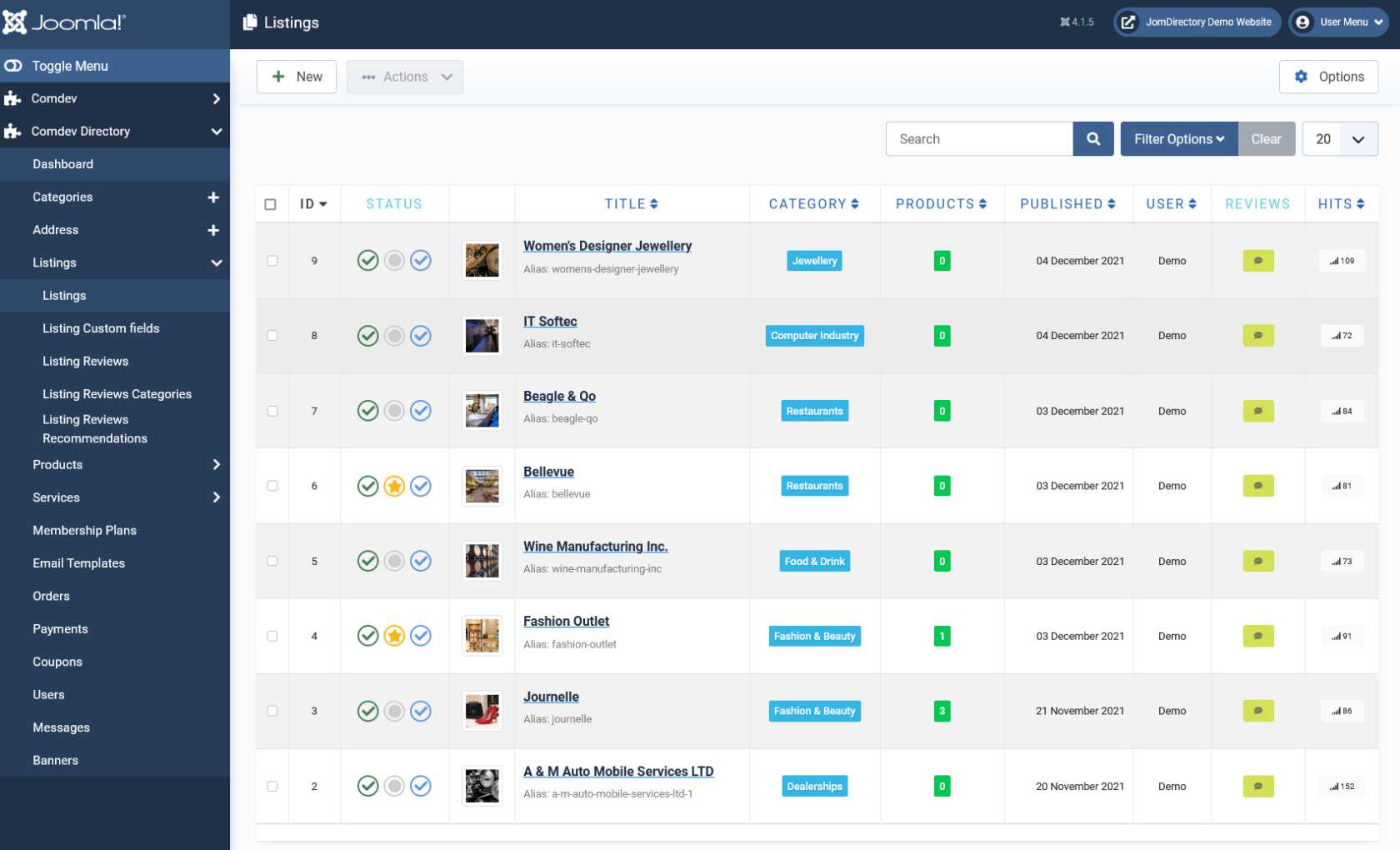
The following image shows the Listings screen.
[](https://wiki.comdev.eu/uploads/images/gallery/2024-03/qwTobraz.png)
**Screen 1: Listing screen**
The following table explains the different options seen on the screen.
**New**
Creates a new Address entry. You must create separate entries for each level of depth that you need.
**Edit**
Provides the edit mode to make changes to the existing level or titles created.
**Publish**
Publishes the created address entry.
**Unpublish**
Removes the entry from the list of published address entries
**Archive**
Archives address entries that are not used anymore.
**Trash**
Deletes the address entry that is not required anymore.
**Options**
Naviagate to the options screen in JomDirectory.
### Edit Listing
If you want to edit existing entries, you can either click the entry from the Listings screen or select the checkbox next to the entry, and then click Edit.
#### Edit Listing tab
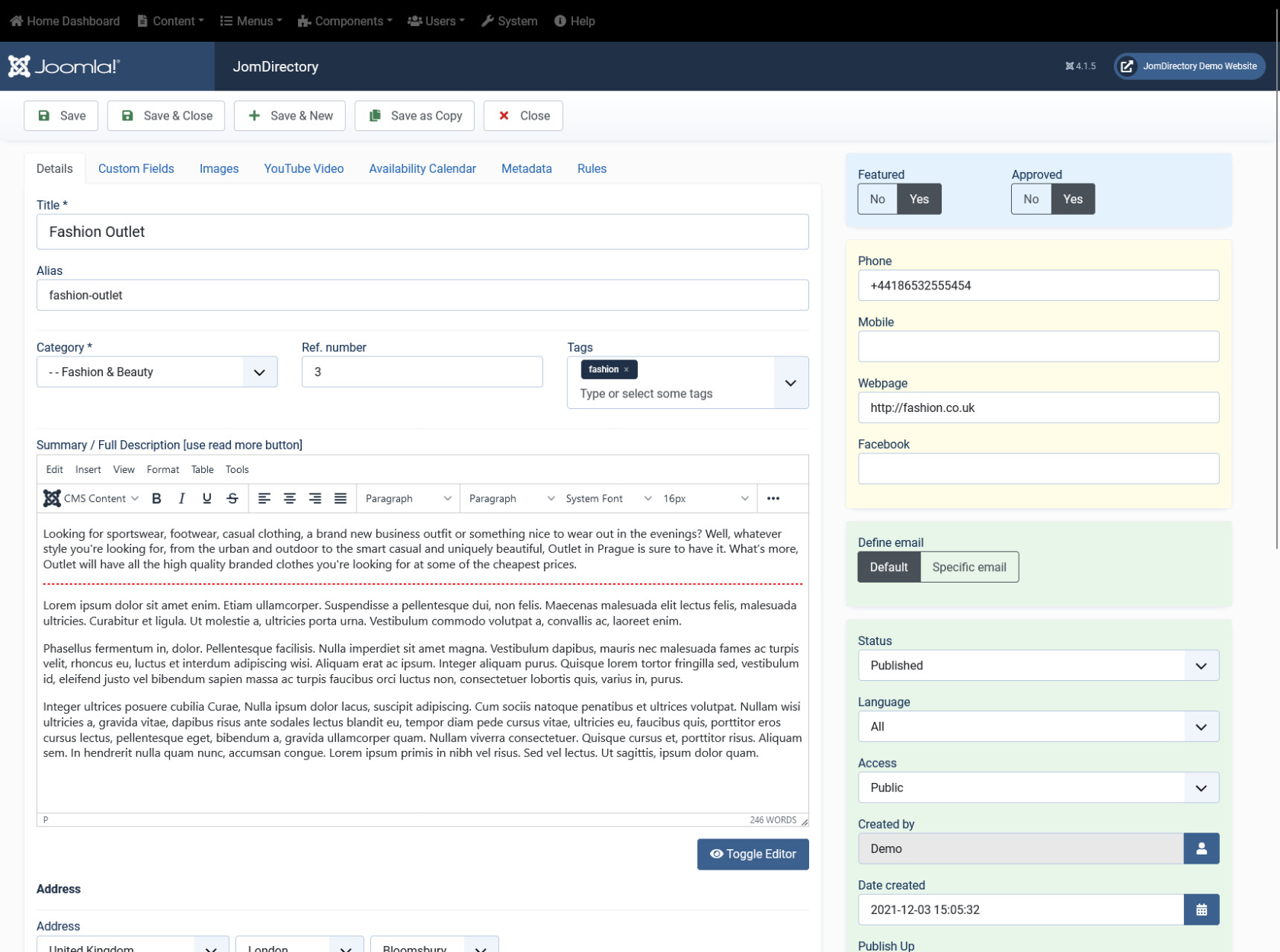
This tab provides options to add title, description, select category, and other options for the Listing as seen in the following image
[](https://wiki.comdev.eu/uploads/images/gallery/2024-03/UHDobraz.png)
**Screen 2: Edit Listing screen**
The following table shows the options available:
##### Edit Listing area
Title
Title for the Listing.
Alias
URL alias for “SEF/SEO” URL.
Category
Category where the listing will be published.
Tags
Provide the tags for the listing. Tags are integrated and maintained with Joomla Tags Component.
Provide a description for the listing.
You can create a short description as well a long description.
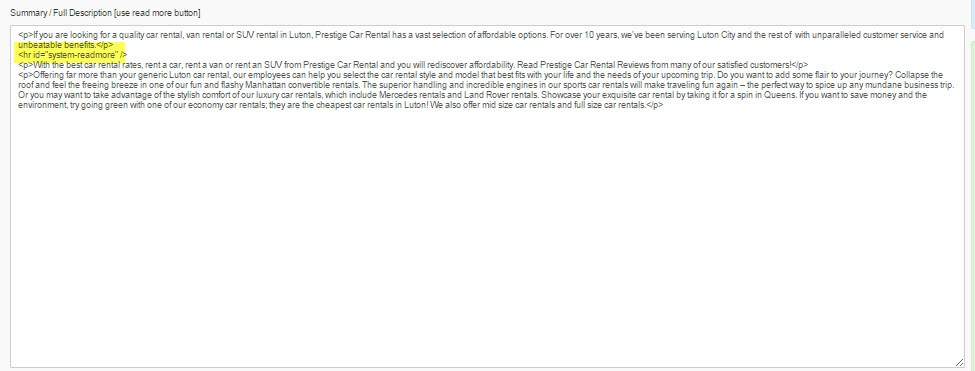
In the above image, a tag appears when you click **Read More**. Any content above this tag is the **short description**, while the entire content is the **long description**. Also, note that if there is no content after the **Read More** tag, the event description will be blank when users view the listing. Ensure that you have content after the **Read More** tag.
##### Joomla Articles area
Article *Button*
Click to select a relevant article. If an article is provided, it can be seen under the Details tab in the listing.
Page Break *Button*
Insert a page break in the displayed text.
##### Address area
Address
Address of the listing
Street, House No.
Street and house number of the listing - If both Address and Full Address specified, map location will position automatically.
##### Location area
Maps latitude
It utilizes the GEO-location based on Google Maps.
Provide the latitude information for the location mapping.
Maps longitude
The information provided in this field is used to map the exact location. It utilizes the GEO-location based on Google Maps.
Provide the longitude information for the location mapping.
Maps Search
Search for a specific location. Type in the location and press Enter to go to the exact location.
##### Sidebar
Featured
Enable to make the listing appear as featured listing.
Approved
Enable to approve the listing. Listing will not be published.
Language
Select the language for which the listing needs to appear for. [For multiple languages, you must create separate entries for each language](https://wiki.comdev.eu/books/installation-requirements-language/page/multilingual-site "Multilingual Site").
Status
Select the required status.
- Published
- Unpublished
- Trashed
- Archived
Created by
Select the user who created the listing.
Access
Provide the access level for the listing.
- Guest
- Public
- SuperUsers
- Registered
- Special
Date created
Select the date when the listing was created. You can select a future date for publishing the listing as well.
Publish Up
Select a date when you want to publish the listing. Here too, you can schedule to post the listing at a future date.
Publish down
Select a date when the listing should stop being published.
Modified Date
Select a date when the listing was modified.
ID
This is an auto-generated field.
#### Understanding the Location area in Edit listing tab
Let us understand how to provide the address and Street/House No for providing the exact locations on the map. When you provide the address, street and House No. in the backend when creating listings, the location position automatically. If the House No. is not provided, additional location fields needs to be used.
##### Mapping using longitudes and latitudes
If you provide the latitudes and longitudes, and the Maps Search setting is left blank, the location mapping is done based on these parameters as shown in the following image.
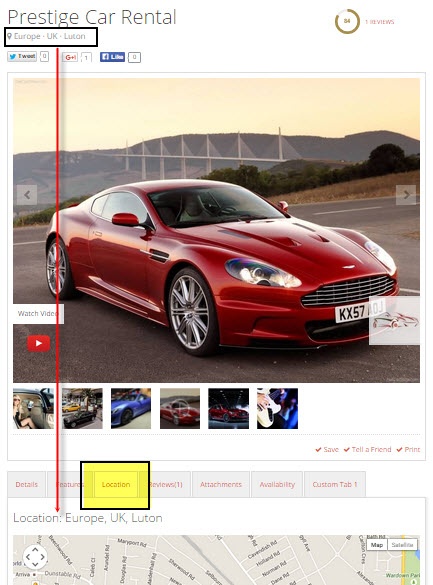
**Screen 3: Map using longitudes and latitudes values**
##### Mapping with Map Search values
If the Map Search field has a value provided to it, it takes precedence as shown in the following image. If the Map Search field value is given as “New York”, the location will map to this location.
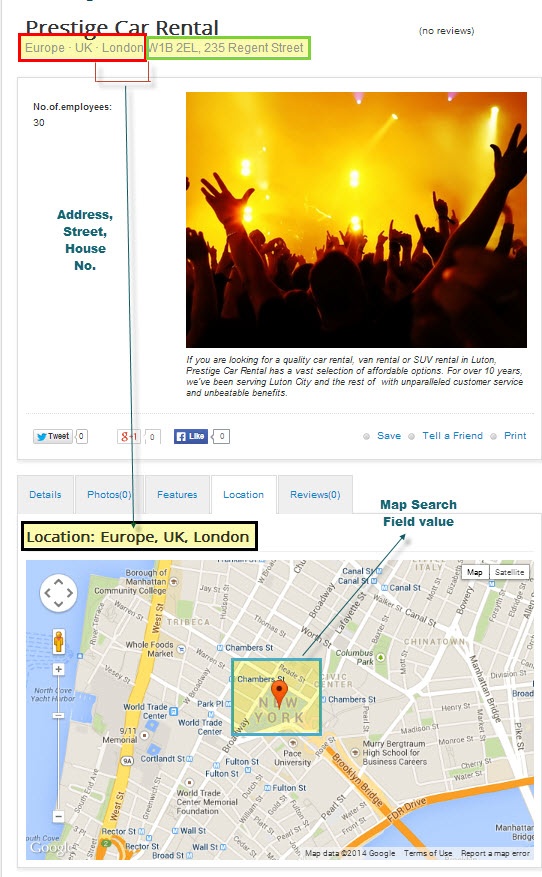
**Screen 4: Map using Map Search Field values**
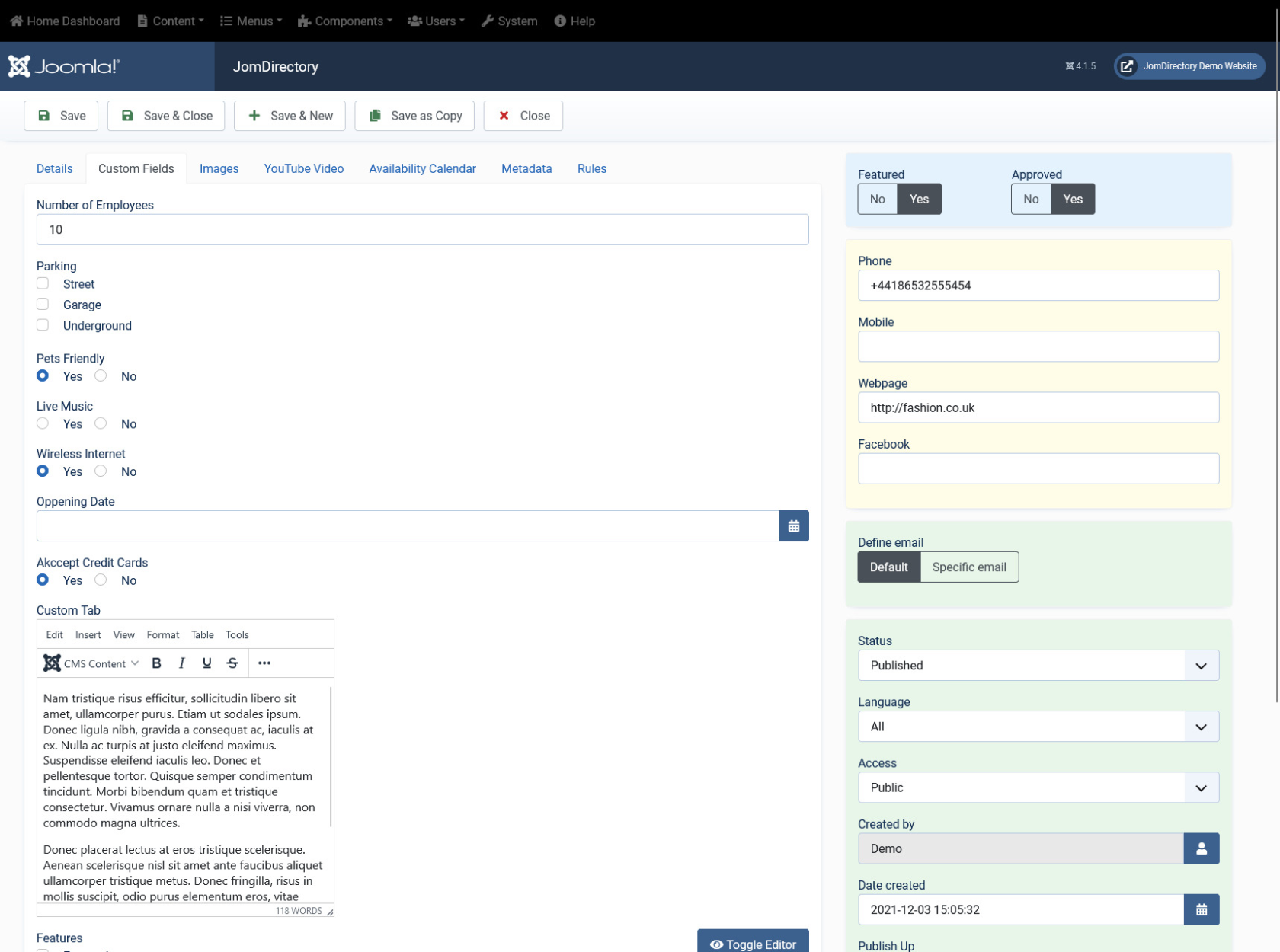
#### Custom Fields tab
This tab includes all the custom fields created for a particular category. If the custom field is not applied to a specific category, it can be seen for all categories when creating a listing. The following image shows the Custom Fields tab screen.
[](https://wiki.comdev.eu/uploads/images/gallery/2024-03/Hn9obraz.png)
**Screen 5: Custom Fields tab**
For more information about creating custom fields, see [Custom Fields](http://confluence.comdev.eu/display/JD2/Custom+Fields+Templates).
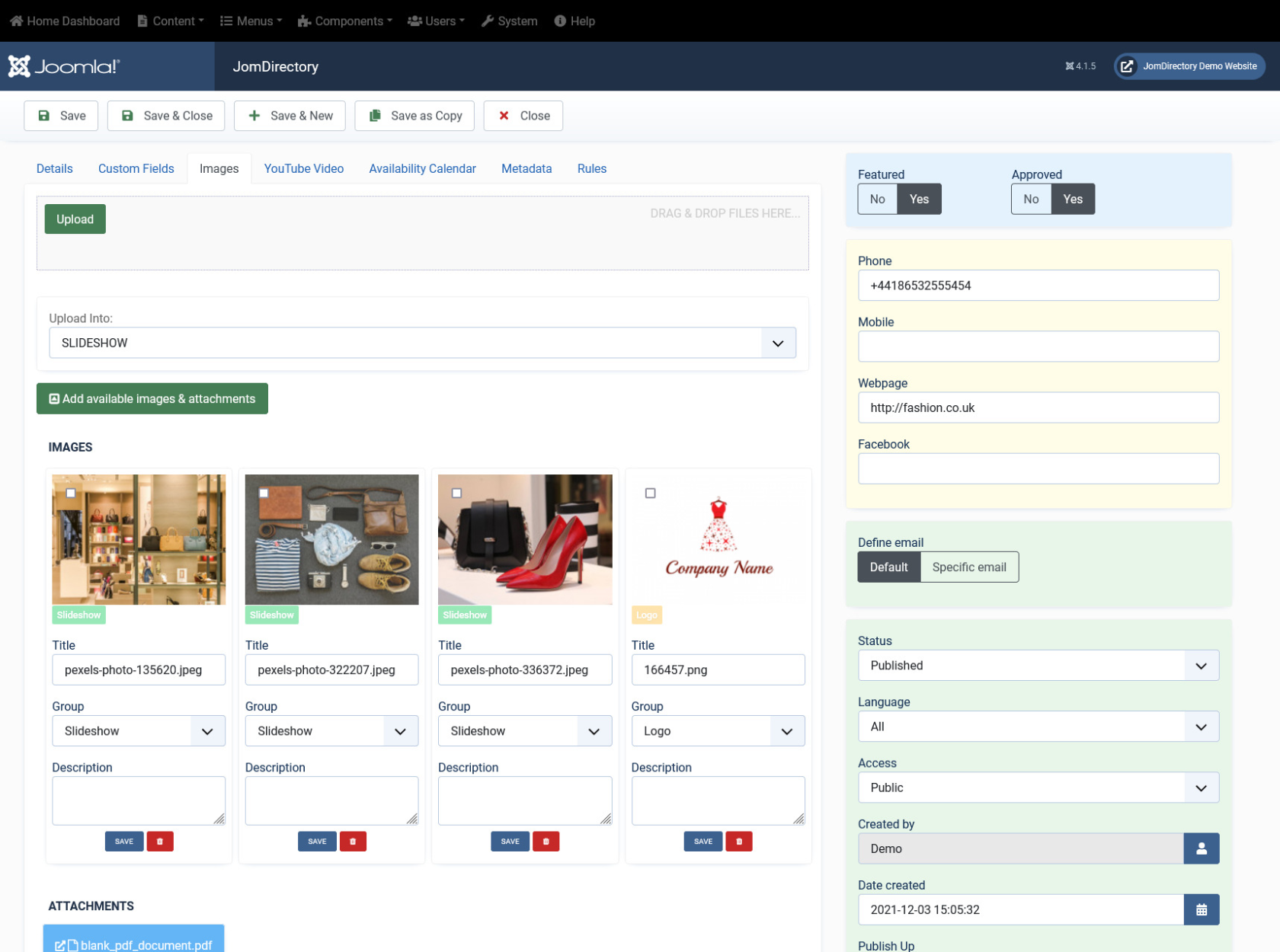
#### Images tab
This tab includes information about images and videos attached to the listing. Before you can add images to the listing, you must save your listing at least once. This ensure that all the other data you have filled for the listing does not disappear after the images are added.
The Images tab can be seen as shown in the following image:
[](https://wiki.comdev.eu/uploads/images/gallery/2024-03/xDHobraz.png)
**Screen 6: Images tab**
To set the the Order of the images, which one displayed first, drag and drop images to switch positions.
The first image in the gallery is used as the image thumbnail for the listing.
Provide the options as shown in the following table.
##### Images
**Add file area**
Add Files
Click to select the image that needs to be uploaded.
Drag & Drop Files Here
Drag a bunch of images to this area to upload multiple images.
Upload Into
Select which category the image falls under:
- Slideshow - detailed view main gallery
- Gallery - in gallery tab
- Logo - displayed in sidebar under custom fields and over the image with transparency in listings page.
Add available images & attachments
Click to add already uploaded images and attachments to this listing.
**Images area**
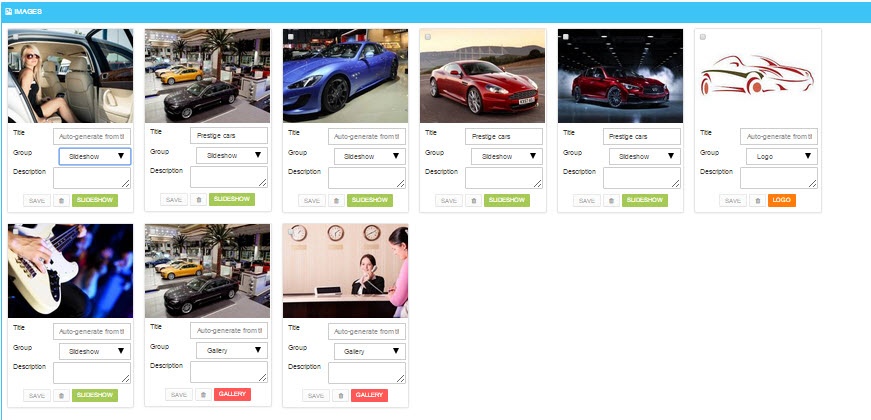
Editing an Image
The options are as seen in the following image: You can provide a title, select group where the image will be displayed. The groups include Slideshow, Gallery or Logo.
Click the  Delete icon to delete the image.
**Attachments area**
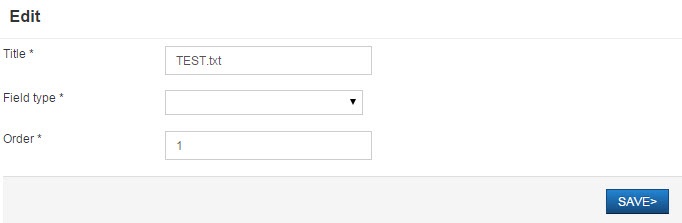
Click the  Edit icon to edit an attachment that is linked to the listing. The screen is as shown here:
Click the  Delete icon to delete the attachment.
Attachments are detected automatically based on file extension that’s are allowed in Configuration .
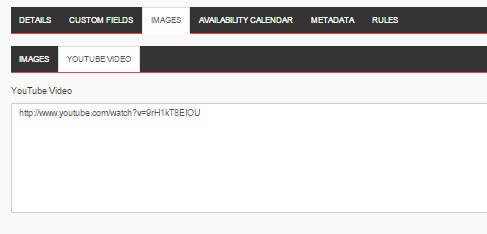
##### YouTube Video
Provide the YouTube video URL in this field as shown in the following image.
---
#### Availability Calendar tab
This tab includes an ajax calendar where you can add the date-wise information related to the listing. Based on the services you offer, you can show the availability for that service.
[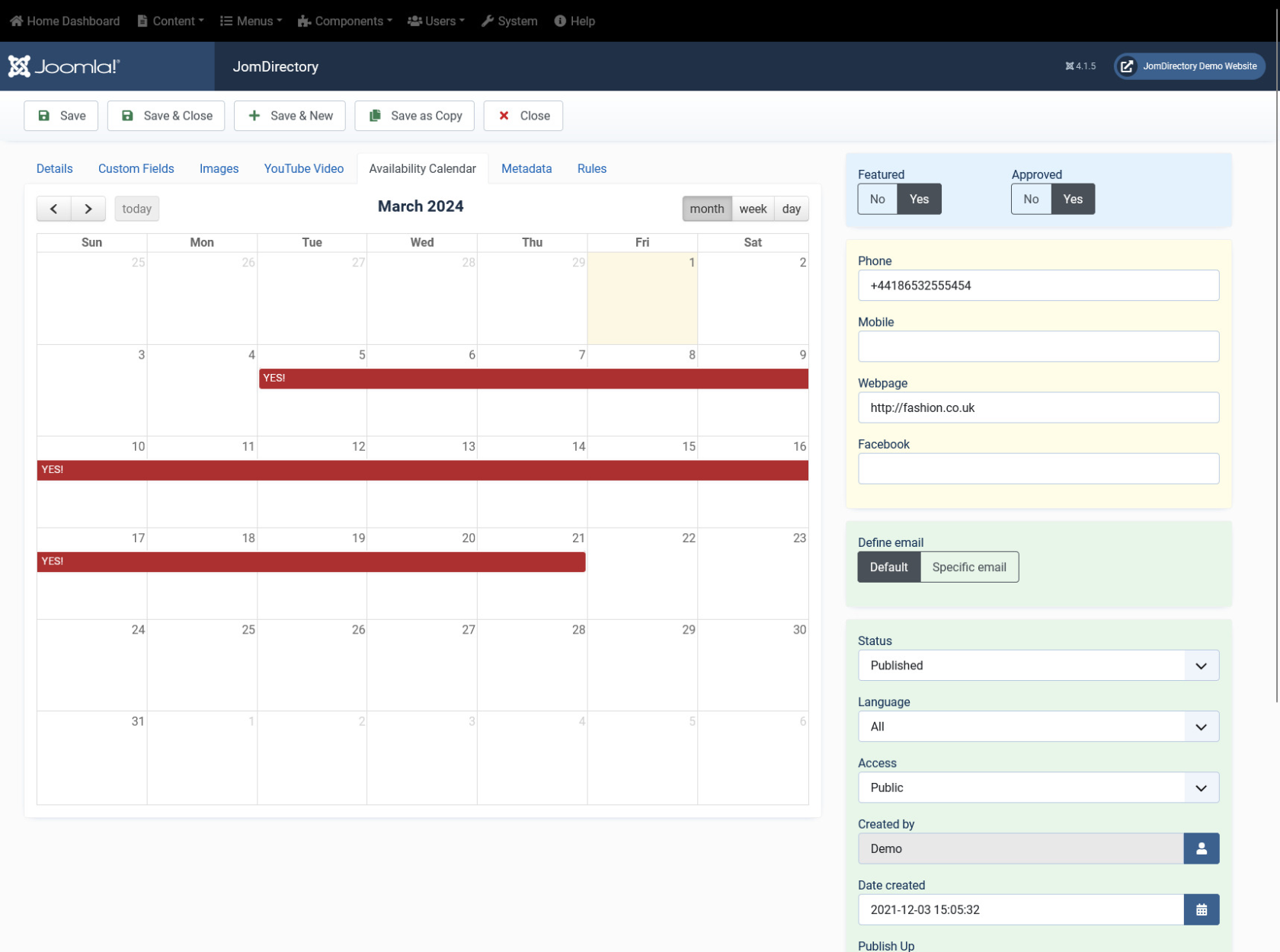](https://wiki.comdev.eu/uploads/images/gallery/2024-03/znYobraz.png)
**Screen 7: Availability tab**
To set the availability for a range of dates**, drag and click the required range of dates**. Provide the information about availability as shown in the following image.
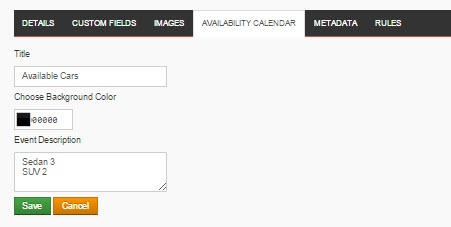
**Screen 8: Availability information**
Click Save to save the availability information.
If you want to delete a particular entry, click the colored band of availability and click OK
#### Metadata tab
This tab includes the Meta title and Meta description for the listing as shown in the following image:
# Products
### Overview
Each listing can have as many products as you need. Products can be found on the "Products" tab of each Listing item on the frontend of the website
### Access Products section of JomDirectory
You can access Products section of JomDirectory by clicking on the Products item in the Sidebar as seen on the following screenshot
[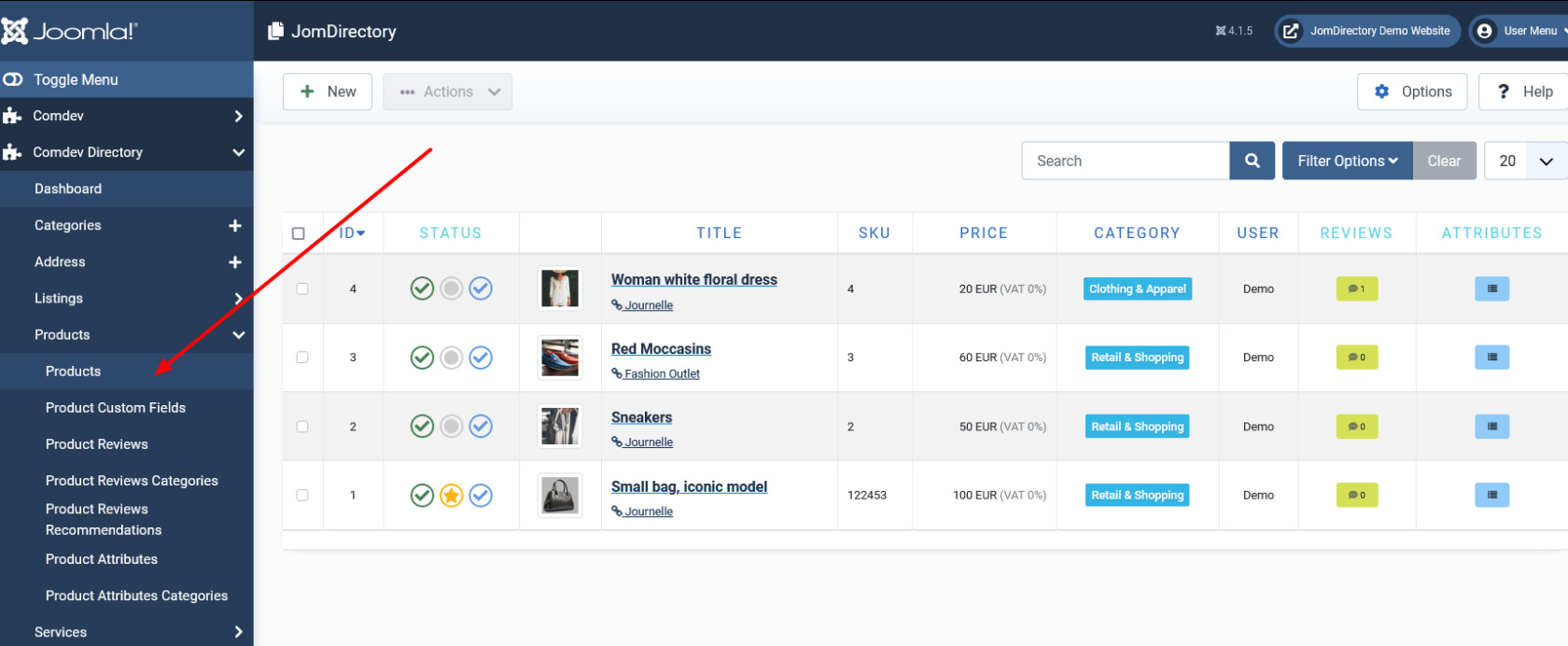](https://wiki.comdev.eu/uploads/images/gallery/2024-03/HLyobraz.png)
**Screen 1: Products screen**
The following table explains the different options seen on the screen.
**New**
Creates a new Product entry.
**Edit**
Provides the edit mode to make changes to the existing product.
**Publish**
Publishes the created product entry.
**Unpublish**
Removes the entry from the list of published product entries
**Archive**
Archives products entries that are not used anymore.
**Trash**
Deletes the product entry that is not required anymore.
**Options**
Naviagate to the options screen in JomDirectory.
### Creating A New Product
The following image shows the Products screen.
[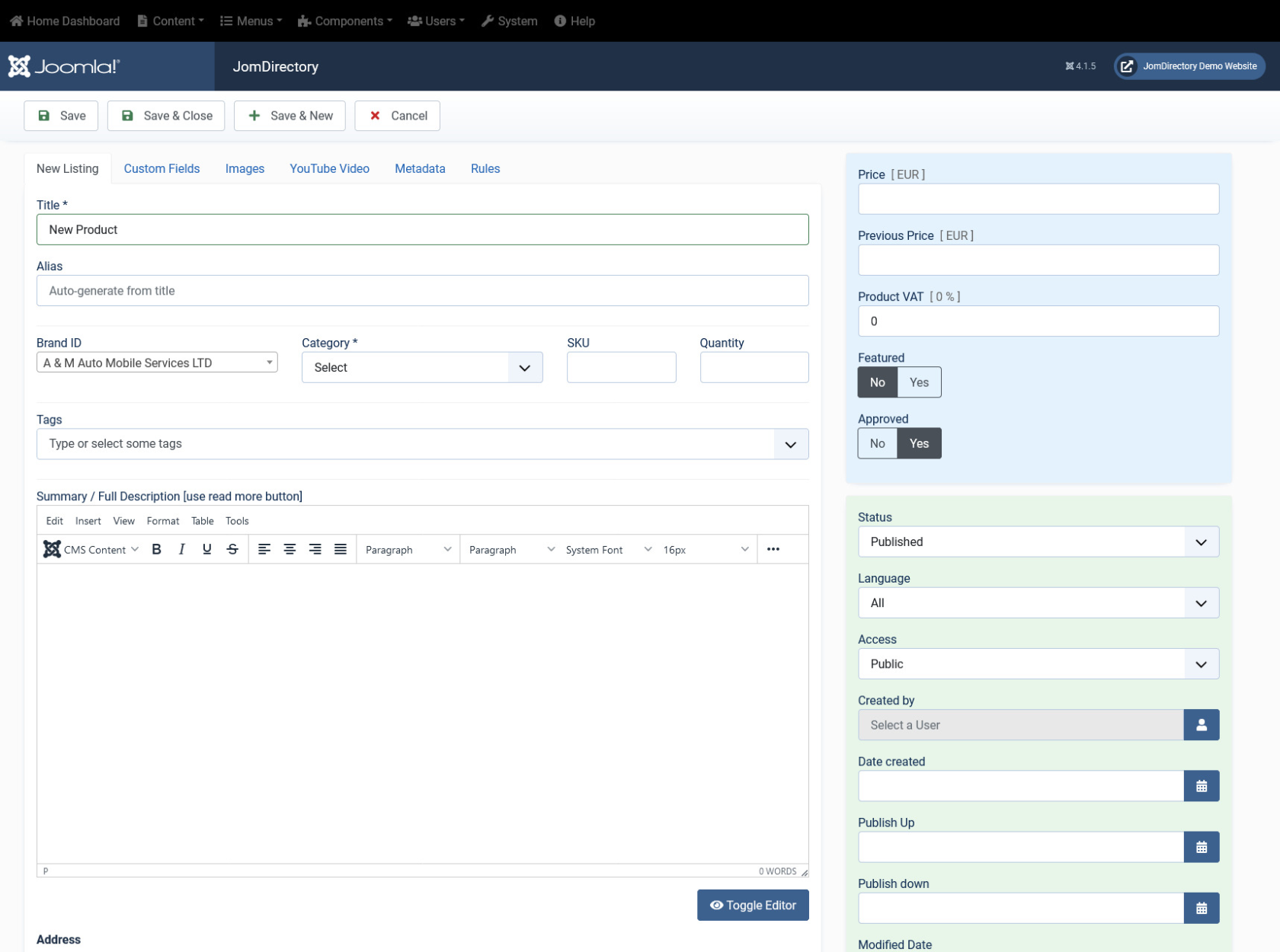](https://wiki.comdev.eu/uploads/images/gallery/2024-02/obraz.png)
### Edit Product
If you want to edit existing entries, you can either click the entry from the Product screen or select the checkbox next to the entry, and then click Edit.
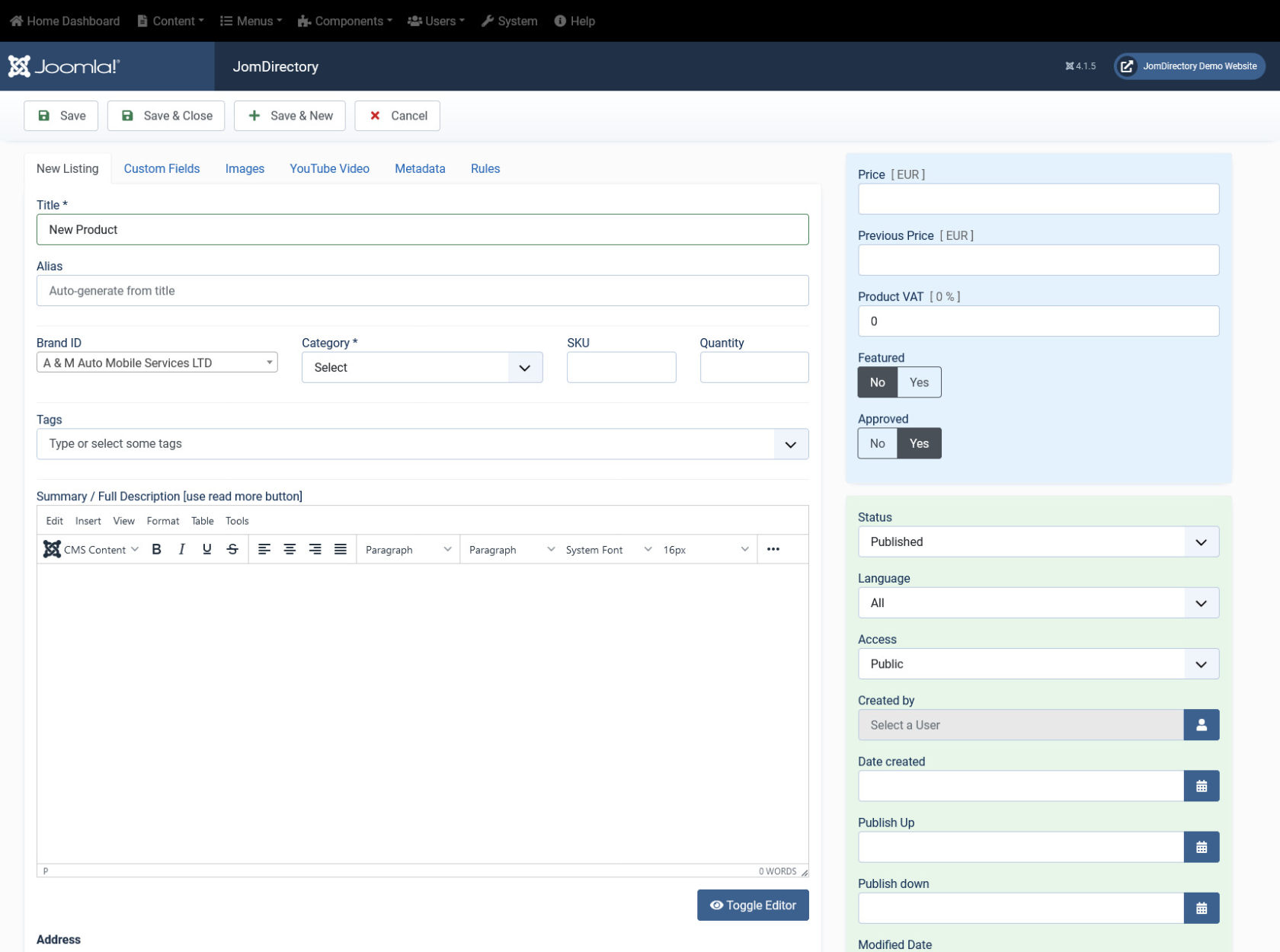
This tab provides options to add title, description, select category, and other options for the Product as seen in the following image:
[](https://wiki.comdev.eu/uploads/images/gallery/2024-02/LeUobraz.png)
**Screen 2: Edit Product screen**
The following table shows the options available:
#### Edit Listing area
Title
Title for the Product.
Alias
URL alias for “SEF/SEO” URL.
Category
Category where the product will be published.
Tags
Provide the tags for the listing. Tags are integrated and maintained with Joomla Tags Component.
SKU
Short for stock-keeping unit, SKU is a unique numerical identifying number that refers to a specific stock item in a retailer's inventory or product catalog. The SKU is often used to identify the product, product size or type, and the manufacturer.
Quantity
Quantity of that specific product in the warehouse
Brand ID
ID of the brand to which this product belongs
Summary / Full Description
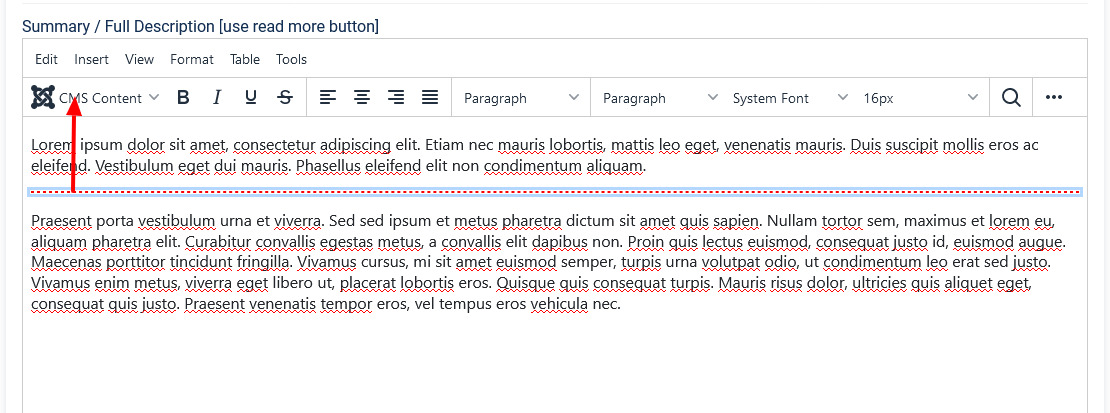
Provide a description for the product.
You can create a short description as well a long description.
[](https://wiki.comdev.eu/uploads/images/gallery/2024-03/EvMobraz.png)
Icon
In the above image, a tag appears when you click **Read More**. Any content above this tag is the **short description** while the entire content is the **long description**. Also, note that if there is no content after the **Read More** tag, the product description will be blank when users view the listing. Ensure that you have content after the **Read More** tag.
##### Joomla Articles area
Article*Button*
Click to select a relevant article. If an article is provided, it can be seen under the Details tab in the listing.
#### Sidebar
Price
Price of that specific Product
Previous Price
Previous price of the Product. If exists, a previous price will be visible on the Product tab on the Frontend, showing the increase or decrease of the price
Product VAT
VAT of the Product can be entered here
Featured
Enable to make the listing appear as featured listing.
Approved
Enable to approve the listing. Listing will not be published.
Language
Select the language for which the listing needs to appear for. [For multiple languages, you must create separate entries for each language](http://confluence.comdev.eu/display/JD2/Multilingual+Site).
Status
Select the required status.
- Published
- Unpublished
- Trashed
- Archived
Created by
Select the user who created the listing.
Access
Provide the access level for the listing.
- Guest
- Public
- SuperUsers
- Registered
- Special
Date created
Select the date when the listing was created. You can select a future date for publishing the listing as well.
Publish Up
Select a date when you want to publish the listing. Here too, you can schedule to post the listing at a future date.
Publish down
Select a date when the listing should stop being published.
Modified Date
Select a date when the listing was modified.
ID
This is an auto-generated field.
### Custom Fields tab
This tab includes all the custom fields created for a particular category. If the custom field is not applied to a specific category, it can be seen for all categories when creating a listing. The following image shows the Custom Fields tab screen.
**Screen 3: Custom Fields tab**
For more information about creating custom fields, see [Custom Fields](https://wiki.comdev.eu/books/jomdirectory/page/custom-fields "Custom Fields").
### Images tab
This tab includes information about images and videos attached to the listing. Before you can add images to the product, you must save your product at least once. This ensures that all the other data you have filled for the product does not disappear after the images are added.
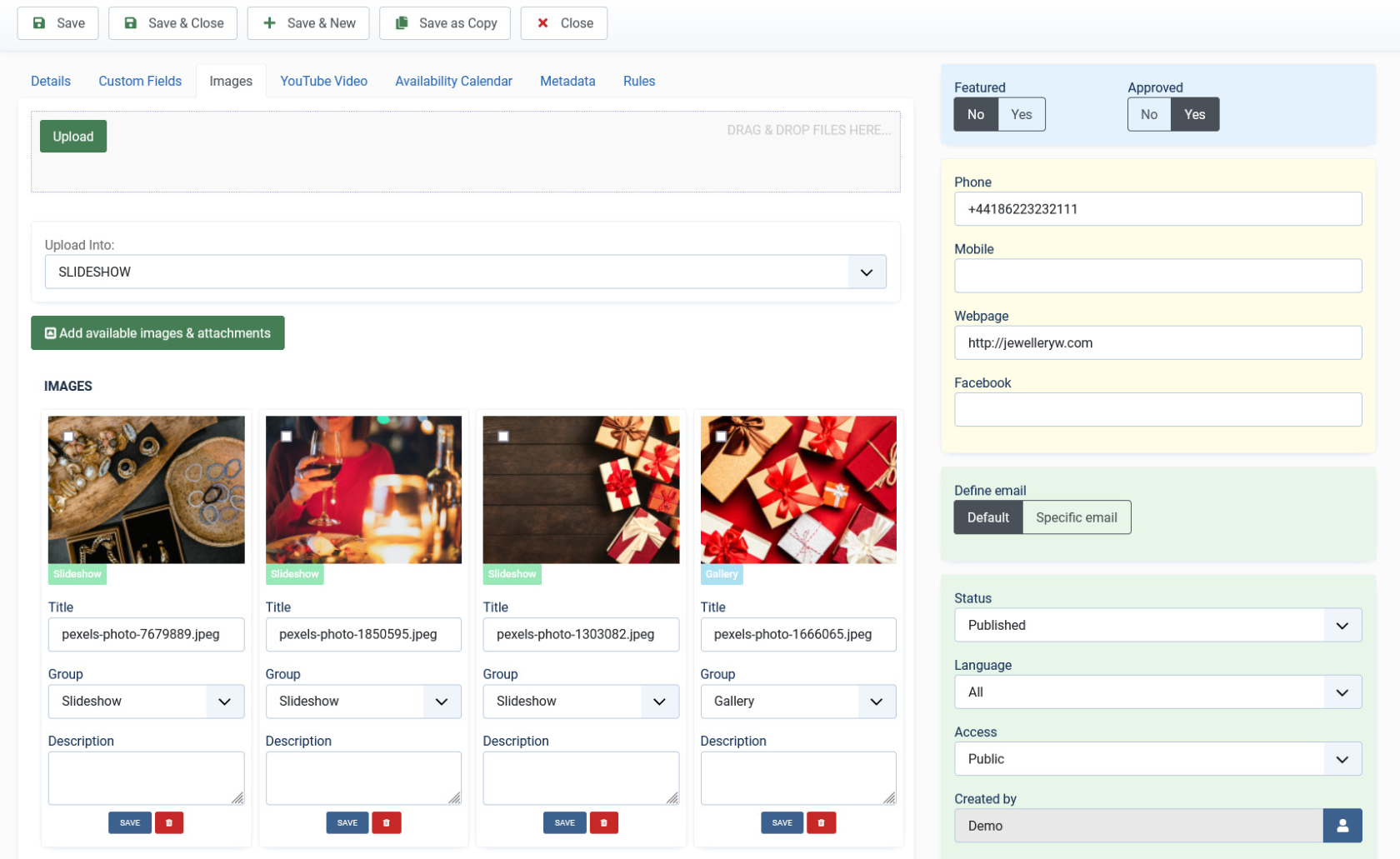
The Images tab can be seen as shown in the following image:
[](https://wiki.comdev.eu/uploads/images/gallery/2024-03/Qx9obraz.png)
**Screen 4: Images tab**
To set the Order of the images (which one displayed first) drag and drop images to switch positions.
The first image in the gallery is used as the image thumbnail for the product.
Provide the options as shown in the following table.
#### Images
**Add file area**
Add Files
Click to select the image that needs to be uploaded.
Drag & Drop Files Here
Drag a bunch of images to this area to upload multiple images.
Upload Into
Select which category the image falls under:
- Slideshow - detailed view main gallery
- Gallery - in gallery tab
- Logo - displayed in
sidebar under custom fields and over the image with transparency in listings page.
Add available images & attachments
Click to add already uploaded images and attachments to this listing.
**Images area**
Editing an Image
The options are as seen in the following image: You can provide a title, select group where the image will be displayed. The groups include Slideshow, Gallery or Logo.

Click the  Delete icon to delete the image.
**Attachments area**
Click the  Edit icon to edit an attachment that is linked to the listing. The screen is as shown here:

Click the  Delete icon to delete the attachment.
Attachments are detected automatically based on file extension that’s are allowed in Configuration .
#### YouTube Video
Provide the YouTube video URL in this field as shown in the following image.

# Membership
{{@109}}
### Creating a new Group for Membership Plans
In order to add users to groups for membership plans, you must create a super group named JomDirectory. Then, under it you must create groups for each of your membership plan. These groups are used to provide Group ID when creating a membership plan. Users created using User Manager can be linked to each of these membership plan groups.
To create the JomDirectory group and other groups, do the following:
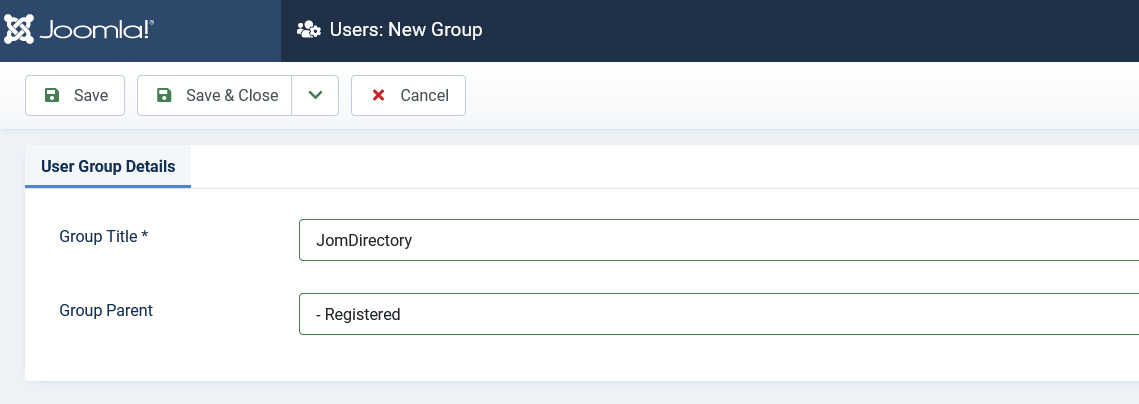
1. Click **Users** > **Groups** > **Add New Group**.
2. Provide a name for the group. We need to create JomDirectory group before creating other groups. So, provide the name as **JomDirectory**.
[](https://wiki.comdev.eu/uploads/images/gallery/2024-03/Lfcobraz.png)
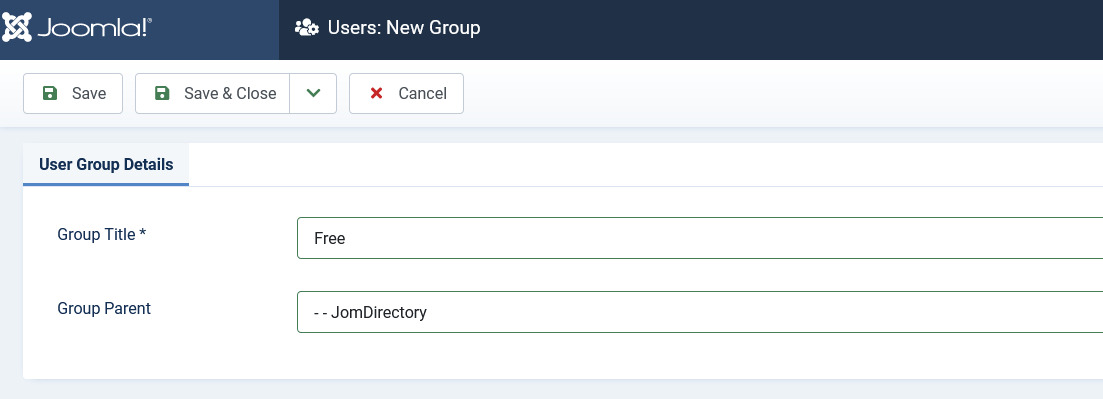
3. Repeat steps 1 and 2, but select the parent as JomDirectory.
[](https://wiki.comdev.eu/uploads/images/gallery/2024-03/vyFobraz.png)
4. Click **Save**.
Name **JomDirectory** for the main group is mandatory, however groups for membership under that group can have any names e.g. Lite, Pro or Free, Basic etc...
### User Permissions based on groups
For the users to access Front Admin certain user permissions need to be granted. These settings need to be done in the JomDirectory and Comdev Options.
To provide user permissions for JomDirectory, do the following:
1. Click **Components** > **Directory**
2. Click **Options** from the right-hand side of the screen.
3. Click **Permissions**.
4. Provide the permissions as shown in the following image.
[](https://wiki.comdev.eu/uploads/images/gallery/2024-03/xJiobraz.png)
5. Click **Save**.
User permissions also need to be set for Comdev extension as explained here.
1. Click **Components** > **Comdev**.
2. Click **Options** from the right-hand side of the screen.
3. Click **Comdev**.
4. Provide the permissions as shown in the following image.
[](https://wiki.comdev.eu/uploads/images/gallery/2024-03/ojrobraz.png)
5. Click **Save**.
Users, which belongs to Joomla group JomDirectory, will now have access to Front Admin.
If Permissions for the Comdev component are not set, users would not be able to upload images. A 500 error would show that permissions are denied.
# Reviews
{{@110}}
# Messages
{{@111}}
# Configuration
### Overview
The JomDirectory extension can be configured using the options provided with it. You can control multiple factors such as SEO, Printing, Security, Image widths, and more using the options provided.
### General tab
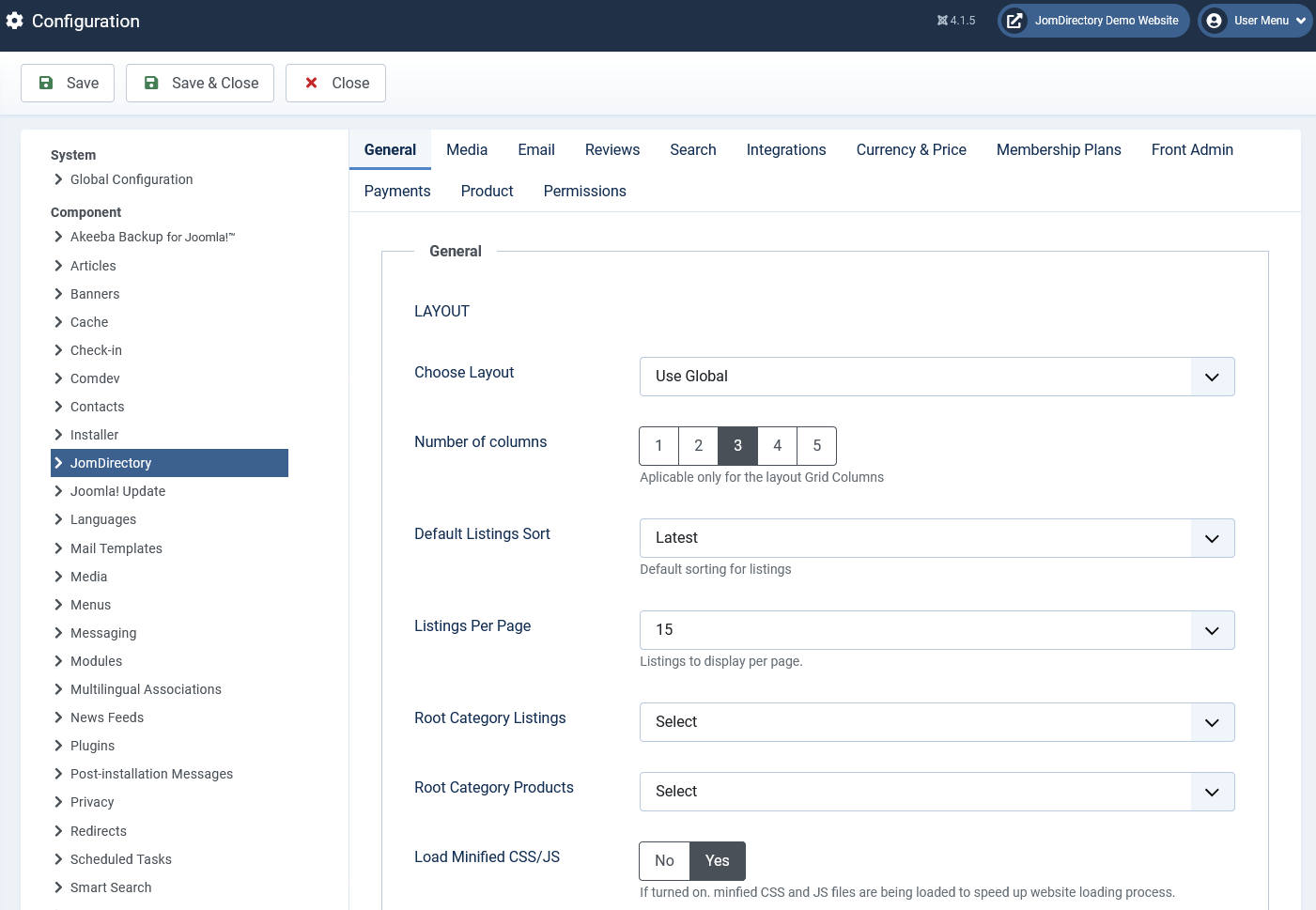
This tab controls the elements for Layout, SEO, Security, and Print options. The following image shows the options available on the General tab.
[](https://wiki.comdev.eu/uploads/images/gallery/2024-03/svcobraz.png)
**Screen 1: General tab**
The following table explains the different options seen on the screen.
##### Layout
**Layout**
Select a layout based on existing components. Global layout is selected by default.
**Color Scheme**
Select Lite, Silver, or Simple scheme. Current build have only one color scheme available.
**Default Listings Sort**
Select the Listings from the following options:
- Latest
- Updated
- Alphabetically
- Most Viewed
**Listings Per Page**
Select 15, 30, or 60 listings per page.
**Premium Listings on Top**
Enable to see premium listings on top.
##### Layout Elements
**Enable Print**
Enable the “Print” button on listing pages.
**Enable Tell a Friend**
Enable the “Tell a Friend” button on listing pages.
**Enable Features**
Enables featured listing on the page.
**Attachments**
Enable adding attachments to listings.
**Enable Save Listings**
Enable the “Save” button on listing pages.
**Enable Social Networking**
Enable social networking buttons on listing pages.
**Enable User Logo**
Enable to display user logo for listing.
**Enable Address**
Show the listing address on listing pages.
**Enable Short Descr.**
Enable short description.
**Enable Youtube**
Enable YouTube video embedded on listing pages.
**Item Map**
Enable google map in the detailed view - location tab
**Enable Image**
Enable images to be displayed for listing.
**Listings Map**
Enable Google map on the listings (items menu link)
**Enable Date**
Enable date on listings
##### SEO
**Maximum Characters for Meta Title**
The maximum amount of characters used in the meta title.
**Maximum Characters for Meta Description**
The maximum amount of characters used in the meta-description.
##### Print
**Print Location**
Print the map on print requests.
**Print Reviews**
Print reviews available for the listing.
##### Other
**Enable Alias For Non-English Characters**
Enable to provide ability to add alias for non-english characters.
**Enable Powered By Link**
Enable the “powered by” link on listing pages.
### Media tab
This tab provides options to control display of media such as images or videos on the listing pages.
[](https://wiki.comdev.eu/uploads/images/gallery/2024-03/I9Pobraz.png)
**Screen 2: Media tab**
The following table explains the options seen on the screen.
**Default Image Library**
Select the default image library for the listings component between “GD” and “iMagick”.
For more information see:
[http://en.wikipedia.org/wiki/GD\_Graphics\_Library](http://en.wikipedia.org/wiki/GD_Graphics_Library)
[http://en.wikipedia.org/wiki/Imagick](http://en.wikipedia.org/wiki/Imagick)
**Max Attachment Size**
The component wide settings for maximum Attachment size in kilo-byte. (1024 KB = 1 MB)
**Allowed Files Extensions**
Comma separated list of allowed attachment file-extensions.
**Video Width**
Embedded Video width in pixels.
(size of the grey-box video player)
Default [Youtube.com](http://Youtube.com) size is either 480×385 for a 4:3 video, or 640×385 for a 16:9 video.
**Video Height**
Embedded Video height in pixels.
(size of the grey-box video player)
Default [Youtube.com](http://Youtube.com) size is either 480×385 for a 4:3 video, or 640×385 for a 16:9 video.
**Listing Image Width**
The main listing image width in pixels.
**Listing Image Format**
The format for the main listing image.
1:1 = Image will be unchanged.
4:3 = image will be resized to 4:3 format.
16:9 = Image will be resized to 10:9 format.
**Items Logo Image Width**
Image width in pixels for Items Logo on the listing page.
**Item Logo Image Width**
Image width in pixels for Item Logo on the listing page.
**Main Gallery Image Width**
Image width in pixels for main gallery image. Ensure that the width value given here is as wide as or more than the slideshow width (generally 800-1200 pixels).If this is not done, the slideshow images will be blurred.
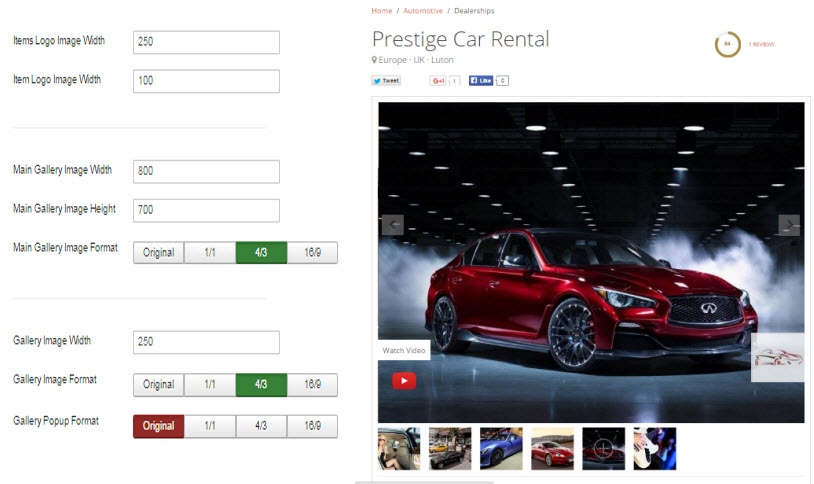
**Main Gallery Image Height**
Image height in pixels for main gallery image.
**Main Gallery Image Format**
The format for the main gallery image.
1:1 = Image will be unchanged.
4:3 = image will be resized to 4:3 format.
10:9 = Image will be resized to 10:9 format.
**Gallery Image Width**
Image width in pixels on the photo gallery on the Items view (Gallery tab). Based on the dimension you provide here, the image can be seen as follows:
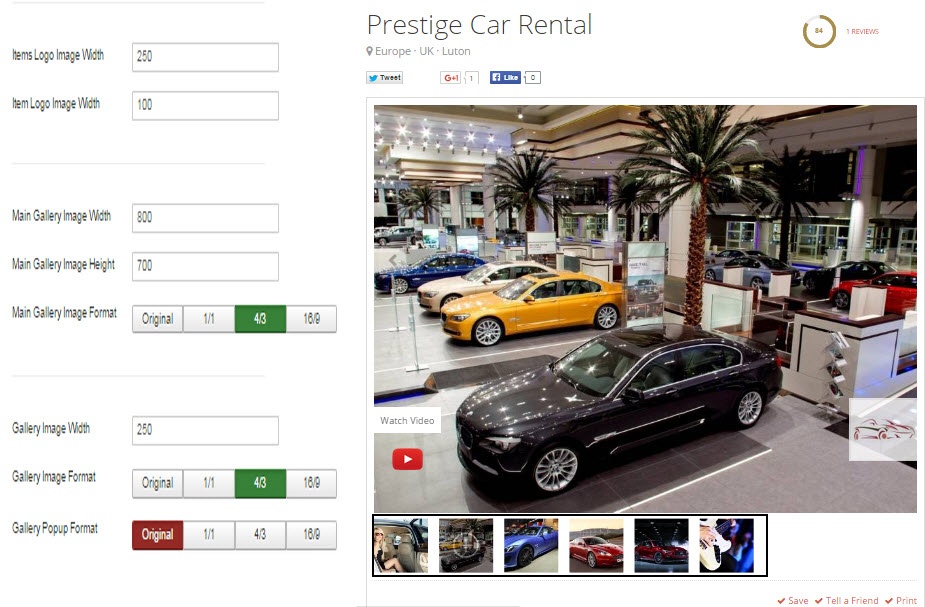
**Gallery Image Format**
The format for the main listing image.
Original = Image as uploaded by user
1:1 = Image will be unchanged.
4:3 = image will be resized to 4:3 format.
10:9 = Image will be resized to 10:9 format.
After the images width or format are changed in the Media tab, ensure that you **clear the cache** for JomDirectory extension. Click System > Clear Cache -> check com_jomcomdev to clear the Joomla cache for our extension.
If possible, image format should be constant for both component and modules. Otherwise, cache issues may appear.
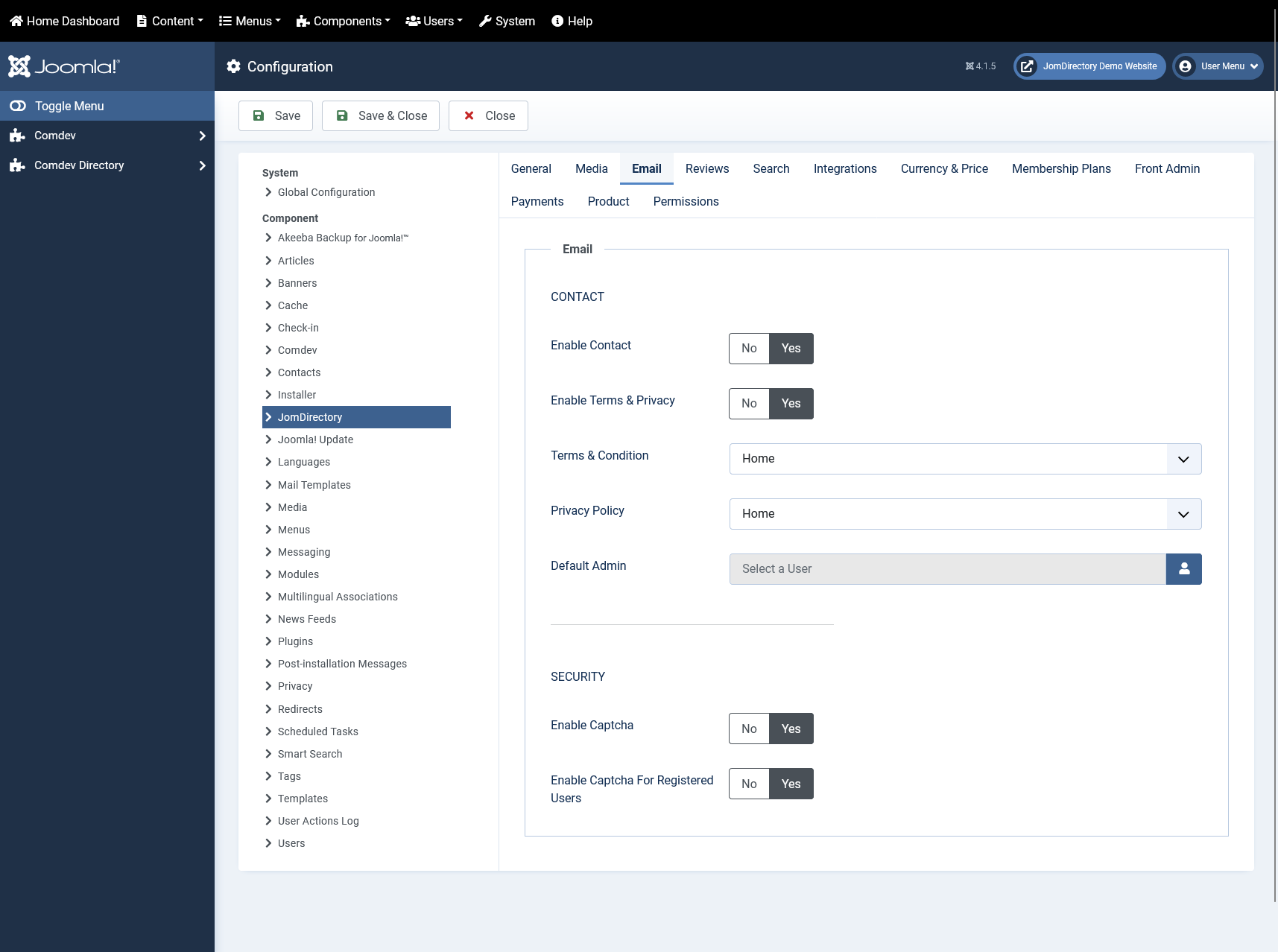
### Email tab
This tab provides options to control the email and security options for the JomDirectory extension.
[](https://wiki.comdev.eu/uploads/images/gallery/2024-03/C8Eobraz.png)
**Screen 3: Email tab**
The following table explains the options seen on the screen.
##### Contact
**Enable Contact**
Enable the contact function on listing pages.
**Email Send To**
Enable Send Email button on listing pages.
**Enable Terms & Privacy**
Activate a check-button for TOS and Privacy statements on contact requests.
**Terms & Condition**
Provide Terms & Condition statement by category.
**Privacy Policy**
Choose Privacy Policy by category.
**Send Email Copy To Admin**
Enable to send all email copies to Admin.
##### Security
**Enable Captcha**
Enable Captcha for non-registered/logged-in users.
Captcha needs to be **configured** in Plugins -> ReCaptcha and **enabled** under Joomla Global Configuration
**Enable Captcha for Registered Users**
Enable Captcha for registered users as well.
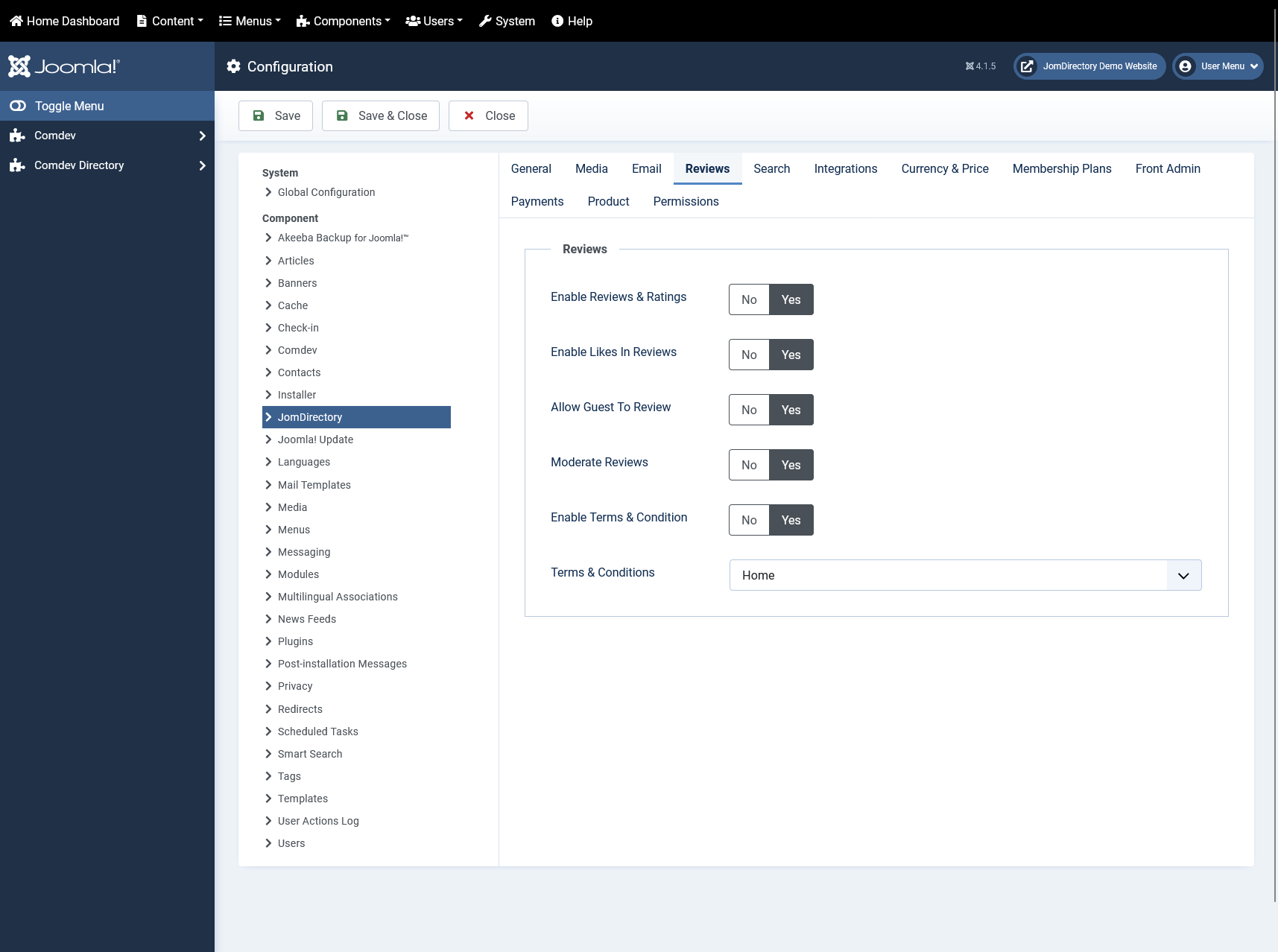
### Reviews tab
This tab provides option to enable review ratings when the the slider button is set to **Yes** as shown in the following image.
[](https://wiki.comdev.eu/uploads/images/gallery/2024-03/bH3obraz.png)
**Screen 4: Reviews tab**
The following table explains the options seen on the screen.
**Enable Reviews & Ratings**
Enable to make the reviews and ratings option active.
**Rating Method**
Select the rating method to be used. Available options are circles and stars.
**Enable Likes in Reviews**
Enable to let users like reviews.
**Allow Guest to Review**
Enable to let users post guest review without logging in.
**Moderate Reviews**
Enable to let admin review reviews before making them active.
**Enable Terms and Condition**
Enable to provide users terms and conditions.
**Terms & Conditions**
Select the page where you want to display the Terms & Conditions
**Enable Captcha for Registered Users**
Enable Captcha for registered users as well.
### Search tab
This tab provides option to enable search when the the **Enable Search tag** slider button is set to **Yes**
### Integrations tab
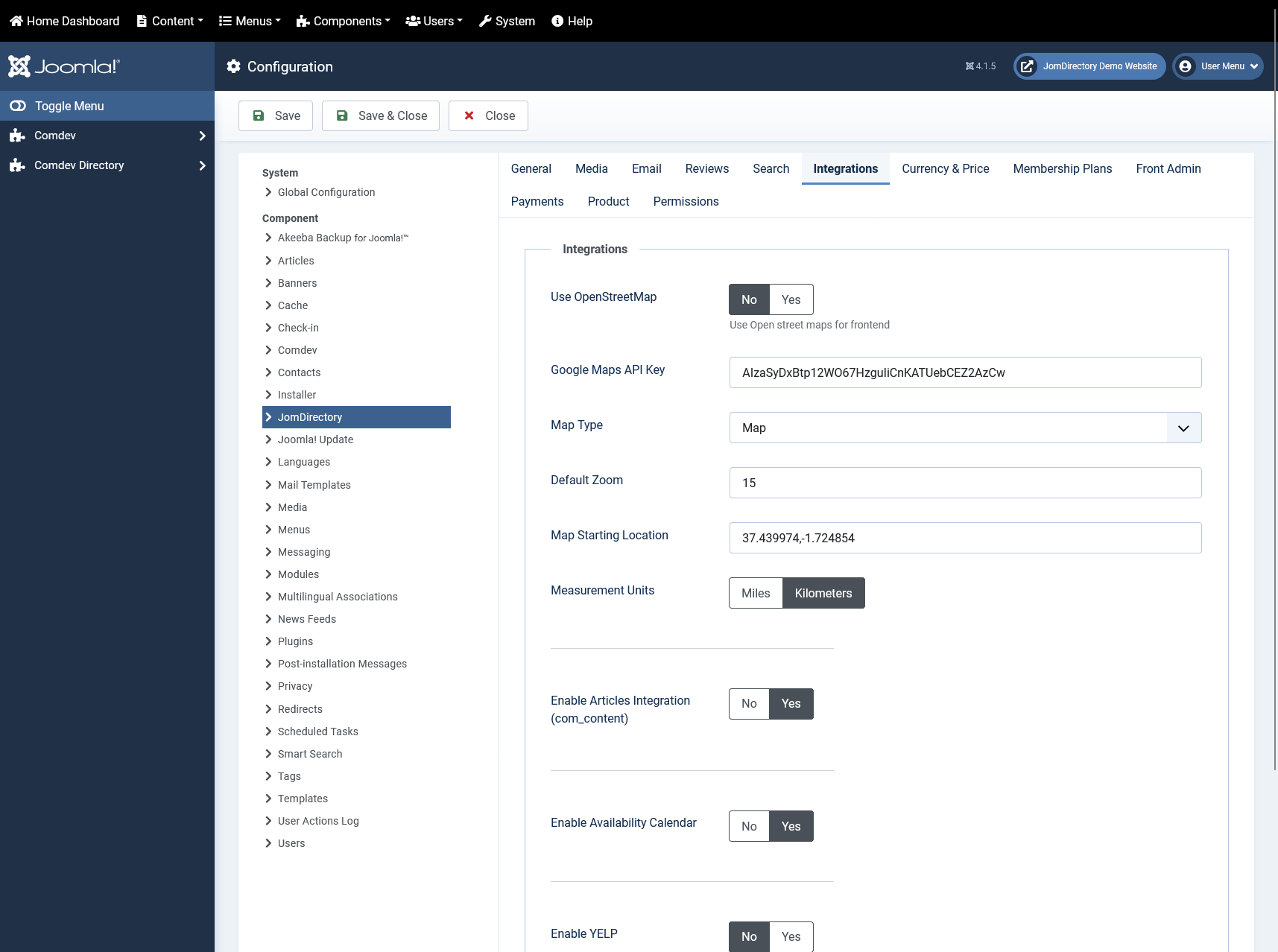
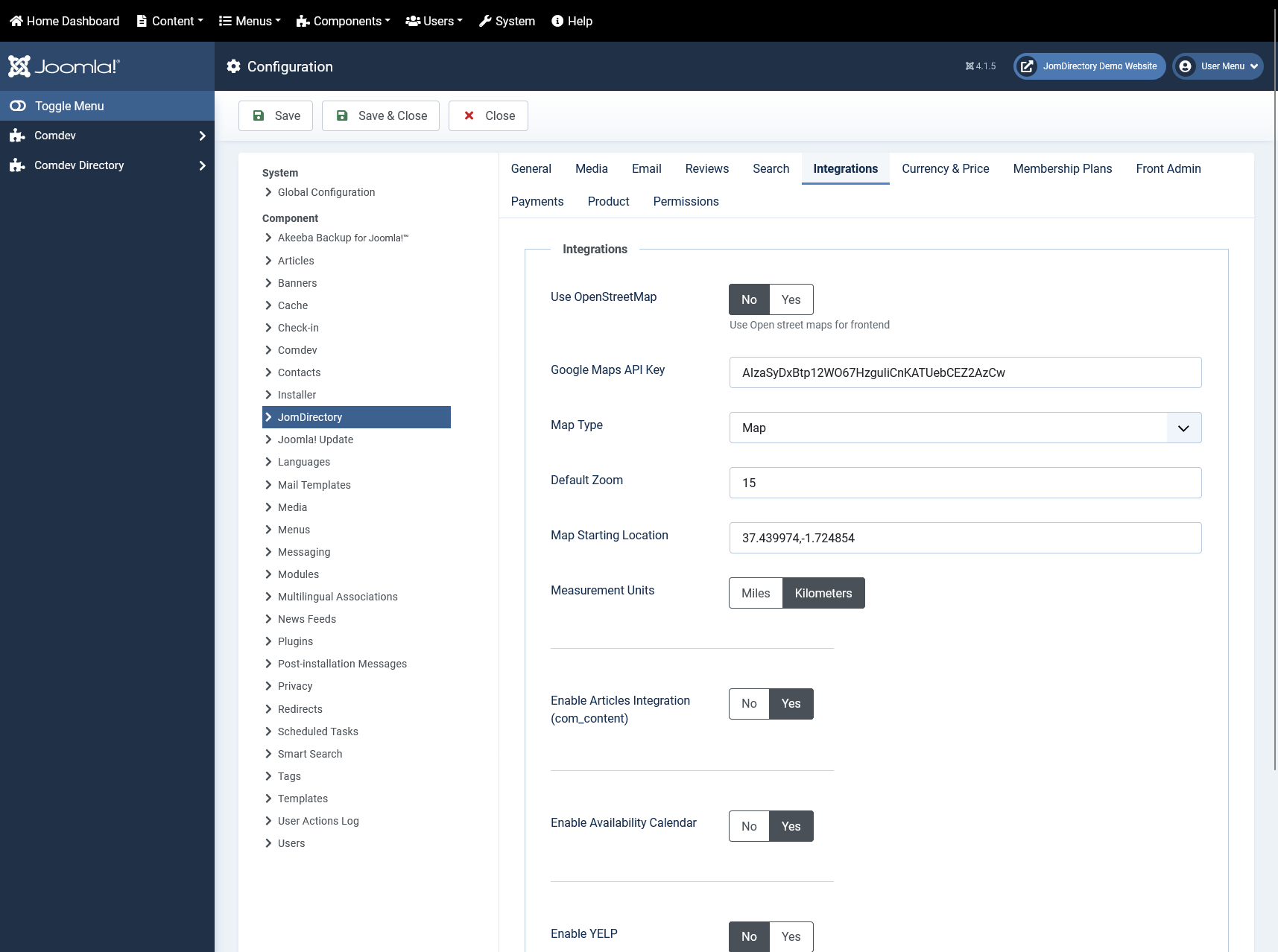
This tab provides options to control map integration for listings.
[](https://wiki.comdev.eu/uploads/images/gallery/2024-03/9Ziobraz.png)
**Screen 5: Integrations tab**
The following table explains the options seen on the screen.
**Google Maps API Key**
Specify a Google Maps API key. You can create a key by visiting [Google's Get a Key](https://developers.google.com/maps/documentation/javascript/get-api-key) documentation (you will need a Google account to register a key).
**Map Type**
Select the map type from Google maps.
- Map
- Satellite
- Hybrid
- Terrain
**Default Zoom**
Select the default zoom factor for the listing map.
Listings (Items) map zoom is calculated automatically based on all listings and can't be adjusted, same apply for the ajax map search module.
**Map Starting Location**
Default location or starting point for map search.
**Enable Articles Integration (com\_content)**
Enable article assign button when adding a listing (below description)
**Enable Availability Calendar**
Enable to showcase listing availability with every listing.
**ShareThis Key**
Specify a publisher key for sharing listings via the ShareThis platform.
To obtain a key, [sign up to ShareThis](http://www.sharethis.com/signin) and retrieve your publisher key from your ShareThis profile.
### Currency & Price tab
This tab provides options to control display of currency formats for listings.
[](https://wiki.comdev.eu/uploads/images/gallery/2024-03/Jpaobraz.png)
**Screen 6: Currency & Price tab**
The following table explains options seen on the screen.
Currency
Select the currency to use.
Additional currencies can be added by editing a config file administrator/components/com_JomDirectory/config.xml
Vat
The current vat rate for estates in the operating country.
Decimal Digits
Select the number of decimal digits required.
Number Format
Select the number format most suitable for your currency.
Display Digits
Select the format for the digits.
Currency Position
Select if your currency sign will appear before or after the price.
### Membership Plans
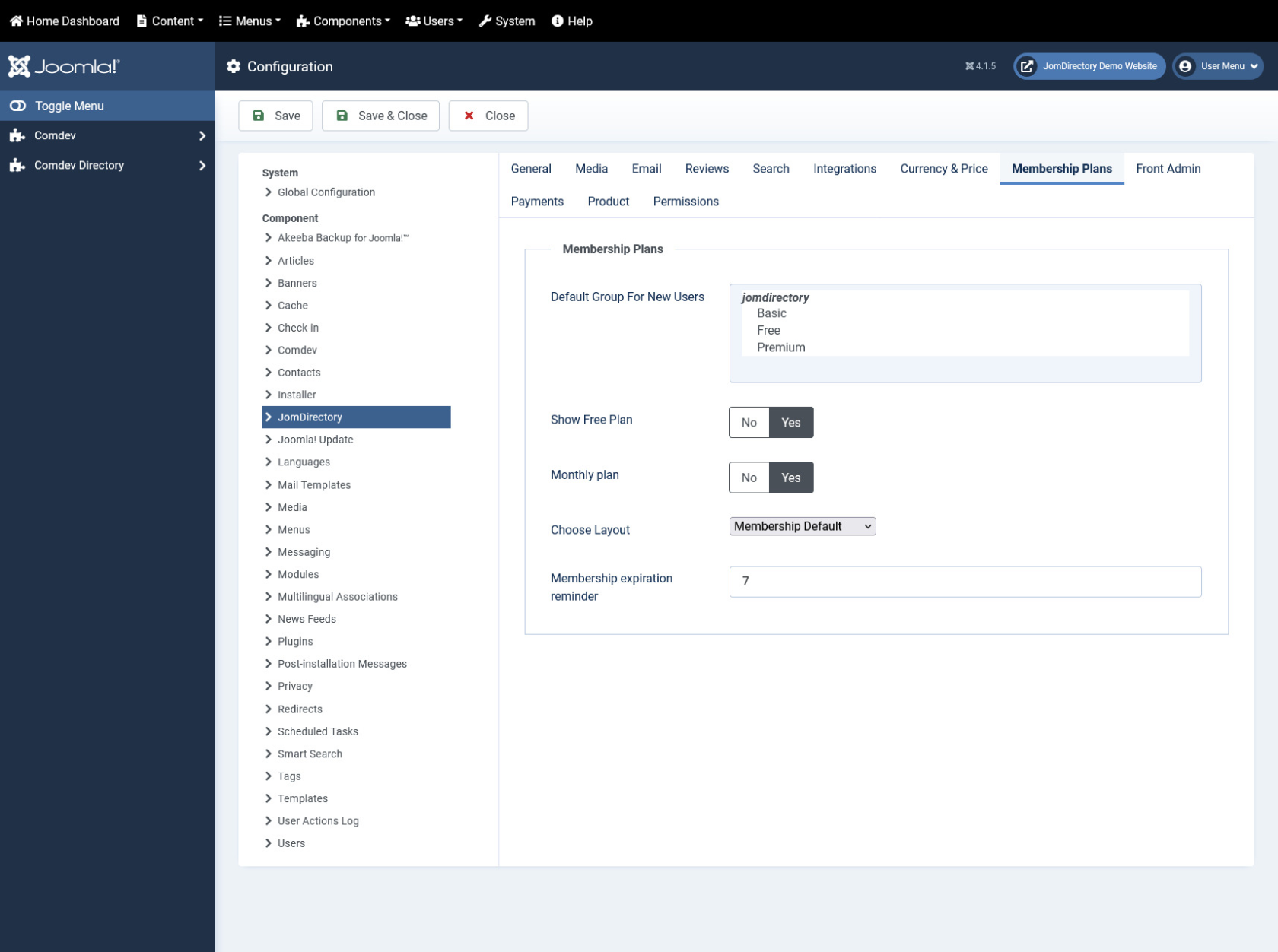
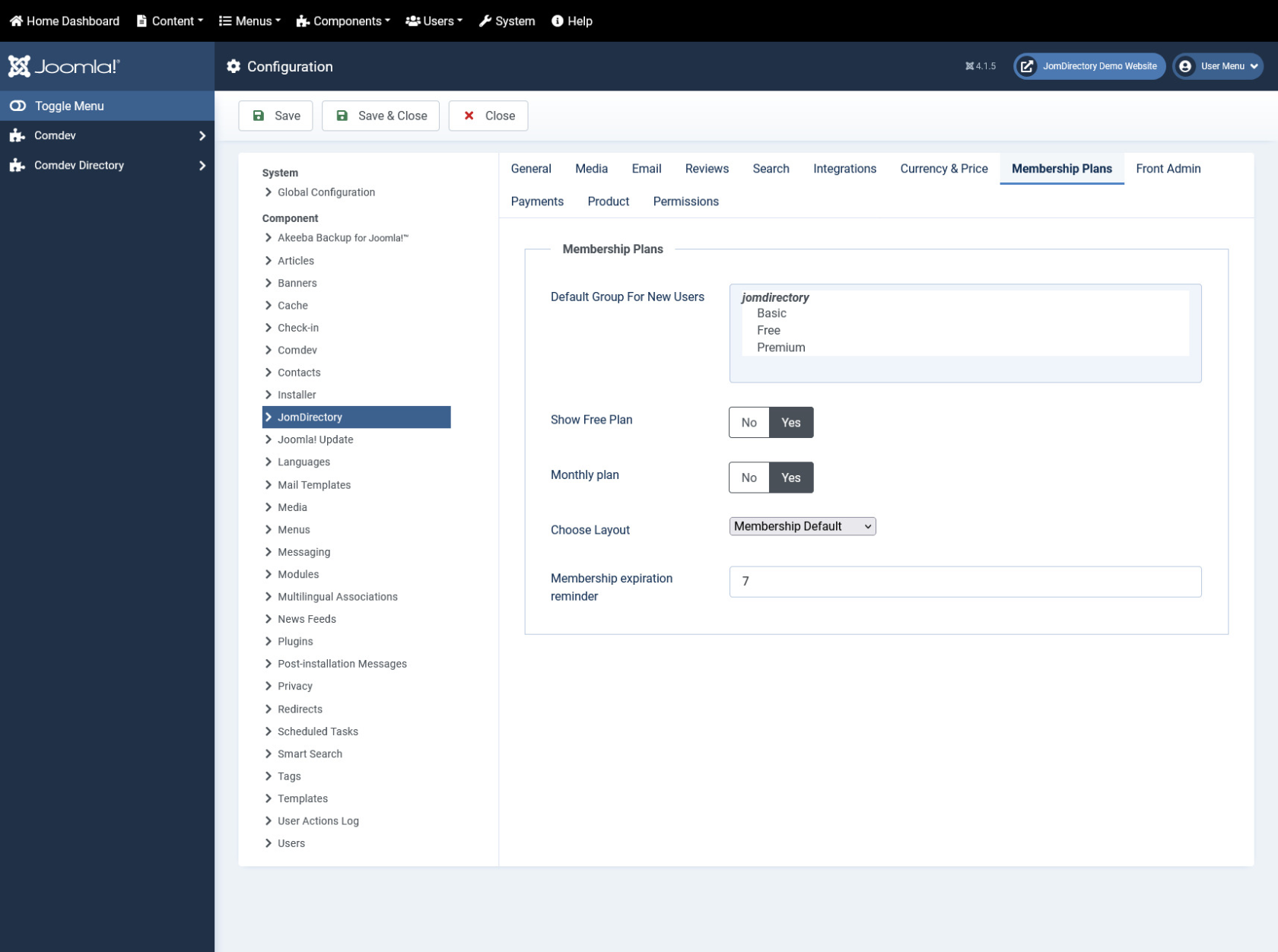
This tab controls membership options that you want to set for your site.
[](https://wiki.comdev.eu/uploads/images/gallery/2024-03/3Qzobraz.png)
**Screen 8: Membership Plans**
The following table explains options seen on the screen.
**Default Group For New Users**
Select the membership plan that new users are grouped in by default.
**Show Free Plan**
Enable to display free plan.
**Monthly Plan**
Enable to display monthly plan.
**Membership expiration reminder**
Define the days before expiration reminder will be sent.
### Front Admin
This tab controls how the menu links are seen on the front admin for JomDirectory. It also provides other options related to front admin.
[](https://wiki.comdev.eu/uploads/images/gallery/2024-03/MVJobraz.png)
**Screen 7: Front Admin tab**
The following table explains the options seen on the screen.
**Welcome Article-ID**
Set the component's welcome article from Joomla articles.
**Help Article-ID**
Set the component's help article from Joomla articles.
**Profile Menu Link**
[Set the page for the Profile Menu Link.](https://wiki.comdev.eu/books/jomdirectory/page/menu-items "Menu Items")
**Login Menu Link**
Set the page for the Login Menu Link.
**View Profile Menu Link**
Set the page for the View Profile Menu Link.
##### Enable Features
**Approve User’s Listings**
When listings are added from the Front Admin, they will not be published unless the site admin approves it.
**Listing Email Notification**
Enable to send an email to user about listing created.
**Reviews Approval By Users**
Turn review approval on or off when you login from the Front Admin.
**Enable Location**
Enable to auto map location.
**Enable Availability Calendar**
Enable to display availability calendar for a listing.
##### Payment Settings
**Enable Paypal**
[Enable the Paypal facility for user subscriptions.](https://wiki.comdev.eu/books/installation-requirements-language/page/paypal-configuration "PayPal Configuration")
**Paypal Email Address**
Provide the Paypal email that will receive the payments.
**PDT token**
Provide your Paypal PDT token for secure payments.
**Use Paypal Sandbox**
Enable for testing your configuration with the Paypal sandbox facility.
**Paypal Sandbox Merchant Email**
Enable to set your merchant sandbox email address for receiving payments.
**Paymens success article ID**
Provide the article from Joomla articles that points to the page that the user will go to after payment is made.
### Permissions
This tab provides options to control permissions for different groups.
# User Guide
# Front Admin Overview
### Overview
The dashboard gives a quick snapshot of all the tasks that you can perform using the Front Admin. It also provided multiple menu items that you can use to create listings, view listings, view membership plans, and so on. The other options that you can control are approving reviews, viewing statistics, upgrading membership for a particular user, and so on.
For the Menu to be able to access the JomDirectory Front Admin, certain settings need to be made. You must create the Profile Edit Menu link, Admin Menu link, and Profile View Menu link in the JomDirectory Front Admin configurations to be able to access Front Admin. For more information, see the Front Admin Options section in the [Menu Items](https://wiki.comdev.eu/books/jomdirectory/page/menu-items "Menu Items") documentation.
### Accessing the dashboard
When you access the home URL for JomDirectory extension, do the following:
1. Click **Front Admin**.
2. Provide the login details for the required user and click **Submit**.
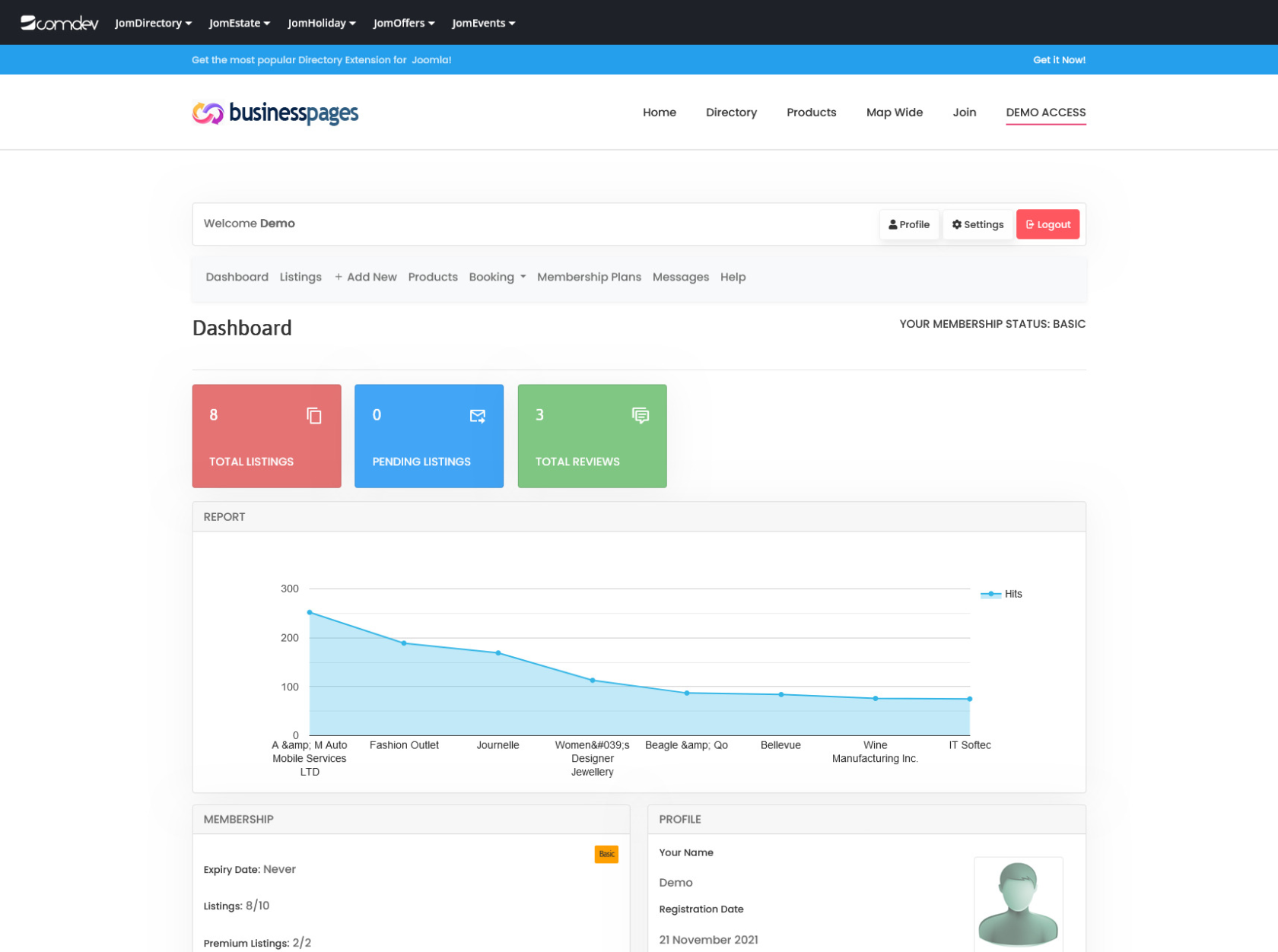
The dashboard with various options can be seen as shown in the following image.
[](https://wiki.comdev.eu/uploads/images/gallery/2024-03/x4tobraz.png)
****
**Screen 1: Dashboard screen**
You can click the options as seen in the following table.
##### Listing stats
**Shows the general statistics about the listings**
View the statistics for the site based on the listings viewership.
##### Membership
**Upgrade Your Membership NOW!**
Upgrade to another membership plan. Click Upgrade on the plan tab for the plan you want to upgrade to as shown here.

##### Profile
**Profile**
View the profile details for your profile.
##### Approve Comments
Click the review to see the listing page it applies to. To approve a listing, select the check box next to the review comment and click **Approve**.
If you want to delete the comment, click **Delete**.

Approve comments appears only when enabled under JomDirectory Options -> Front Admin settings
# Manage Listings
### Overview
You can view all the listings created for your site or create a new listing. The created listings let you add descriptions, images, provide ratings, and much more.
### Creating a New Listing
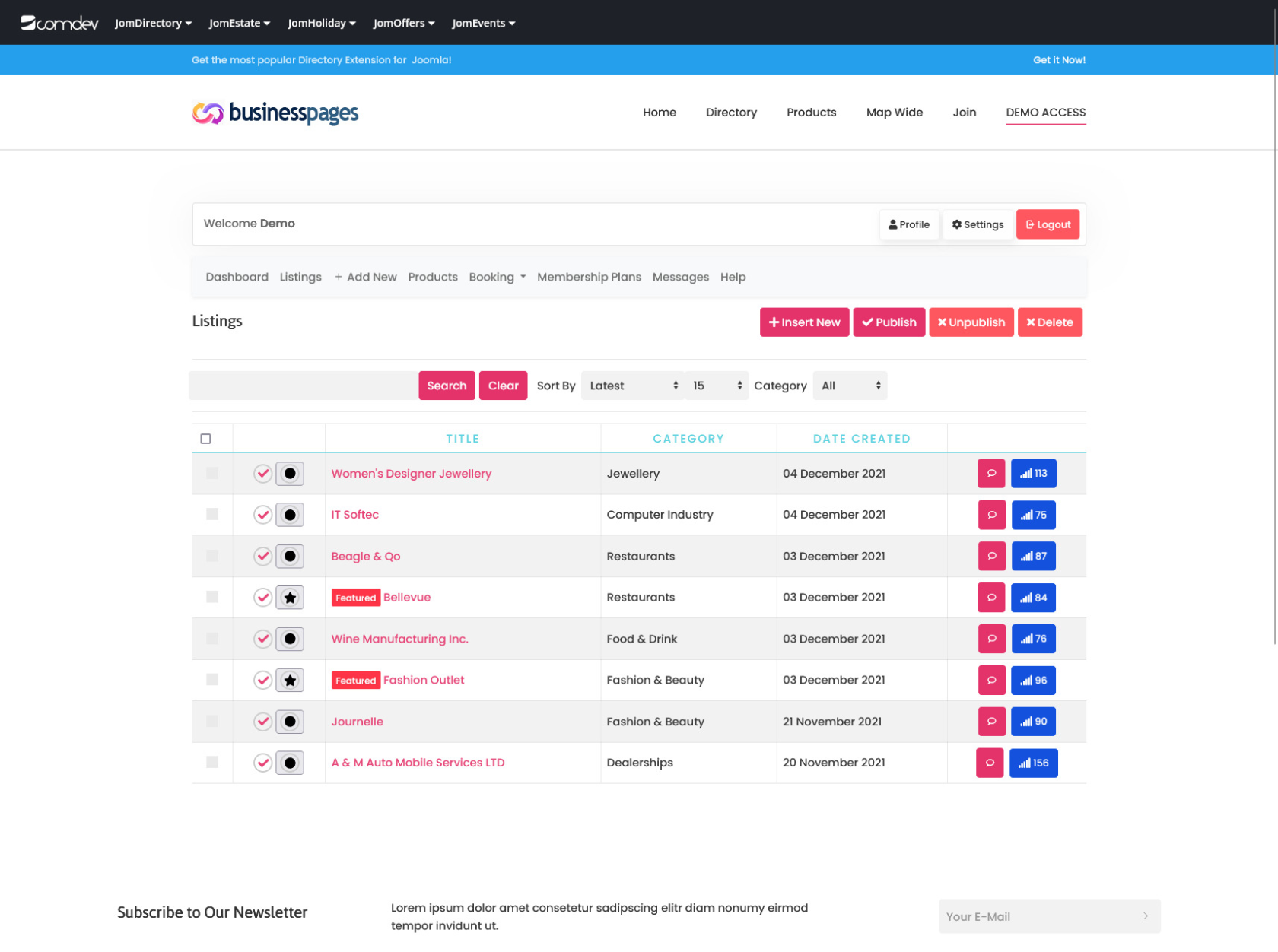
The following image shows the Listings screen.
[](https://wiki.comdev.eu/uploads/images/gallery/2024-03/8WDobraz.png)****
**Screen 1: Listing screen**
The following table explains the different options seen on the screen.
**Button**
**Usage**
**Insert New**
Creates a new Address entry. You must create separate entries for each level of depth that you need.
**Publish**
Publishes the created address entry.
**Unpublish**
Removes the entry from the list of published address entries
**Delete**
Deletes the address entry that is not required anymore.
# Manage Reviews
### Overview
Users can provide reviews about the listing that can be viewed on the Listing page under the Reviews tab. This review will need to be approved by the owner of the listing before it can be seen under this tab.
### Viewing Reviews
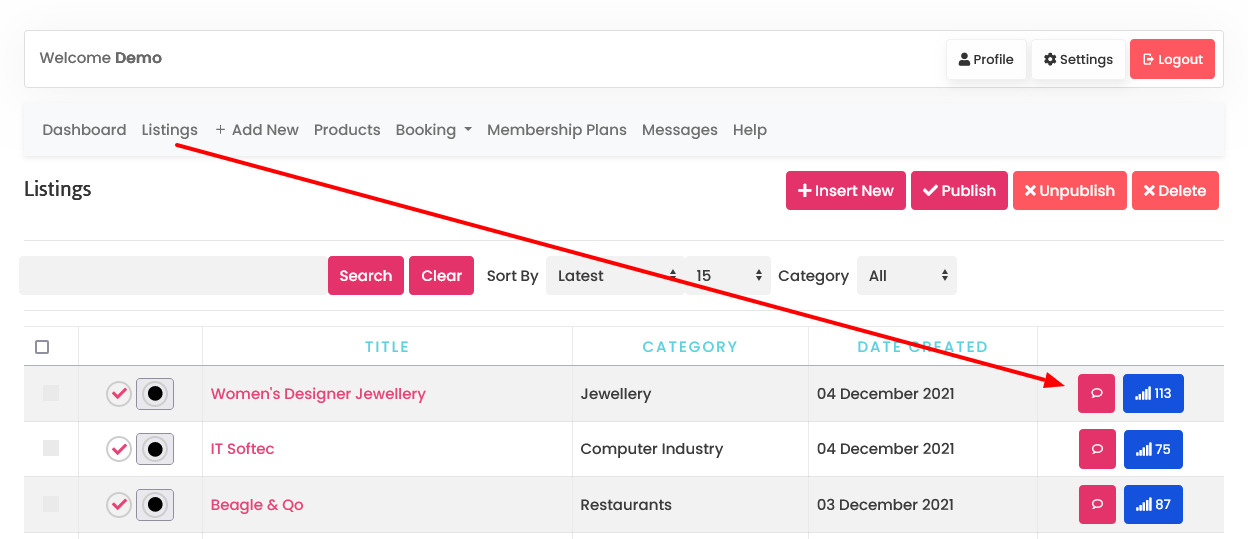
After logging into the Front Admin, click **Listings**. You can see the available listings. Each listing has an  icon that takes you to the Reviews page.
[](https://wiki.comdev.eu/uploads/images/gallery/2024-03/PXZobraz.png)
[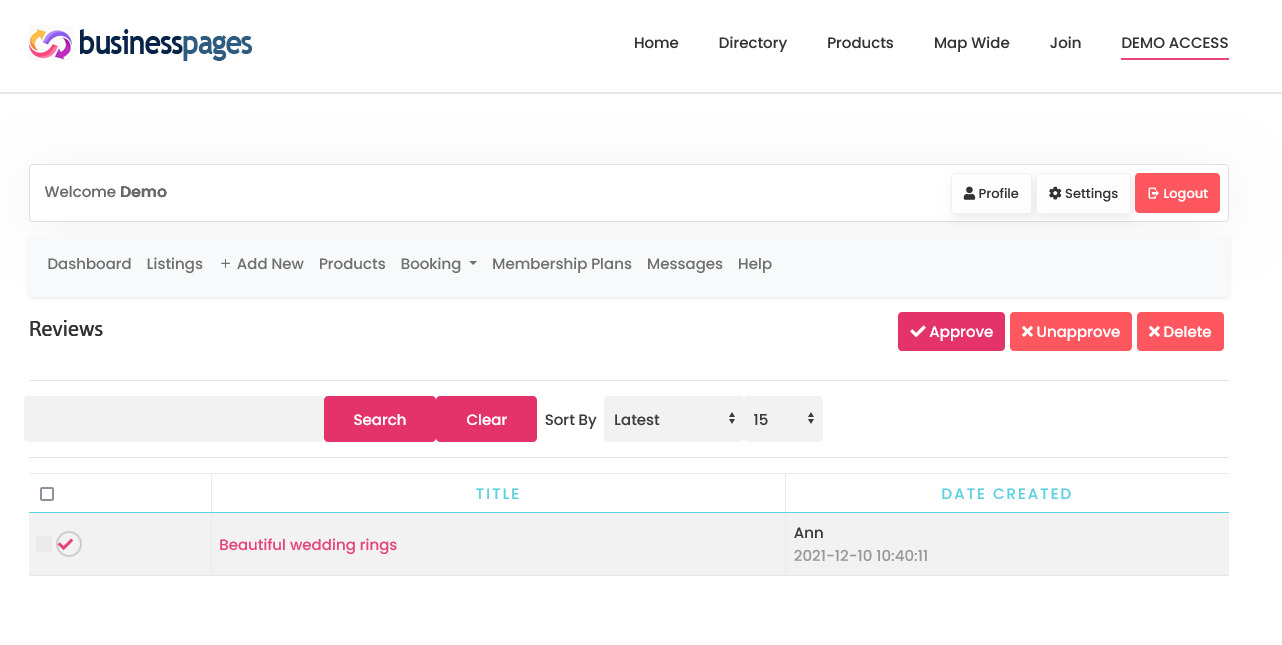](https://wiki.comdev.eu/uploads/images/gallery/2024-03/aUaobraz.png)**Screen 1: Reviews**
Provide the options as seen in the following table.
Approve
Select the review you want to approve, and then click **Approve**.
Unapprove
Select the review you want to unapprove, and then click **Unapprove**.
Delete
Select the review you want to delete, and then click **Delete**.
# User Membership
### Overview
You can view the user membership plan details on the Front Admin page. If eligible for, you can also upgrade the user membership plan to a higher plan.
User membership plan can not only be upgraded through the Front Admin. You can perform other membership tasks from the back end using the information given in the
Membership section of the Administrative Guide.
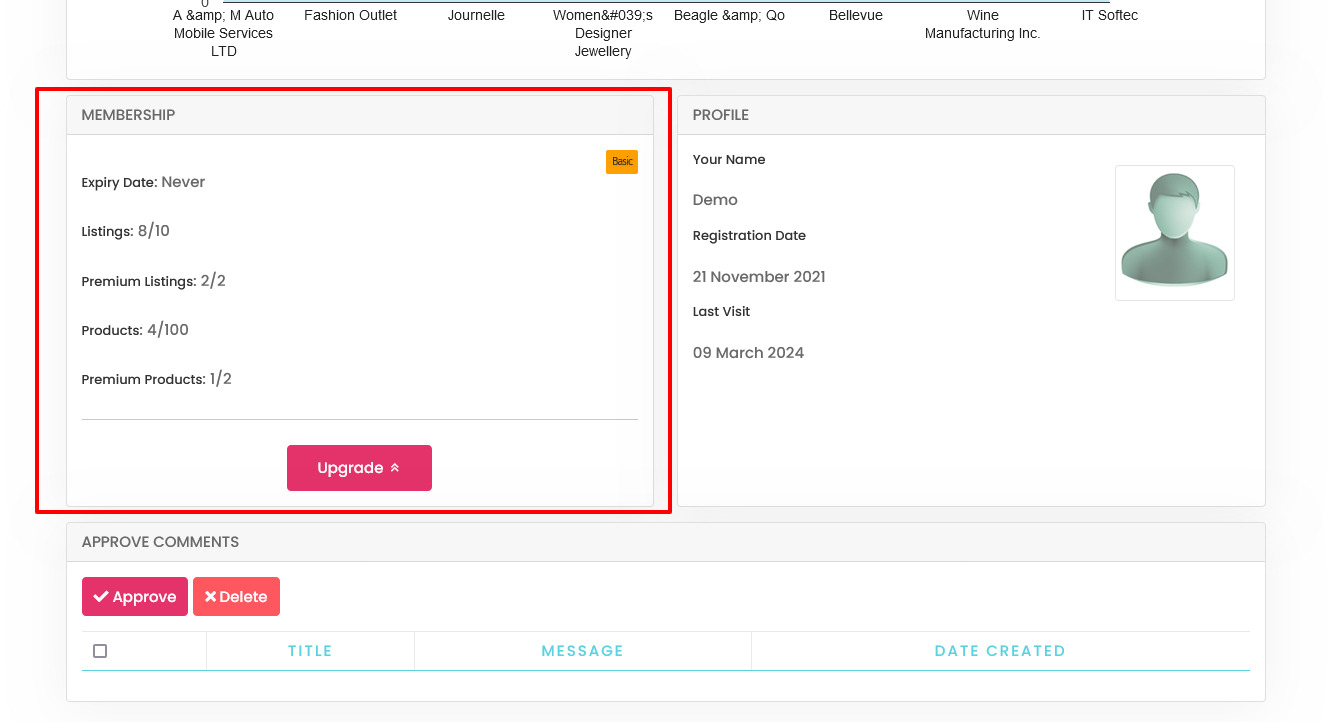
The following screen shows the Membership details for the user.
[](https://wiki.comdev.eu/uploads/images/gallery/2024-03/CHLobraz.png)****
**Screen 1: Membership details**
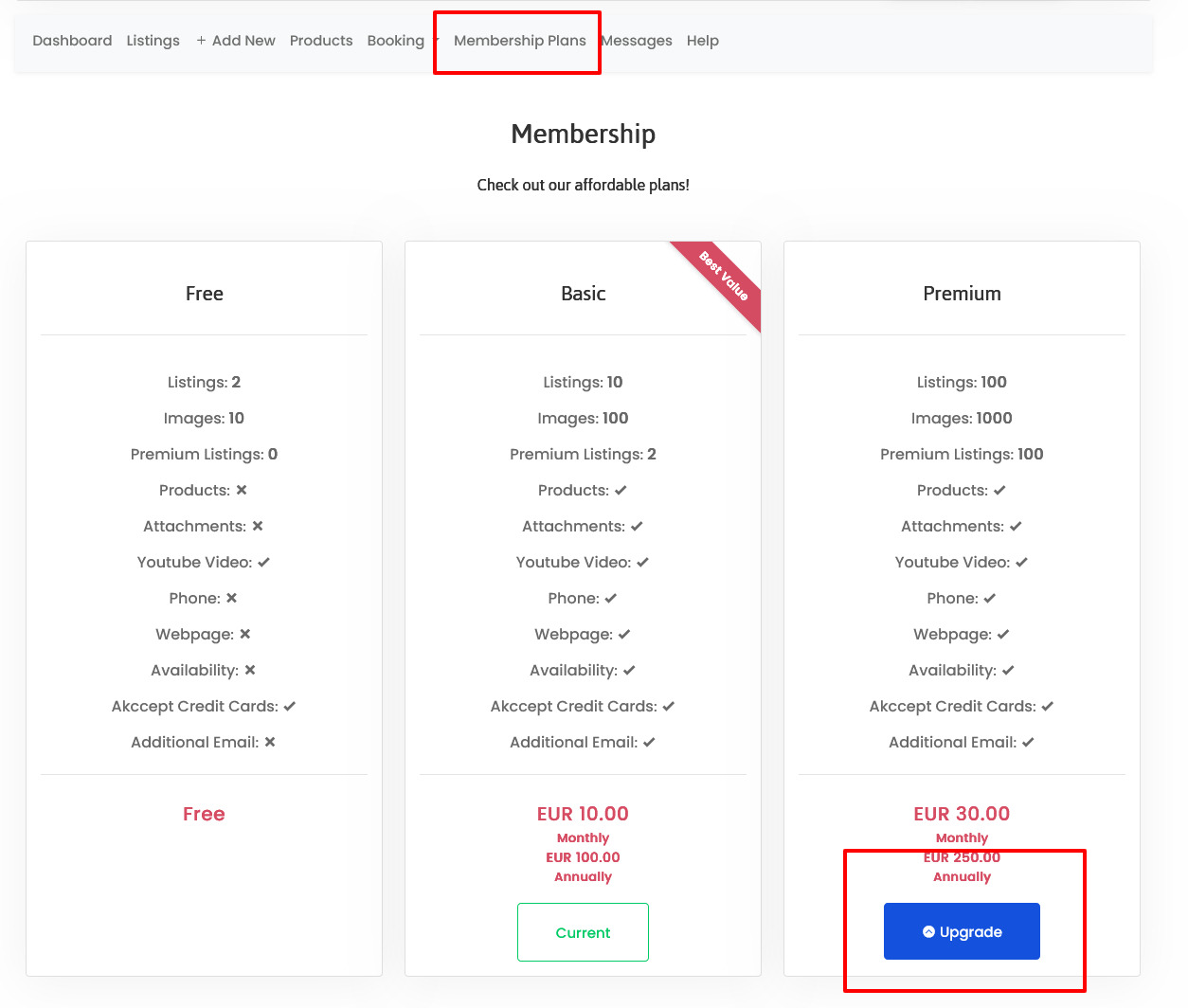
To upgrade the user membership plan you can either click **Upgrade** or click the Membership tab on the Front Admin page. The membership plans that are available for upgrade are shown as seen in the following image.
[](https://wiki.comdev.eu/uploads/images/gallery/2024-03/Rx1obraz.png)****
**Screen 2: Membership plans**
Click **Upgrade** to upgrade to the higher plan. You can then select an appropriate mode of payments and complete the transaction.
To see the Upgrade button for any plan, ensure that you have configured PayPal or other payment gateway details. For more information, see [PayPal Configuration](https://wiki.comdev.eu/books/installation-requirements-language/page/paypal-configuration "PayPal Configuration").
# Listings Messages
{{@111}}
# Profile & Settings (User Profile)
### Overview
After creating a user, a user can edit his profile details such as password, email address, language settings, timezone settings, and much more.
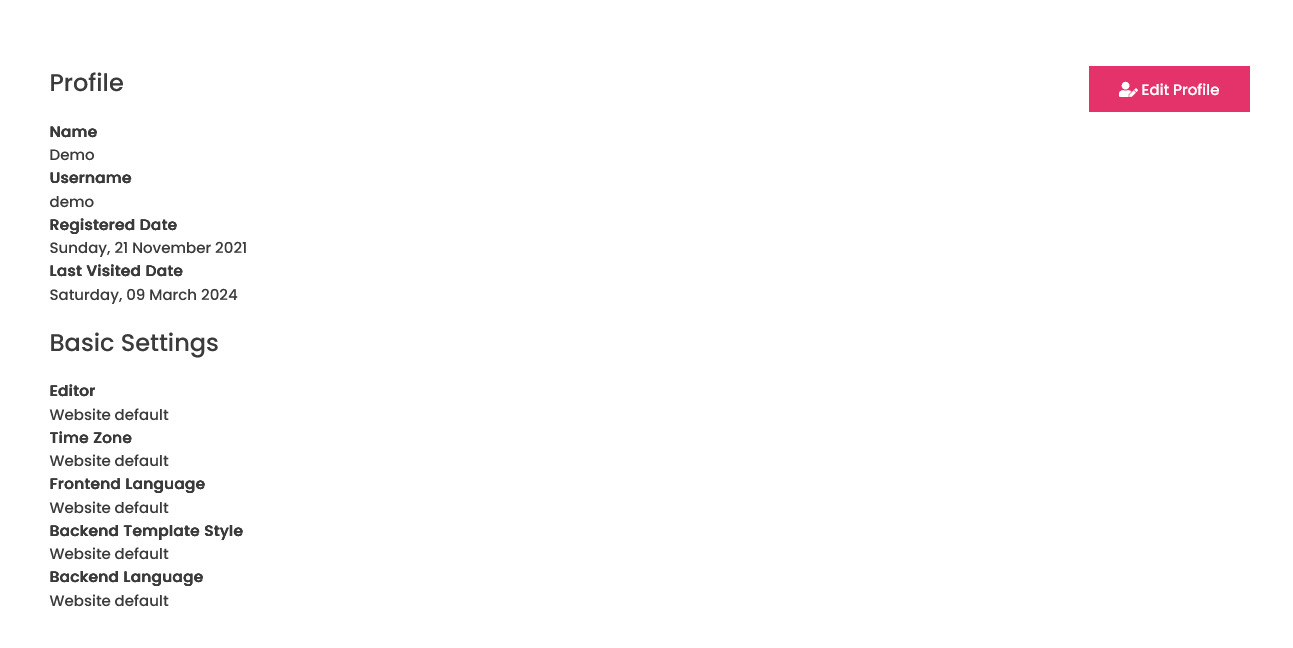
To edit your profile, from the Front Admin, click **Profile** as shown in the following screen.
[](https://wiki.comdev.eu/uploads/images/gallery/2024-03/vProbraz.png)****
**Screen 1: Profile screen**
### Editing a profile
On the Profile screen, click **Edit Profile** as shown in the following screen.
Provide the values as given in the following table.
##### Edit Your Profile
**Name**
Provide a name.
**Username**
Cannot be edited.
**Password**
Provide a new password.
**Confirm Password**
Confirm the new password.
**Email Address**
Provide a new email address.
**Confirm email Address**
Confirm the new email address.
##### Basic Settings
**Editor**
Select one of the following:
- Editor – CodeMirror
- Editor-none
- Editor-TinyMCE
**Timezone**
Select a timezone.
**Frontend language**
Select the required language for front end.
**Backend Template Style**
Select from the available templates or keep as default.
**Backend language**
Select the required language for back end.
**Help Site**
Select from the available Help site options for your required language.
##### Additional Options
**Logo**
Additional fields defined in User - profile Joomla plugin
To save the settings you changed, click Submit. If you click the **Settings** link on the Front Admin screen, it will take you to the **Edit Profile** page.
# Modules
# Latest Items Module
### Overview
Modules are extensions that assist in creating blocks of information on your site. They aggregate information from components and can be placed in predefined positions on the page based on your Joomla template.
### JomDirectory Latest module
This module helps you create the panel where latest listings are displayed. You can decide where to position the latest panel on the page and also control on which pages the panel should appear. To view all the available modules, click **Extension** > **Module Manager**. The modules available are listed as seen in the following image.
### Editing the JomDirectory Latest module
To edit the module, click on the module link or select the checkbox next to the module name, and then click **Edit**.
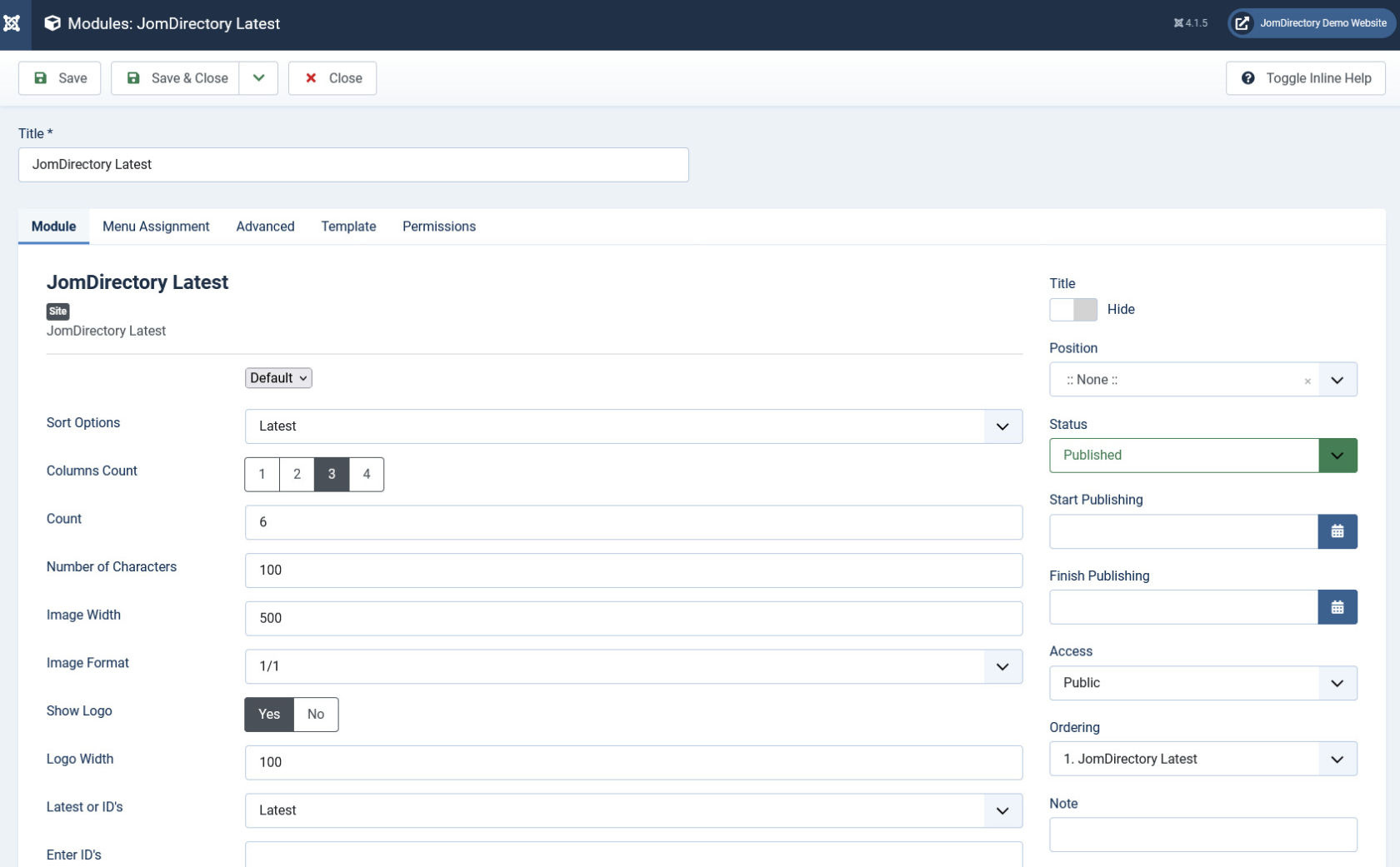
The following image shows the module edit screen.
#### Module tab
This tab controls the layout where the latest listings panel is to be displayed on the screen.
[](https://wiki.comdev.eu/uploads/images/gallery/2024-03/SUNobraz.png)
**Screen 8: Module tab**
Provide the options as per the following table.
**Layout**
Select the required layout in the Layout field. The available options are:
- Slider – Displays the latest listings in the form of a slideshow.
- Default –Displays the latest listings in the default format.
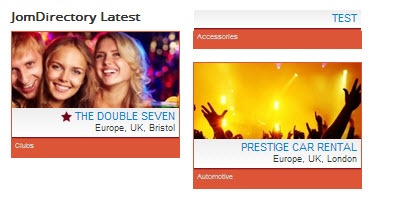
- Grid – Displays the latest listings in a grid format.
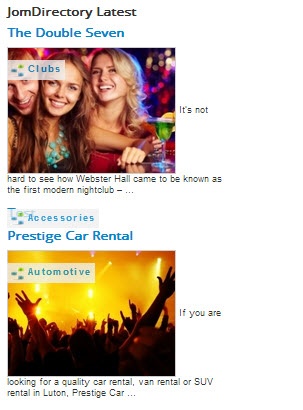
- Clean - Displays the latest listings in a clean format
**Columns count**
Number of columns of listing that should be listed in the panel
**Count**
Number of listings that should be listed in the panel.
**A number of Characters**
Number of characters that will be displayed in the short description for listing thumbnail.
**Image Width**
Provide the image width for the thumbnail image.
If Slider Layout set, image width must be the same size than Slider Width or larger.
**Image Format**
The format for the thumbnail listing image.
1:1 = Image will be unchanged.
4:3 = image will be resized to 4:3 format.
10:9 = Image will be resized to 10:9 format.
**Latest or IDs**
Select how you want the listings to be displayed as:
- Latest
- IDs
**Enter IDs**
If ID is selected in the column above, mention the starting ID of the listing.
**Featured**
Enable to show only featured listings.
**Show Address**
Enable to show the address of the listing.
**Show Description**
Enable to show the description up to the character limit set.
**Category**
Enable either of the following options.
- Current Browse (auto) – Automatically displayed based on the category.
- Selected Below – Listings belonging to only these categories are shown.
**Choose Category**
If Selected Below is selected for the above field, select the required category.
**Sort Options**
Select how the displayed listings should be sorted by.
- Latest
- Most Viewed
- Alphabetically
- Updated
- Most Rated DESC
- Most Rated ASC
**Slider Settings**
Heading
**Slider Width**
Slider width in pixels
**Slider Height**
Slider height in pixels
**Slide Delay (seconds)**
Slideshow delay in seconds
**Slider Shadow**
Enable to provide the shadow effect.
**Slider Thumbs**
Enable to show image thumbnails
**Slider Caption**
Enable to show the image caption.
**Show Title**
Show or hide the title for the search panel.
**Position**
Select the position based on your Joomla Template.
**Status**
Select from the given options.
- Published
- Unpublished
- Trashed
**Start Publishing**
Provide a date when the latest listings panel should be published.
**Finish Publishing**
Provide a date when the latest listings panel should be unpublished.
**Access**
Provide access level for the panel.
- Guest
- Public
- Registered
- Special
**Ordering**
Provide the order in which the side panel should appear. If more than one module is positioned at the same location, you can set the order of appearance in this field.
**Language**
Select the language for which you want to display this panel. For each language, you must create a new JomDirectory Latest module.
**Note**
Provide additional information.
#### Menu Assignment tab
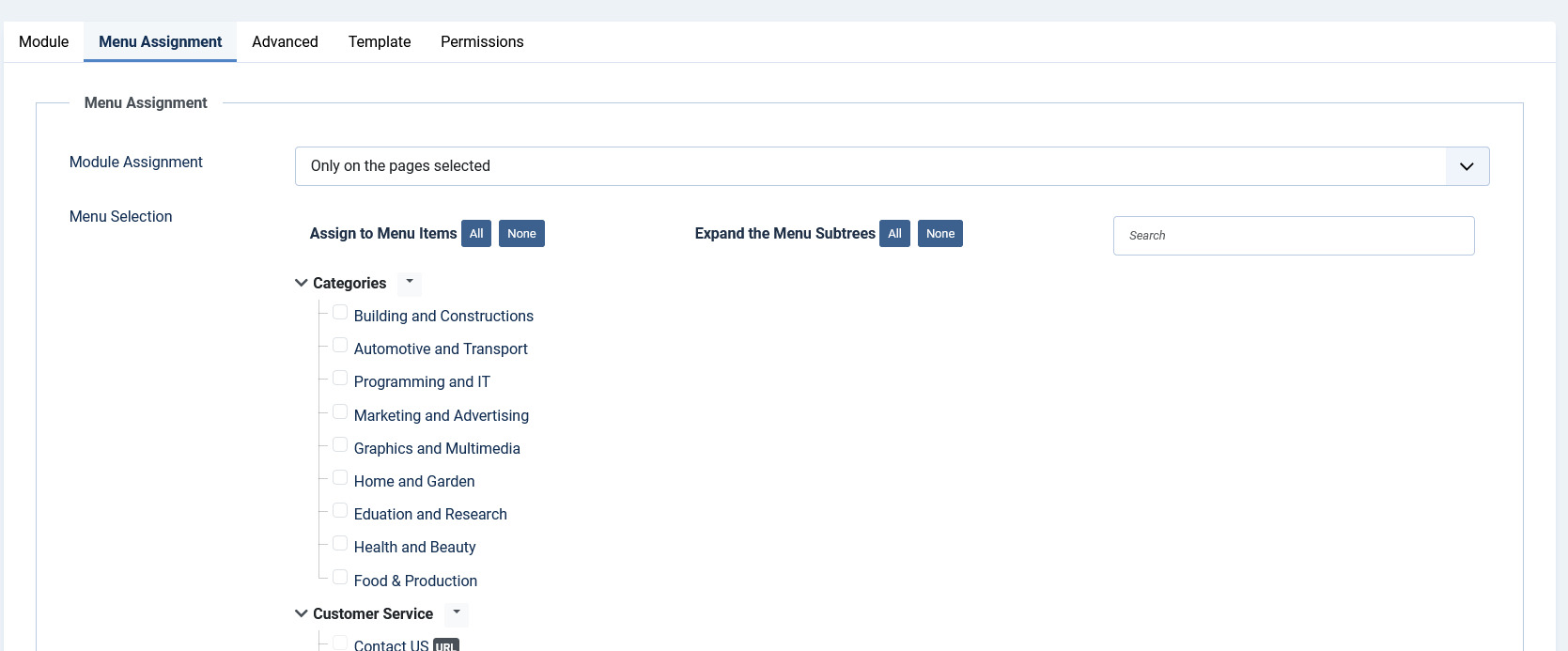
This tab controls where the module should be displayed. You can decide if it should be displayed on all pages for the site or just selective pages.
[](https://wiki.comdev.eu/uploads/images/gallery/2024-03/ss4obraz.png)
**Screen 9: Menu Assignment tab**
Select the required menu for module assignment. The available options are:
- On all pages
- No pages
- Only on the pages selected
- On all pages except those selected
# Search Module
### JomDirectory Search module
This module helps you create the search panel with fields that are searchable. All the fields that are defined as searchable during creation can be seen on this panel. You can decide where to position the search panel on the page and also control on which pages the panel should appear. To view all the available modules, click **Extension** > **Module Manager**.
To create a new module, click **New**. Select the JomDirectory Search module. Provide the information as given in the following sections. Click **Save** to save the module.
### Editing the JomDirectory Search module
To edit the module, click on the module link or select the checkbox next to the module name, and then click **Edit**.
The following image shows the module edit screen.
#### Module tab
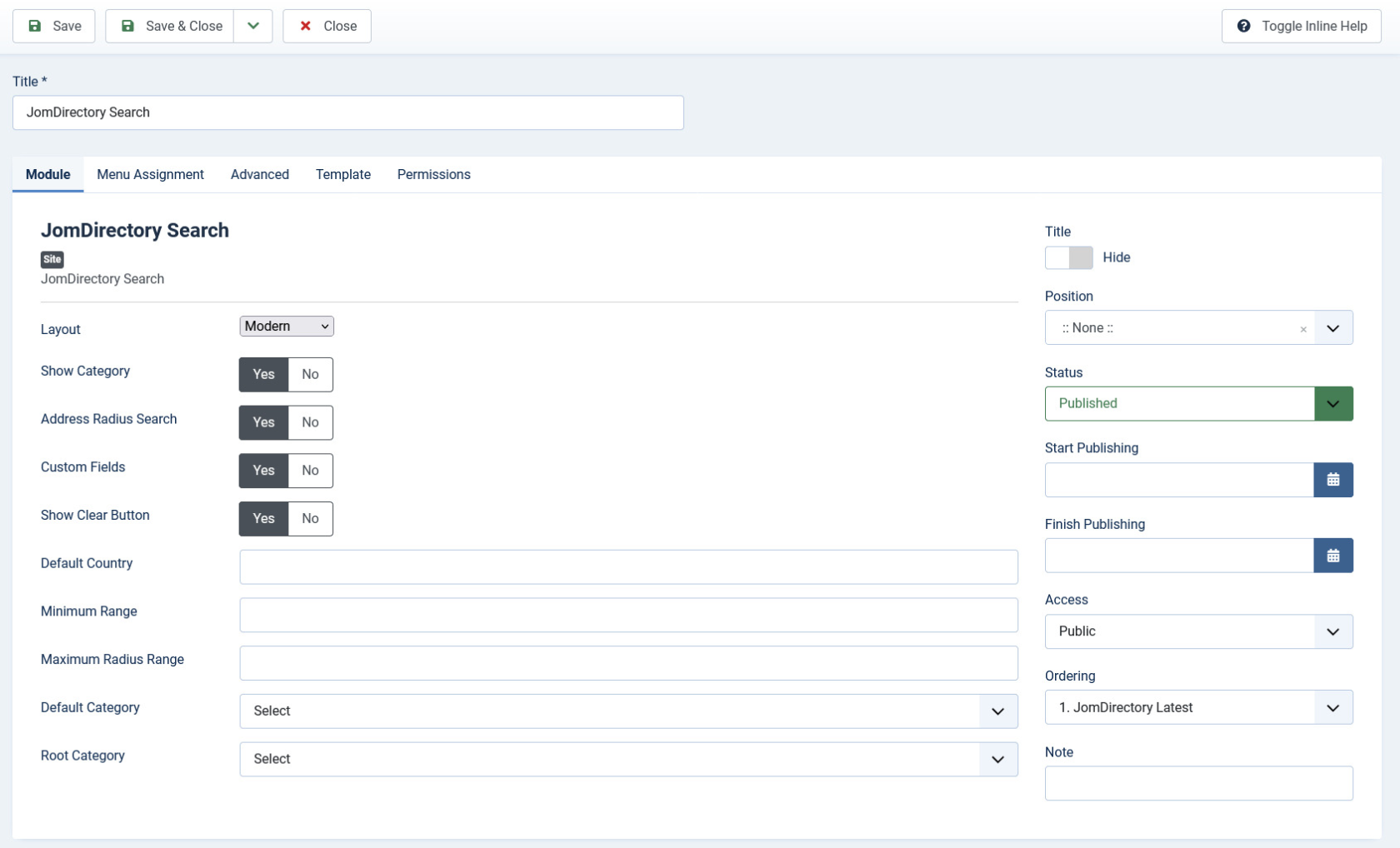
This tab controls the layout where the search panel is to be displayed on the screen
[](https://wiki.comdev.eu/uploads/images/gallery/2024-03/siqobraz.png)
**Screen 3: Module tab**
Provide the options as per the following table.
**Layout**
Select the required layout in the Layout field. The available options are:
- Horizontal – Horizontal Keyword field, category and address search field as seen in the following image:

- Side Search – Vertical Side panel to filter search results as seen in the following image:
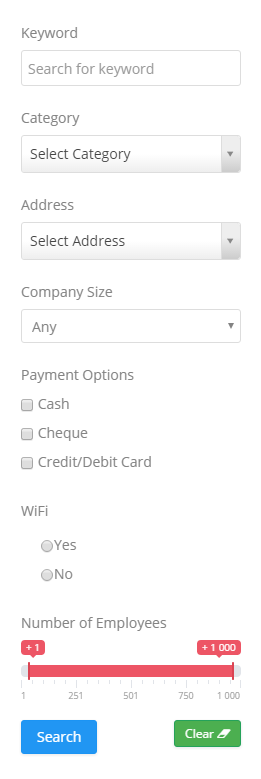
Custom fields that have the Field can be Searched field enabled are seen in this panel. For more information, see [Custom Fields](https://wiki.comdev.eu/books/jomdirectory/page/custom-fields "Custom Fields") in the Administrative Guide.
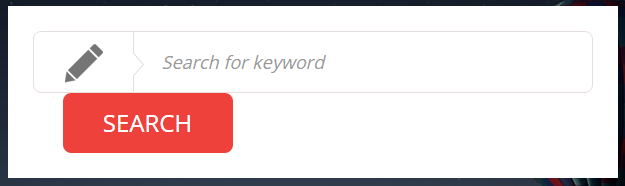
- Modern Search – Single keyword search field as seen in the following image:
**Show Address**
Hide or Show the address field in the frontend
**Show category**
Hide or Show category selection in the frontend
**Custom Fields**
Select if search should process custom fields
**Default category**
Select a default category that will be preselected in the frontend
**Show Title**
Show or hide the title for the search panel.
**Position**
Select the position based on your Joomla Template.
**Start Publishing**
Provide a date when the search panel should be published.
**Finish Publishing**
Provide a date when the search panel should be unpublished.
**Access**
Provide access level for the panel.
- Guest
- Public
- Registered
- Special
**Ordering**
Provide the order in which the side panel should appear. If more than one module is positioned at the same location, you can set the order of appearance in this field.
**Language**
Select the language for which you want to display this panel. For each language, you must create a new JomDirectory Search module.
**Note**
Provide additional information.
#### Menu Assignment tab
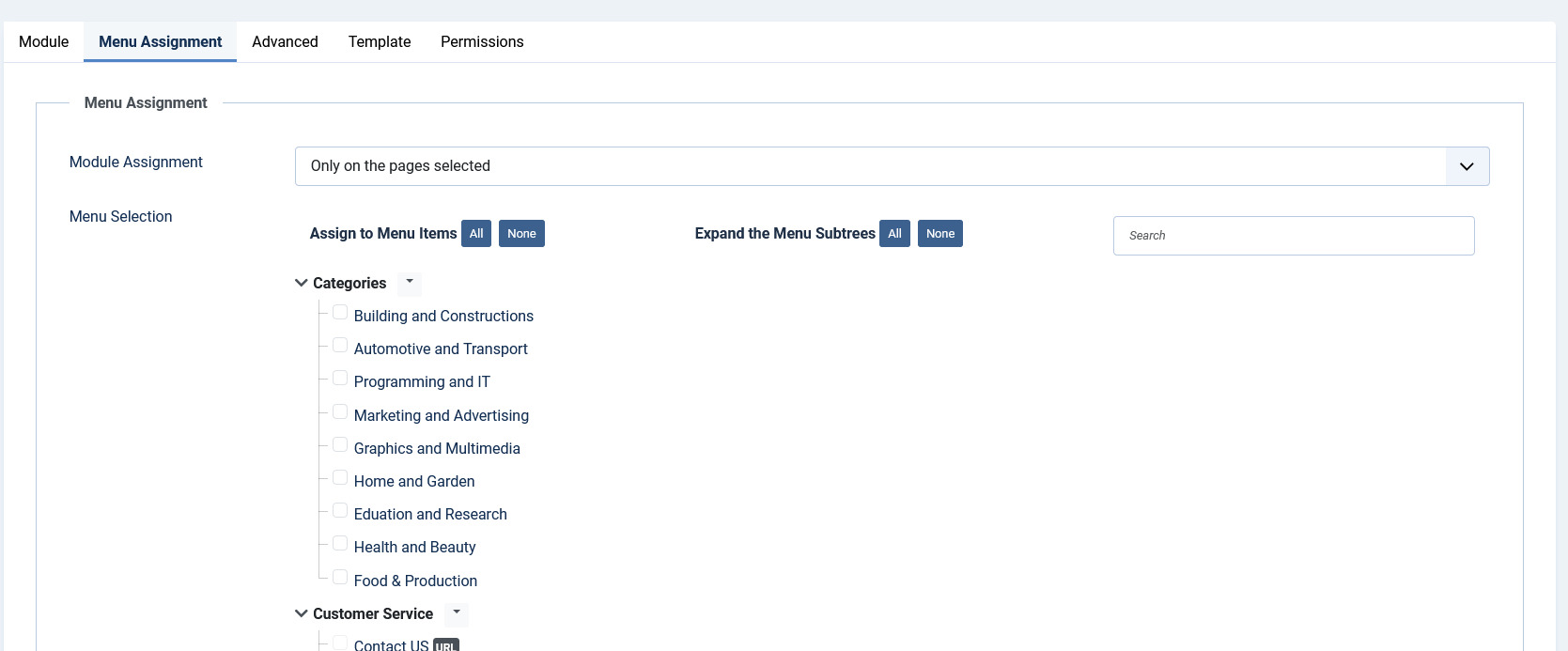
This tab controls where the module should be displayed. You can decide if it should be displayed on all pages for the site or just selective pages.
[](https://wiki.comdev.eu/uploads/images/gallery/2024-03/VpMcljobraz.png)
**Screen 4: Menu Assignment tab**
Select the required menu for module assignment. The available options are:
- On all pages
- No pages
- Only on the pages selected
- On all pages except those selected
# Shopping Cart Addon Module
JomDirectory includes a shopping cart and checkout, so users can purchase items straight from your product catalogue. Shopping cart addon extends Products functionality by adding possibility to purchase products directly on the list or from the product details page. When addon is installed a new section Orders will appear where all purchases are being logged and also Order status can be changed.
### Installing the Shopping Cart Module
The shopping cart module does not need to be installed in order for users to be able to make purchases. However, it does make it easier for users to keep track of their purchases and navigate to checkout.
Start by downloading the shopping cart module. Once downloaded, [install the module using Joomla's Extension Manager](https://docs.joomla.org/Installing_an_extension). Atlernatively, you can [install directly from the web](https://docs.joomla.org/Install_from_Web).
### Configuring JomDirectory's Checkout
The first thing you must do is enable JomDirectory's checkout otherwise users will not be able to add items to the shopping cart and checkout those items for purchase.
To configure JomDirectory's checkout:
1. Log into the Joomla! administration control panel then navigate to the JomDirectory dashboard (Components -> Directory),
2. Click on the **Options** button (top right corner),
3. Select **Product** from the list of tabs,
4. Change **Enable Cart** to **Yes**,
5. **Save & Close**.
### Configuring the Module
Once the JomDirectory shopping cart module has been successfully installed, you will need to configure, position and publish it.
The JomDirectory shopping cart is just like any other module and so many of the configuration options will look familiar. Go through the options and configure it to you liking. In particular, configure the position and menu assignment and make sure that **Status** is set to **Published**.
IMPORTANT: Cart module should be assigned on all menus related to products!
### Adding a Checkout Menu Item
If you have enabled the shopping cart module, you **MUST create a shopping cart checkout page menu item** otherwise the **View Cart** button will not work.
To create a new menu item for the JomDirectory's cart and checkout:
1. Log into the Joomla! administration control panel if you haven't already,
2. Navigate to the Menu Manager (Menus -> All Menu Items or select the menu you wish to add the item to),
3. Click on **New**,
4. Specify a menu item of "**Shopping Cart**",
5. Configure your menu item to your liking,
6. **Save & Close**.
If you are unfamiliar with Menu Manager check out [Joomla!'s menu management documentation](https://docs.joomla.org/Help36:Menus_Menu_Manager).
### Configure Shipping Providers
Shipping Providers can be configured under custom fields. To create a new shipping provider, access Product custom fields, click create new, field type input and choose **group shipping**. Once saved it will be available under Product custom fields.
### Configure Online and Offline payments.
1. Log into the Joomla! administration control panel then navigate to the JomDirectory dashboard (Components -> Directory),
2. Click on the **Options** button (top right corner),
3. Select **Payments** from the list of tabs,
4. Configure online and if needed offline payments
5. **Save & Close**.
### Purchasing a Product
On the frontend, navigate to Product Search or Product Filter; you should now see a cart icon against each product. Click on it, and the product will be added to your shopping cart. Once you have completed your purchase, click on **View Cart**. You will be redirected to your shopping cart where you will be able to purchase your items using JomDirectory's checkout process.
#### That's it! You're ready to start selling your goods.
# Live Search Maps Module
{{@132}}
# Slideshow PRO Module
{{@133}}