# Reviews
### Overview
Reviews are provided by users and can be seen on the Reviews tab in the listing.
### Creating Reviews Categories
Review categories can be seen on the Reviews tab in the listing to the user when they are adding a review for that listing as seen in the following image.
[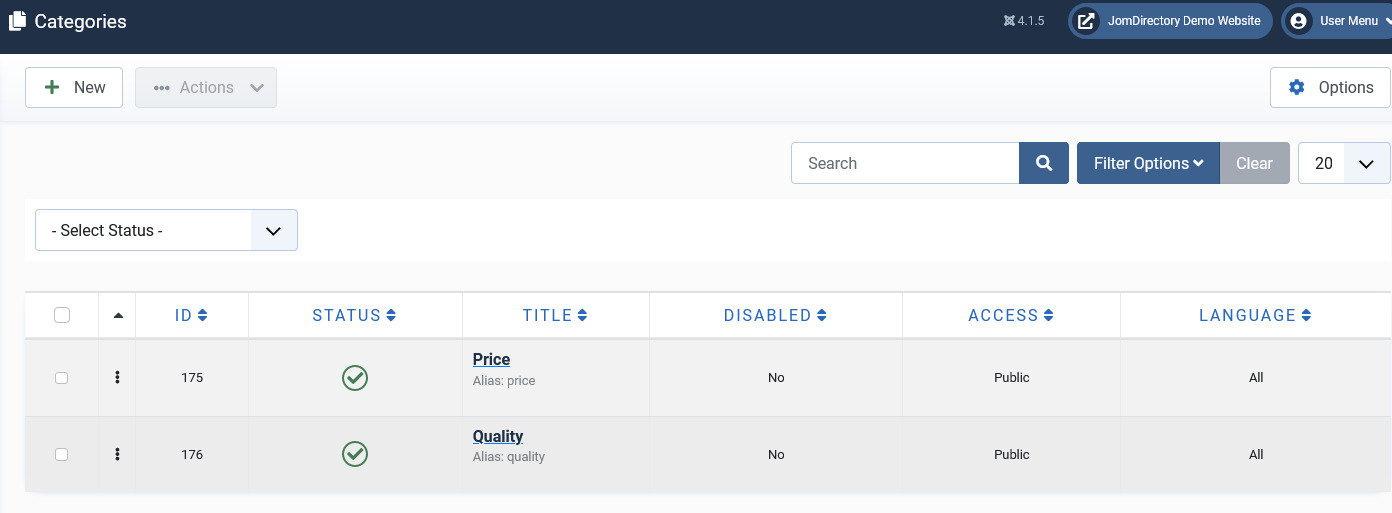](https://wiki.comdev.eu/uploads/images/gallery/2024-03/gp0obraz.png)
**Screen 1: Reviews Category screen**
Click on category type to edit it:
[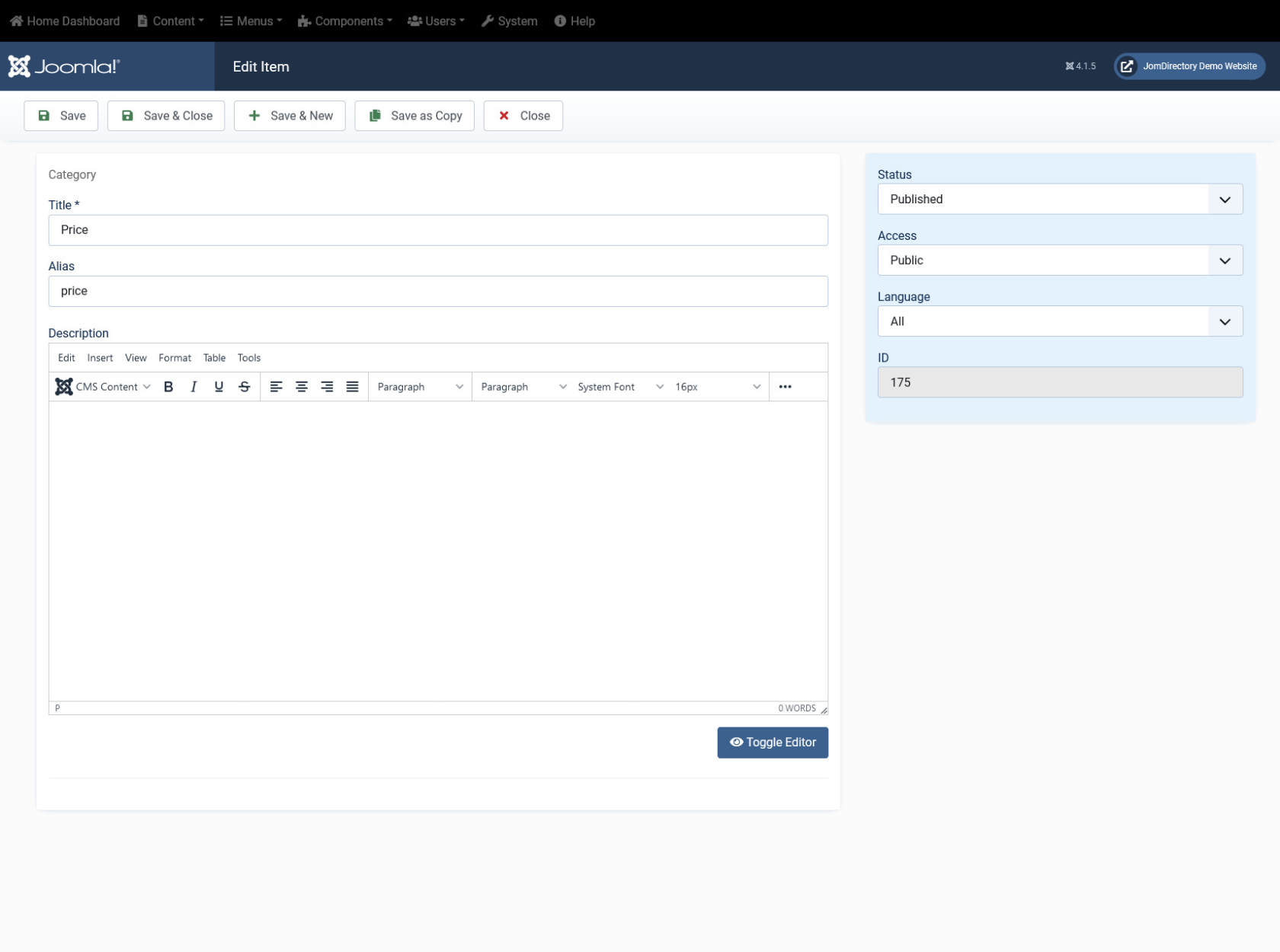](https://wiki.comdev.eu/uploads/images/gallery/2024-02/siQobraz.png)
**Screen 2: Add a category for review on listing page**
### Creating Reviews Recommended
Review recommended can be seen on the listing details Reviews tab in the listing to the user when they are adding a review for that listing as seen in the following image.
[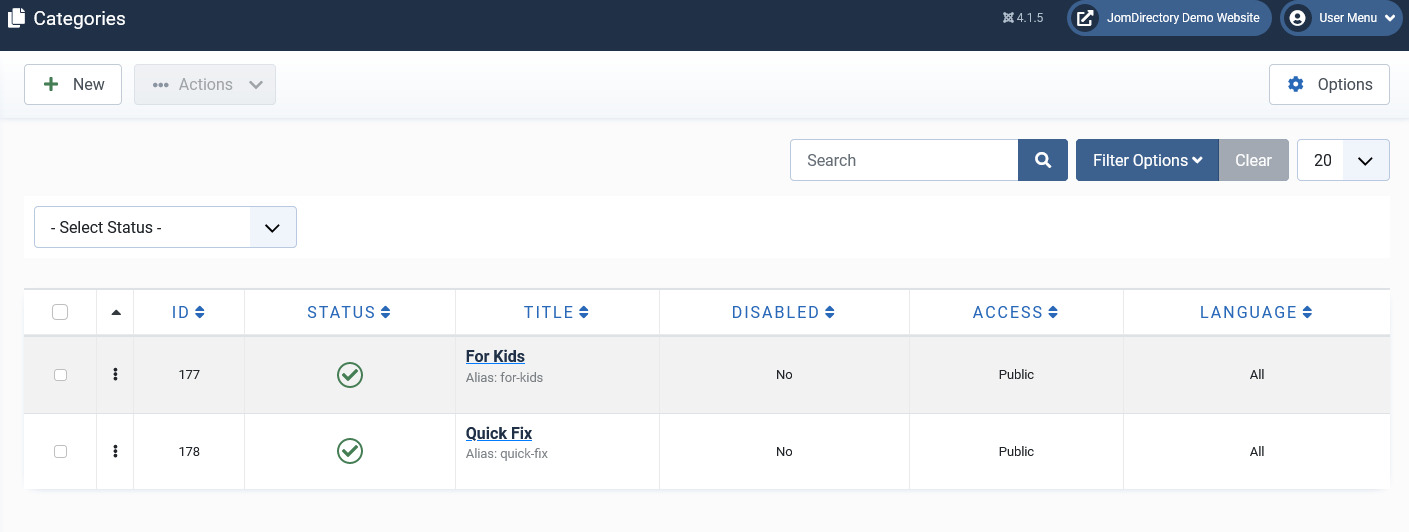](https://wiki.comdev.eu/uploads/images/gallery/2024-03/NMwobraz.png)
**Screen 3: Reviews Recommended screen**
Click on category type to edit it:
[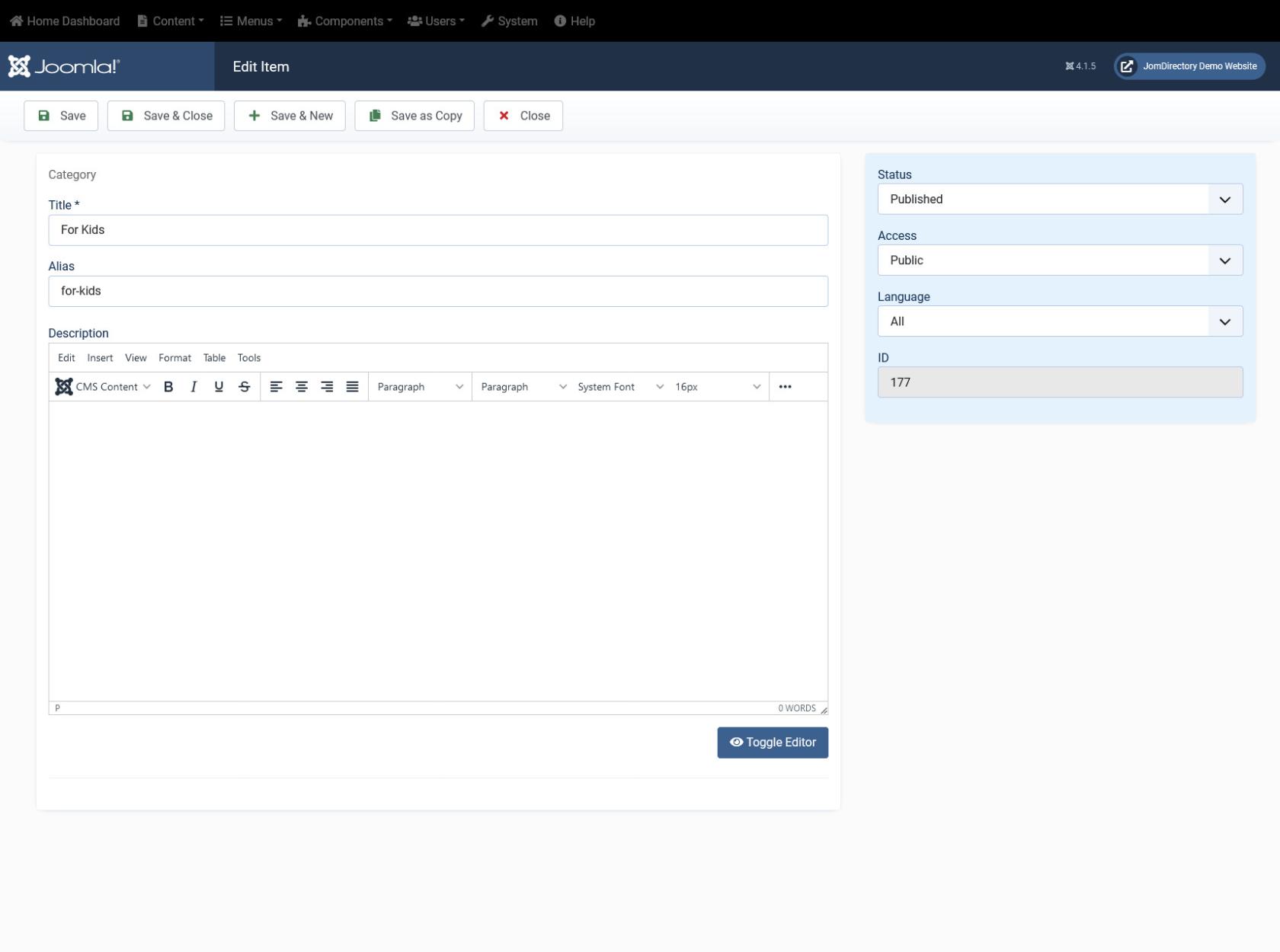](https://wiki.comdev.eu/uploads/images/gallery/2024-02/vRZobraz.png)
**Screen 4: Review Recommended on Listings page**
Note: If the reviews are not being shown after submission on the listing page, you must enable Approve Reviews option under component Configuration. For more information. See [Configuration](http://confluence.comdev.eu/display/JD2/Configuration) documentation.
### Adding a Review for listings
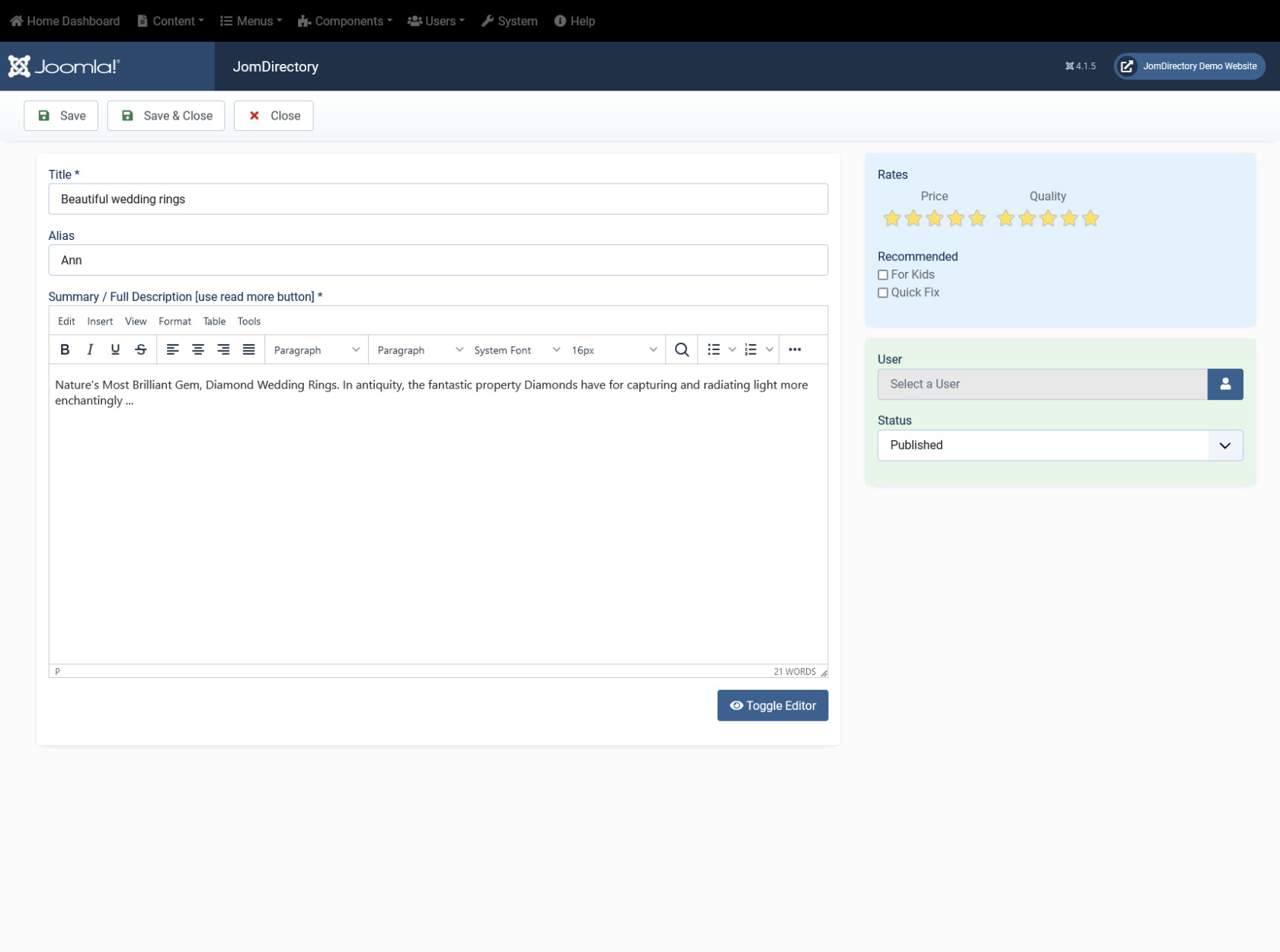
After these categories and review recommendation types are added, you can now create a review. To create a review, go to the listings page and click the Reviews tab. Provide the options as seen in the following image:
[](https://wiki.comdev.eu/uploads/images/gallery/2024-02/Lhmobraz.png)
**Screen 5: Adding a Review**
After you provide the information, click Submit Review. The Review can now be seen in the listings page, under the Reviews tab.
### Editing a review
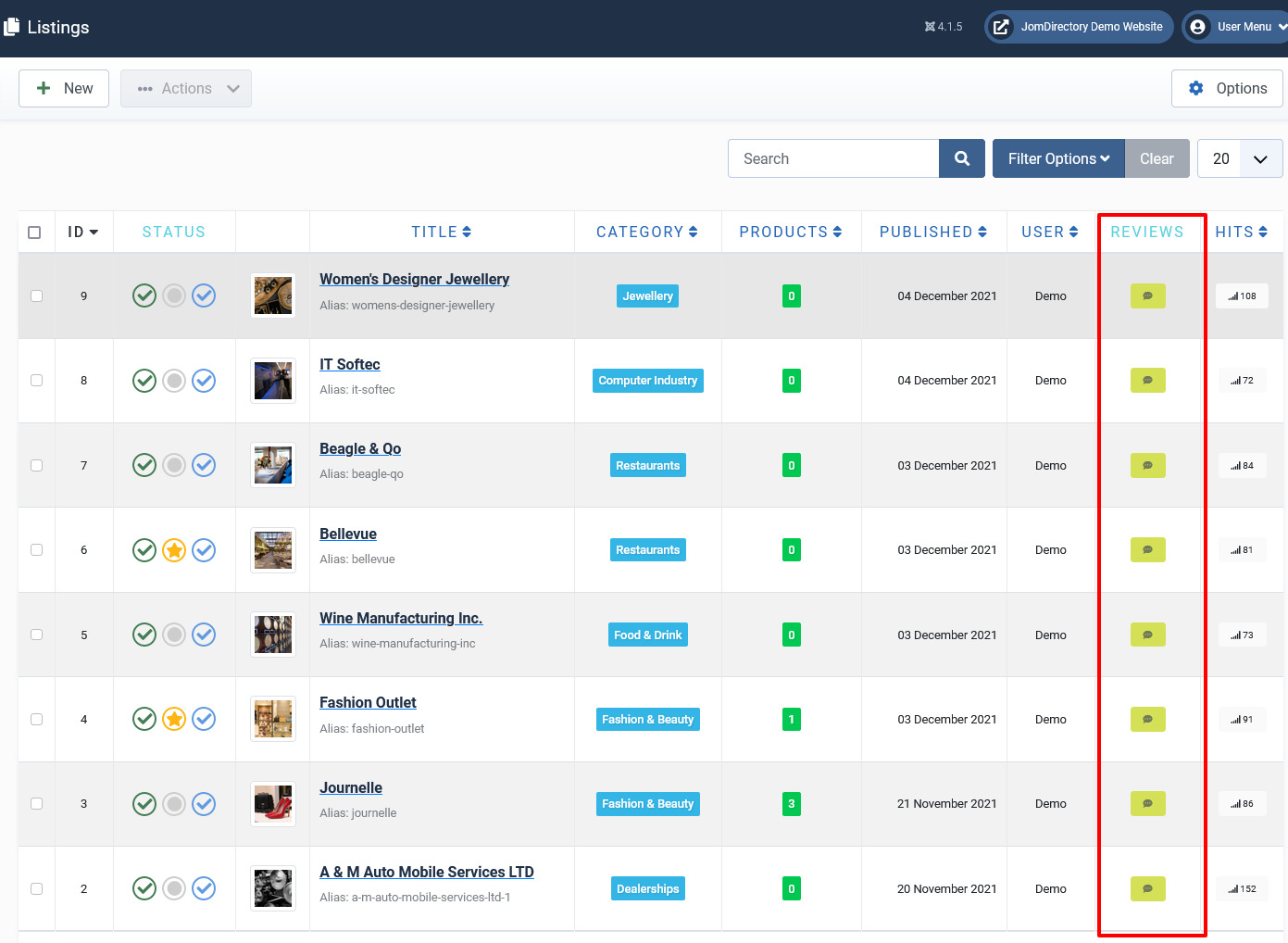
Now, you can view the review and edit it, if required. Click **Extension** > **Listings**. The following image shows the **Reviews** column for the listings.
[](https://wiki.comdev.eu/uploads/images/gallery/2024-03/rcjobraz.png)
**Screen 6: View the Review column**
Click the  Review icon to view all the reviews for a listing.
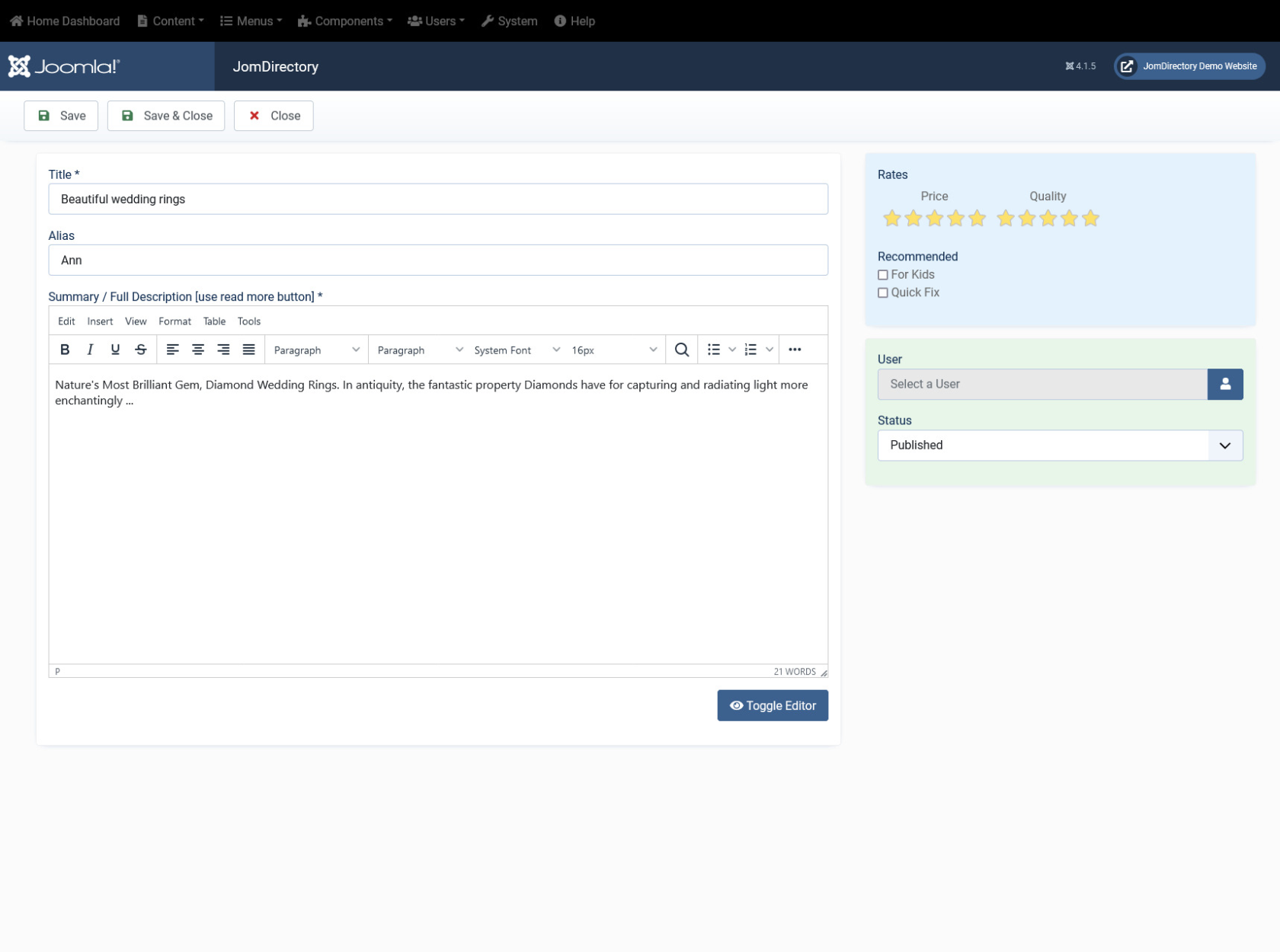
Now click on the review title to edit it:
[](https://wiki.comdev.eu/uploads/images/gallery/2024-02/L4Nobraz.png)
**Screen 7: Editing a review**
Edit the options as given in the following table.
### Review on front page
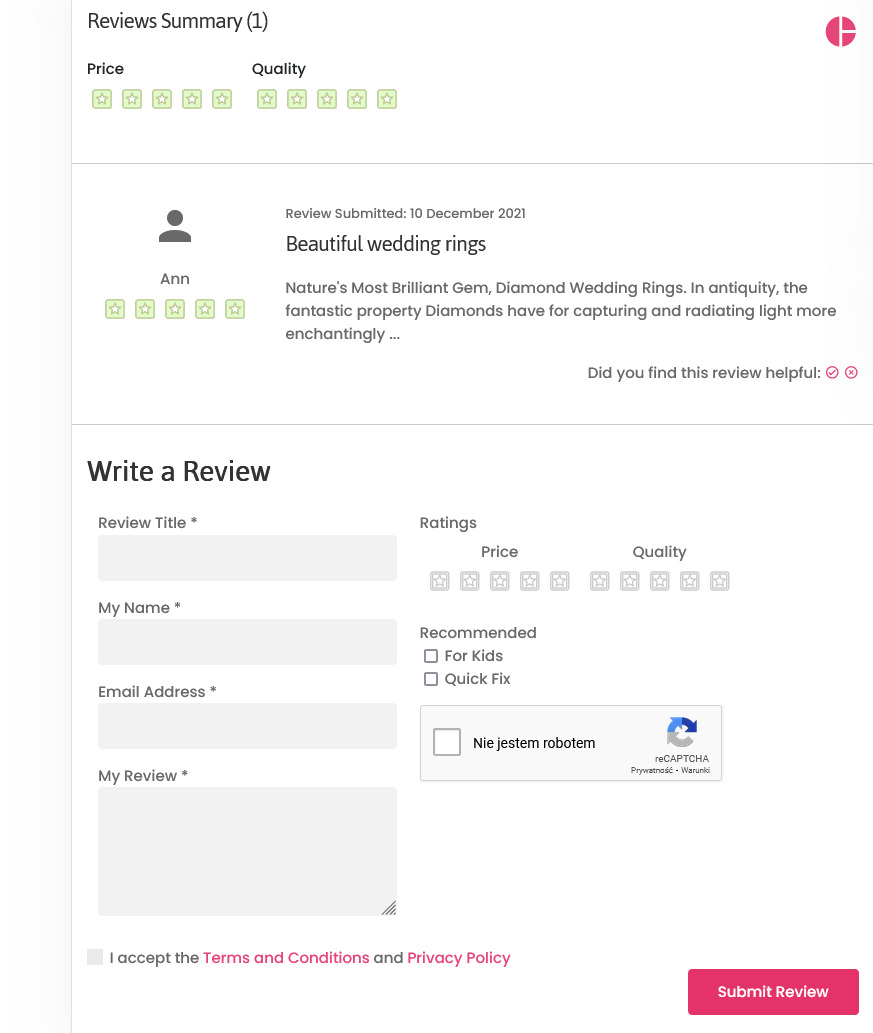
After these types are added, when a user is writing a review, the options are seen as follows:
[](https://wiki.comdev.eu/uploads/images/gallery/2024-03/g0Yobraz.png)