# New Installation
### Website Domain
The site where a component has been installed should be installed in domain or sub-domain ( a root of the site), otherwise, some images may be not displayed e.g. map markers.
Install on **Domain/Subdomain** rather than the directory:
##### www.site.com/mysite **WRONG**
##### www.site.com **CORRECT**
##### www.mysite.site.com **CORRECT**
### Installation
We recommended using the newest stable release of Joomla version.
If you have already downloaded the extension, unzip it first to a temporary directory. You will see two packages:
- **com\_jomcomdev.zip** (*main framework*)
- **com\_jomdirectory.zip** (J*omDirectory extension*)
Both packages need to be installed but be sure to install **com\_jomcomdev.zip** first
The easiest way to install the extensions is by using the **Upload Package File** option. Just click on the **Choose File** button, and locate the extension.
Once you've selected the correct file, click **Upload File and Install.** Joomla will then automatically extract and install the extension for you.
### Installing from directory
From time to time you may find that the **Upload Package File** option is having a bad day (there's always a reason). If you find yourself in this position, you can either troubleshoot and fix the problem, or you can use the other option Joomla provides to install an extension: **Install From Directory**. To use of this option, you'll need FTP access, or another file access and transfer protocol. Your hosting provider will be able to give you the information you need in order to gain FTP access to your web files. Once you have FTP access, you'll need to upload the zipped extension into the public directory of your Joomla website (generally called **public\_html**).
From here, just provide Joomla with the file location of the extension under **Install From Directory**, and again Joomla will extract and install the extension for you.
Remember to install both packages.
- **com\_jomcomdev.zip** (*main framework*)
- **com\_jomdirectory.zip** (*jomdirectory extension*)
### Creating Administration Menu Links
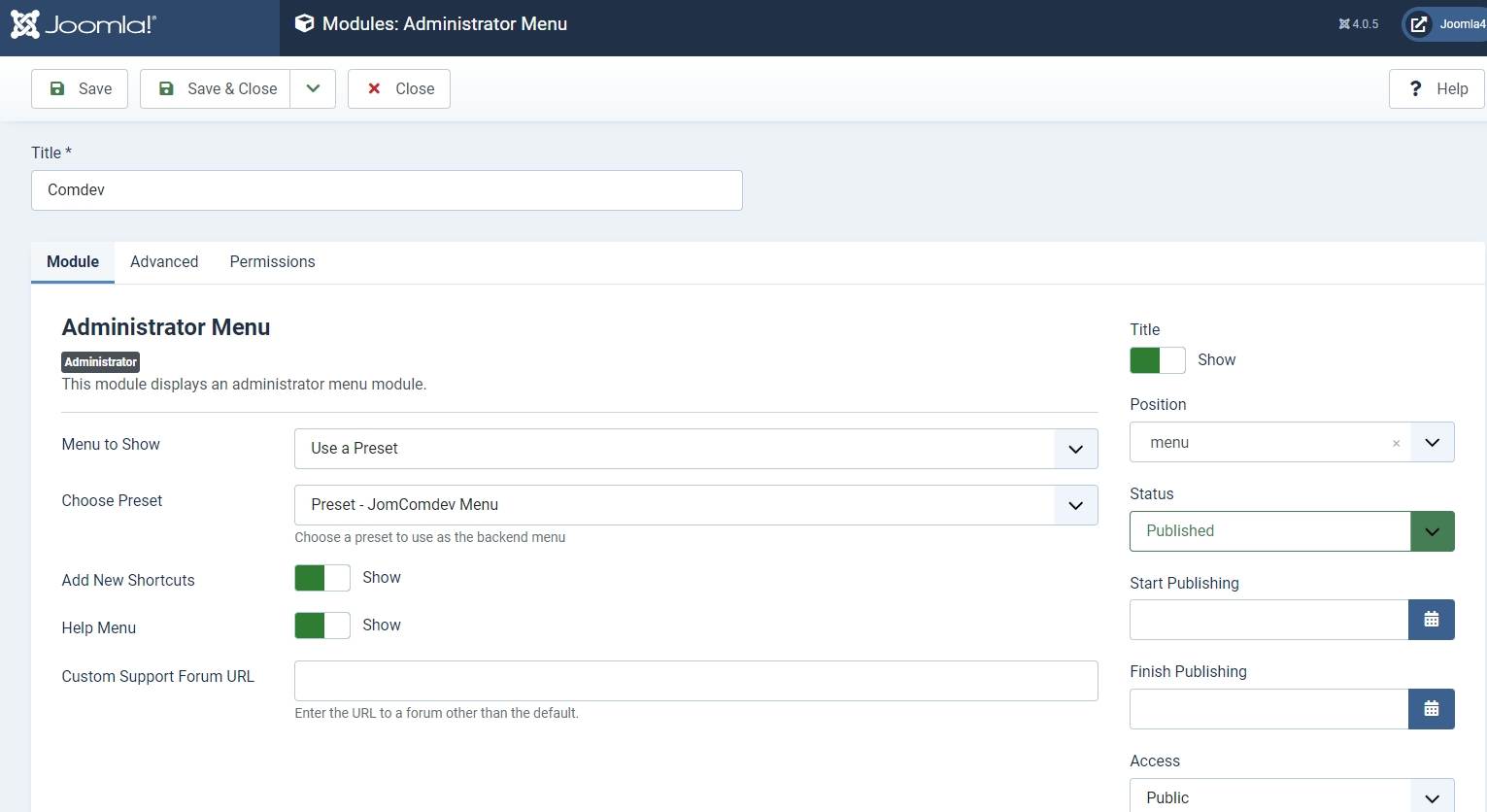
Go to the System -> Administrator modules and insert new. Than choose Administrator Menu. From the presets, select Comdev and place it under menu position. Do the same for the JomDirectory
### .htaccess file
These are step-by-step instructions. Please follow them in the order they are presented here. If a step fails, **do not** continue until you have solved the problem.
1. Rename the file `"htaccess.txt"` in your Joomla!'s base folder to `".htaccess"`.
2. *This step may not be necessary.* Open `.htaccess` in a text editor. Uncomment `RewriteBase /` (remove the first character, #). If Joomla is installed in its own folder, the enter the Joomla folder name after the backslash. e.g. `RewriteBase /yourjoomlafolder`.
3. Log on to your Back-end and open the Global Configuration.
4. Enable the **Search Engine Friendly URLs** option and *Save*. This option converts the URLs from the native Joomla! format to the SEF format.
5. Enable the **Use Apache mod\_rewrite/URL rewriting** option and *Save*. This option uses the Apache *mod\_rewrite* function to eliminate the "index.php" portion of the URL.
(Note:This can in some circumstances stop your Joomla front end working, if it does set back to No)
6. *If you think it's necessary*, enable **Add suffix to URLs** and *Save*. This option adds `.html` to the end of URLs. There are different opinions on whether this is necessary or even useful. Search engines do not seem to care if your URLs end in `.html` or not.
7. Open the Plugin Manager and enable the **System - SEF plugin**. This plugin adds SEF support to links in your Joomla articles. It operates directly on the HTML and does not require a special tag.
### I have problem installing...
Because Extensions is actually quite an advanced componenst, the size of the installer exceeds 2mb which is the default configuration that is set by most hosting companies. If you have problems installing, you might want to try to contact your hosting provider.
If your hosting provider allows you to override the php settings by adding a php.ini file in your document root, containing the following block of code.
```bash
upoad_max_filesize = 12M
post_max_size = 12M
memory_limit = 32M
max_execution_time = 120
```